
Activate Discount box at cart page
Let customers enter an extra discount code on your theme's own cart page, not just the app's cart drawer.
Beyond the app’s cart drawer, you can also add a discount code box to your theme’s own cart page, so customers can apply an additional discount code at checkout.
Steps to manage
Section titled “Steps to manage”-
Turn on the Wholesale cart
Section titled “Turn on the Wholesale cart”Open the app, click Add-on Features, turn on the Wholesale cart toggle, then switch the dropdown next to it from Cart Drawer to Cart Page. “Cart page” refers to your theme’s own cart page — the app itself only provides a cart drawer, but it can add the discount box to your theme’s cart page too.
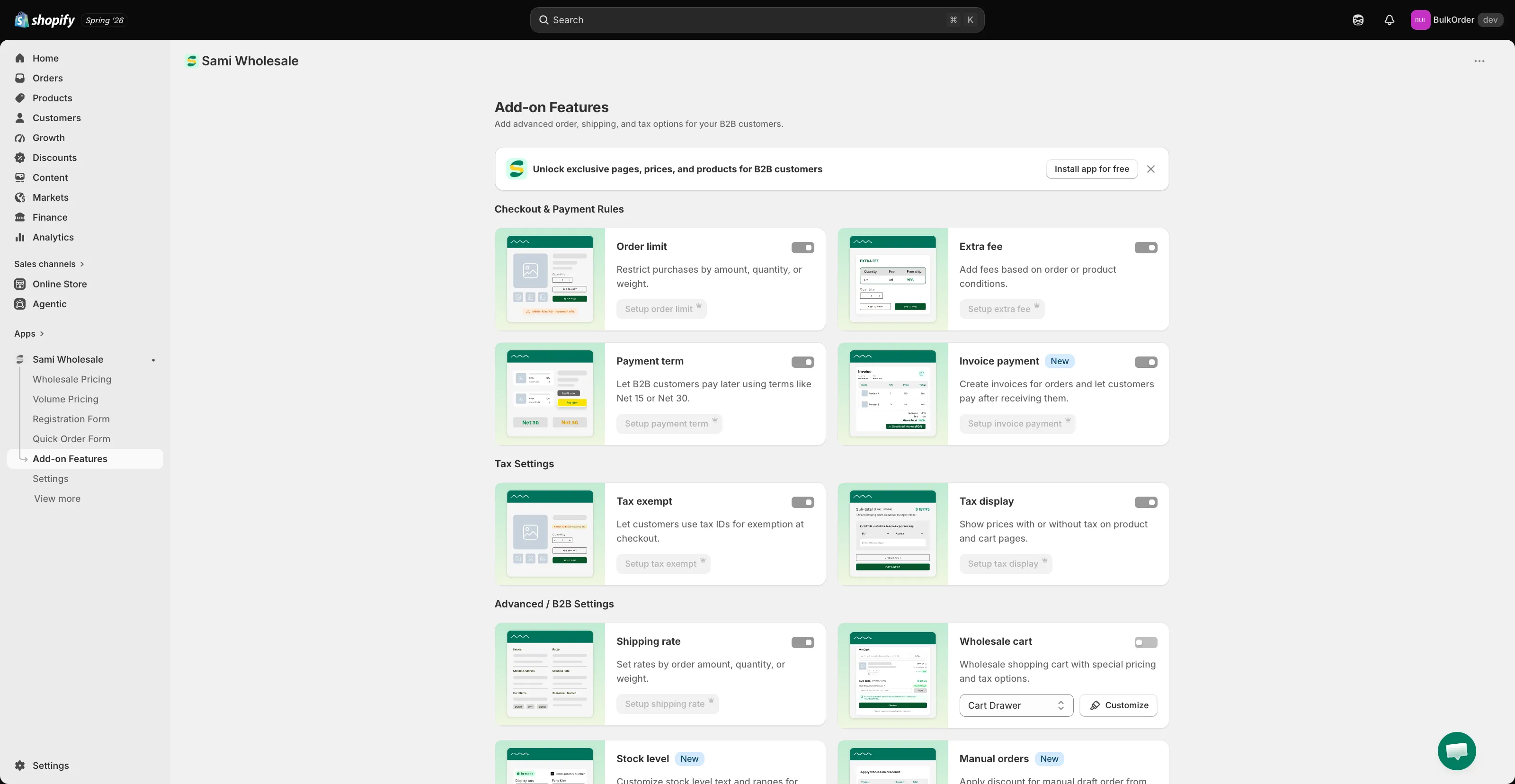
-
Open the editor
Section titled “Open the editor”Click Customize, then click the Appearance tab.
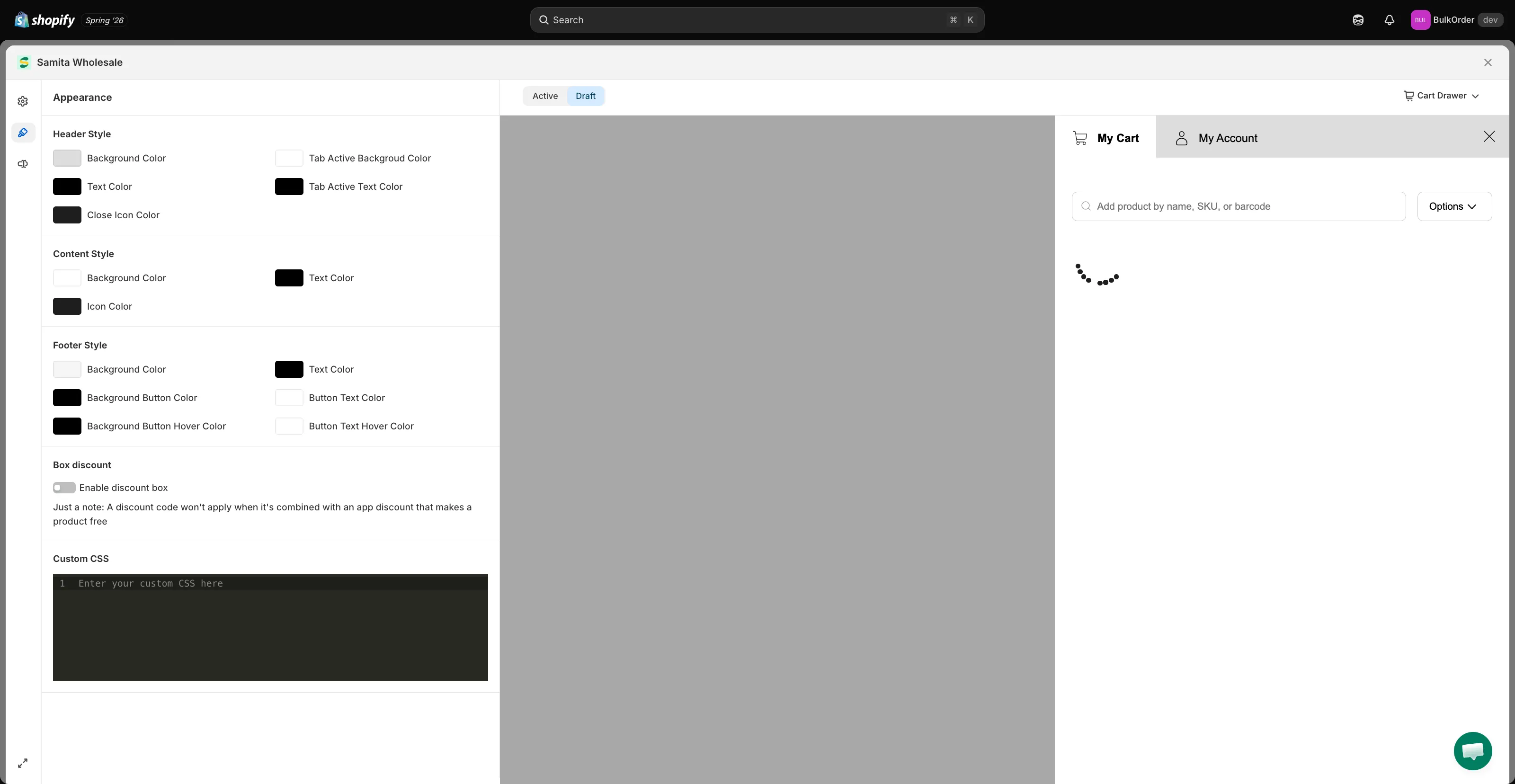
-
Enable the discount box
Section titled “Enable the discount box”Under Box discount, enable Enable discount box so customers can apply an extra discount code at checkout.
-
Click Save in the bar that appears at the top of the page. Your theme’s cart page now shows a discount box field.