
Display product old prices as cross-out prices
Show a product's original price crossed out next to its discounted price, so the savings are obvious.
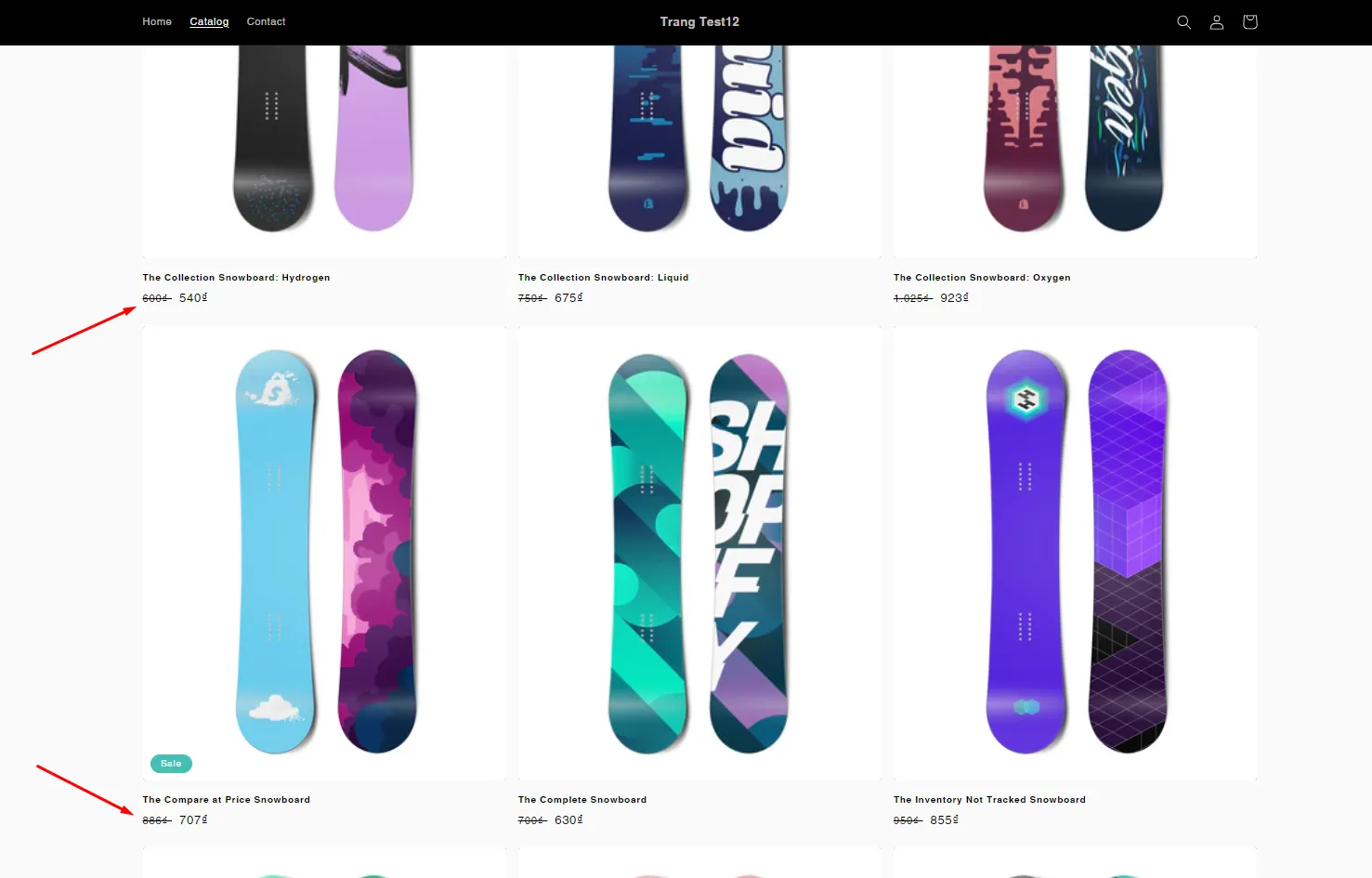
To make a price cut obvious, the app can show a customer’s old price crossed out right next to the new, discounted price.
Steps to manage
Section titled “Steps to manage”-
Open General settings
Section titled “Open General settings”From the app, click Settings, then click General.
-
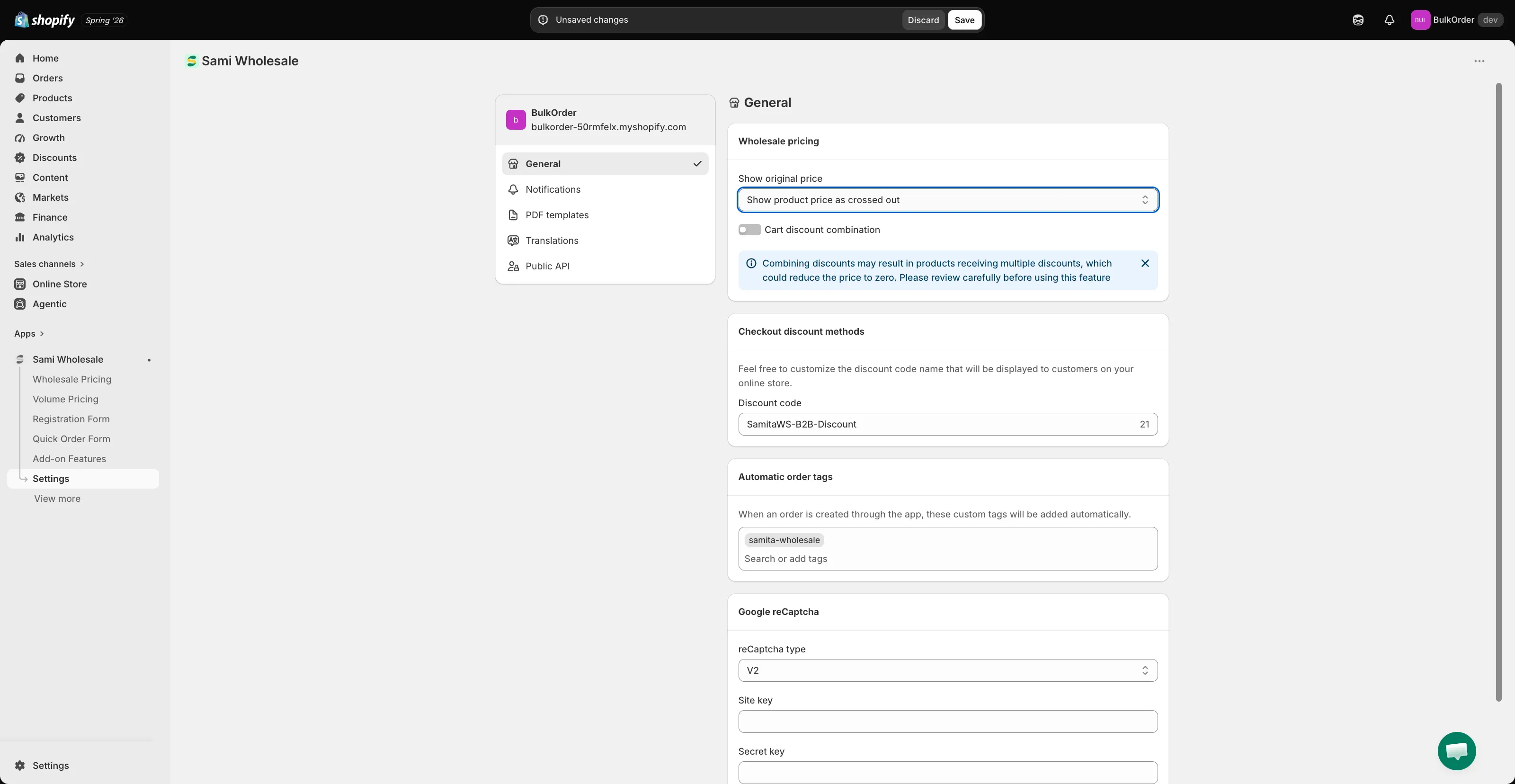
Turn on the crossed-out price
Section titled “Turn on the crossed-out price”In the Wholesale pricing card, open the Show original price dropdown and choose Show product price as crossed out. Choose Hide original price if you’d rather show only the discounted price.
-
Save and check your storefront
Section titled “Save and check your storefront”Click Save in the bar that appears at the top of the page, then check the result on your storefront.
Need support?
Section titled “Need support?”If you do encounter any difficulty while proceeding these steps, don’t show any hesitation to contact us promptly via the email address support@samita.io.