
Create a volume pricing based on order amount
Discount an order once its total value crosses a threshold you set, instead of counting product quantity.
Besides discounting by quantity, Samita Wholesale Pricing can also discount an order once its total value (not item count) reaches a threshold you set.
Steps to manage
Section titled “Steps to manage”-
Start a new rule
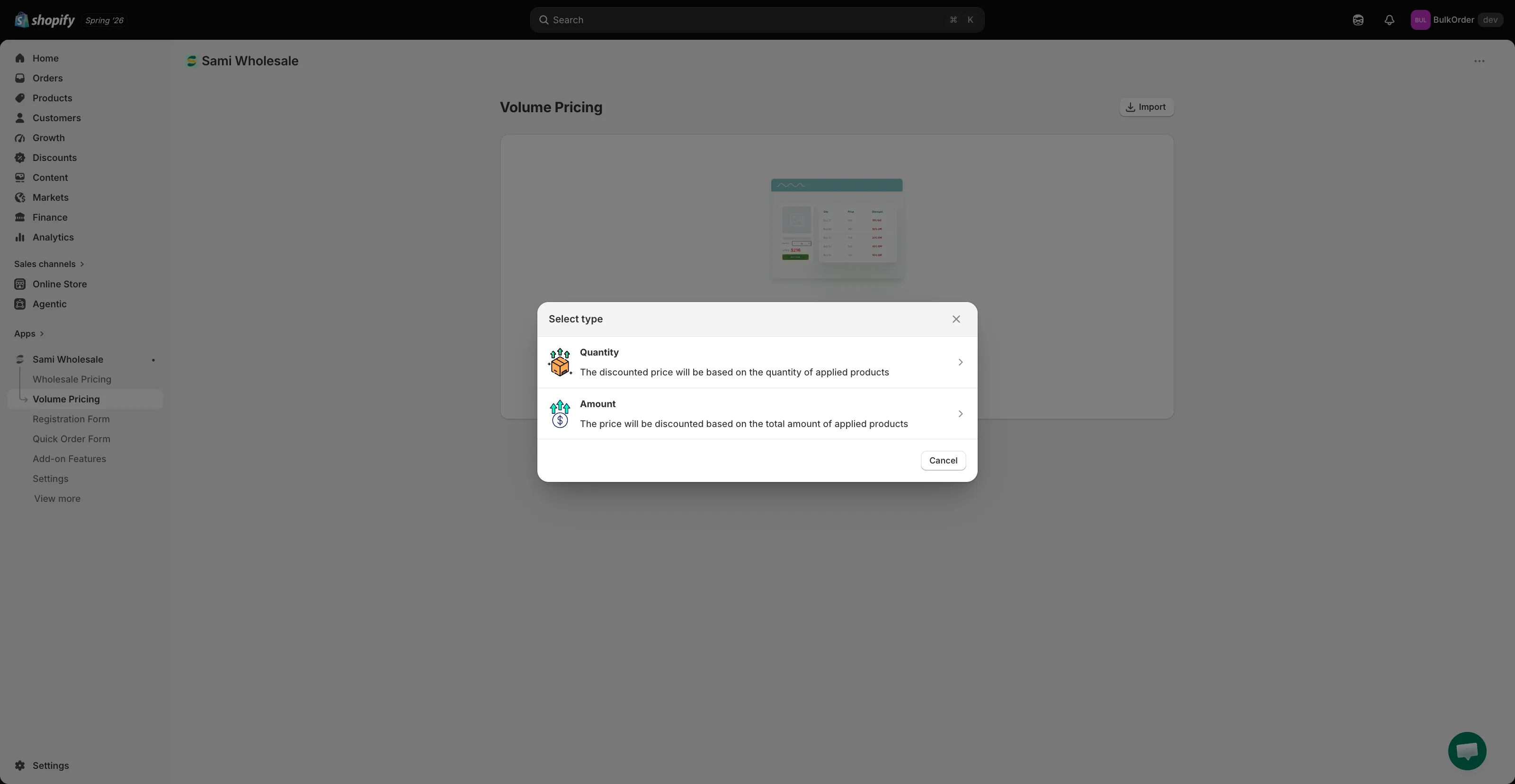
Section titled “Start a new rule”Open the app, click Volume Pricing, click Add new volume pricing (or Create new volume pricing if you already have rules), then choose Amount in the Select type dialog.
-
Name the rule and set its status
Section titled “Name the rule and set its status”At the top of the Volume Pricing tab, name the rule in Rule name, then use the Status dropdown to choose Active, Draft, or Schedule. Choosing Schedule reveals Start date and End date fields.
-
Choose a market
Section titled “Choose a market”In Markets, choose All markets or click Add specific markets and pick the ones you want.
-
Set the discount method and pricing source
Section titled “Set the discount method and pricing source”In the Discount section, under Discount Methods, choose Same Variant, Mix Variants, or Mix Products. See Discount Methods for Volume Pricing for details.
Next to it, use Pricing source to choose whether the discount is calculated from the product’s Selling price or its Compare-at price. See Choose pricing source.
-
Set up the amount tiers
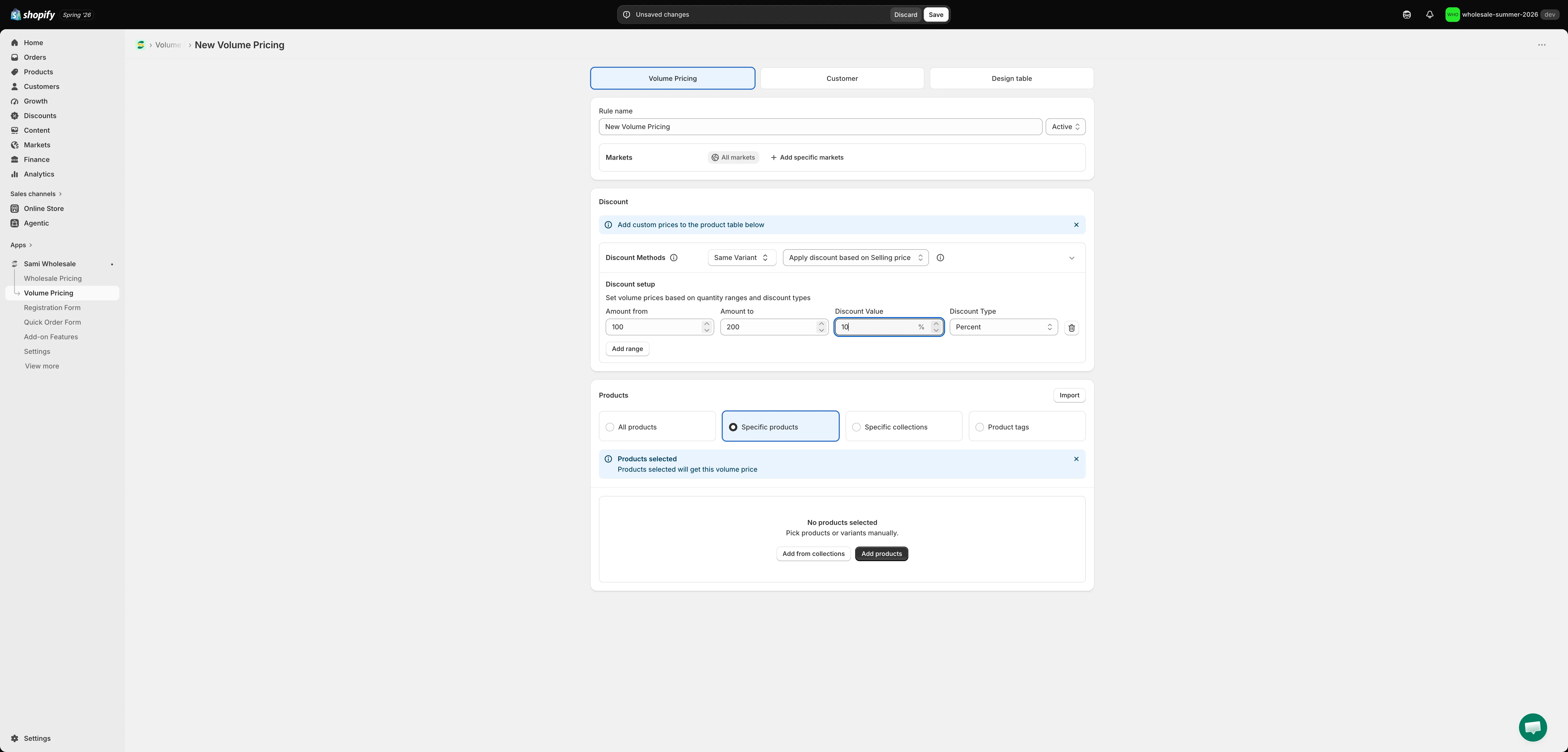
Section titled “Set up the amount tiers”Still in the Discount section, under Discount setup, add your tiers — Amount from, Amount to, Discount Value, and Discount Type (Percent, Amount, or New price). Click Add range for more tiers. For example:
- Order reaches $100 → 10% off
- Order reaches $200 → 20% off
The larger the order value, the better the price customers get.
-
Choose which products it applies to
Section titled “Choose which products it applies to”In Products, choose All products, Specific products, Specific collections, or Product tags. If you pick anything other than All products, a table appears below listing each matching product, where you can optionally set a custom amount range and price per product or variant.
Note: If you add Specific products, please add a maximum of 500 products per rule to ensure successful metafield updates.
-
Set customer eligibility
Section titled “Set customer eligibility”Click the Customer tab. Choose All customers, Logged-in customers, Customer tags, or Specific customers. Tick Excluded customer tags or Exclude specific customers if you want to exclude certain customers.
-
Design and preview the pricing table, then save
Section titled “Design and preview the pricing table, then save”Click the Design table tab to control colors, borders, and text size for the table, and to preview it live. Then click Save in the bar that appears at the top of the page.