
Floating quote widget
Turn on the floating button that lets customers open their quote cart from any page of your store.
Enable Quote Cart Widget — “Shows a floating button on your storefront so customers can open their quote cart from any page.”
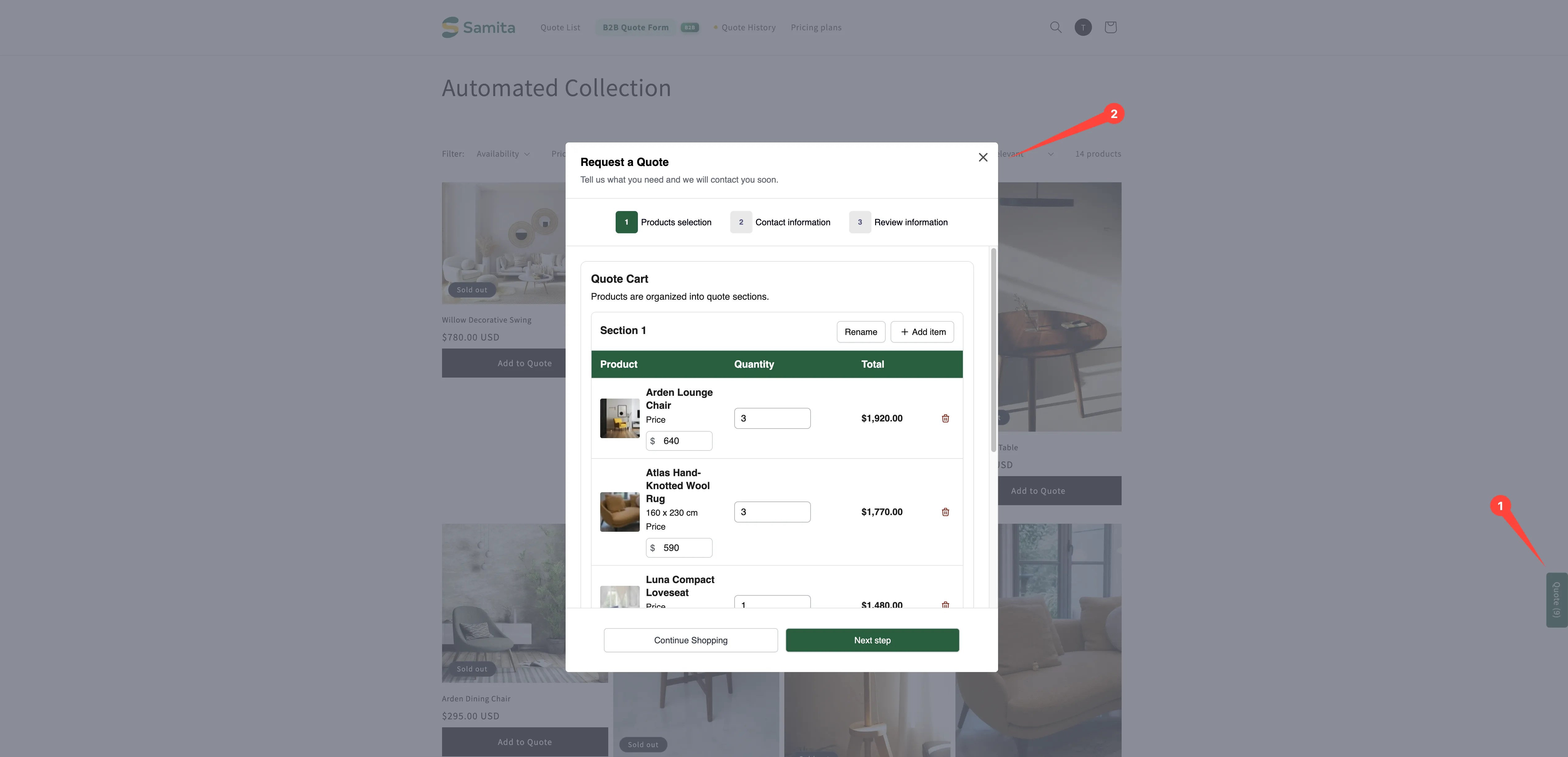
The widget is a quick quote button pinned to the edge of every page. It works like a cart icon: once a customer has added something it shows how many products are waiting, and one click takes them either to the quote cart page or straight into the quote popup — so they can check what they have collected and fill in the form without hunting for the page.
Turn it on
Section titled “Turn it on”-
Open the quote cart settings
Section titled “Open the quote cart settings”In the app, go to Quote settings and click Customize, then open the Quote cart page tab.
-
Turn on Enable Quote Cart Widget
Section titled “Turn on Enable Quote Cart Widget”Enable Quote Cart Widget is the last block on the tab, under Enable Quote Sections. The control is the toggle at the right-hand end of its header. Switch it on and the block expands to show six settings.
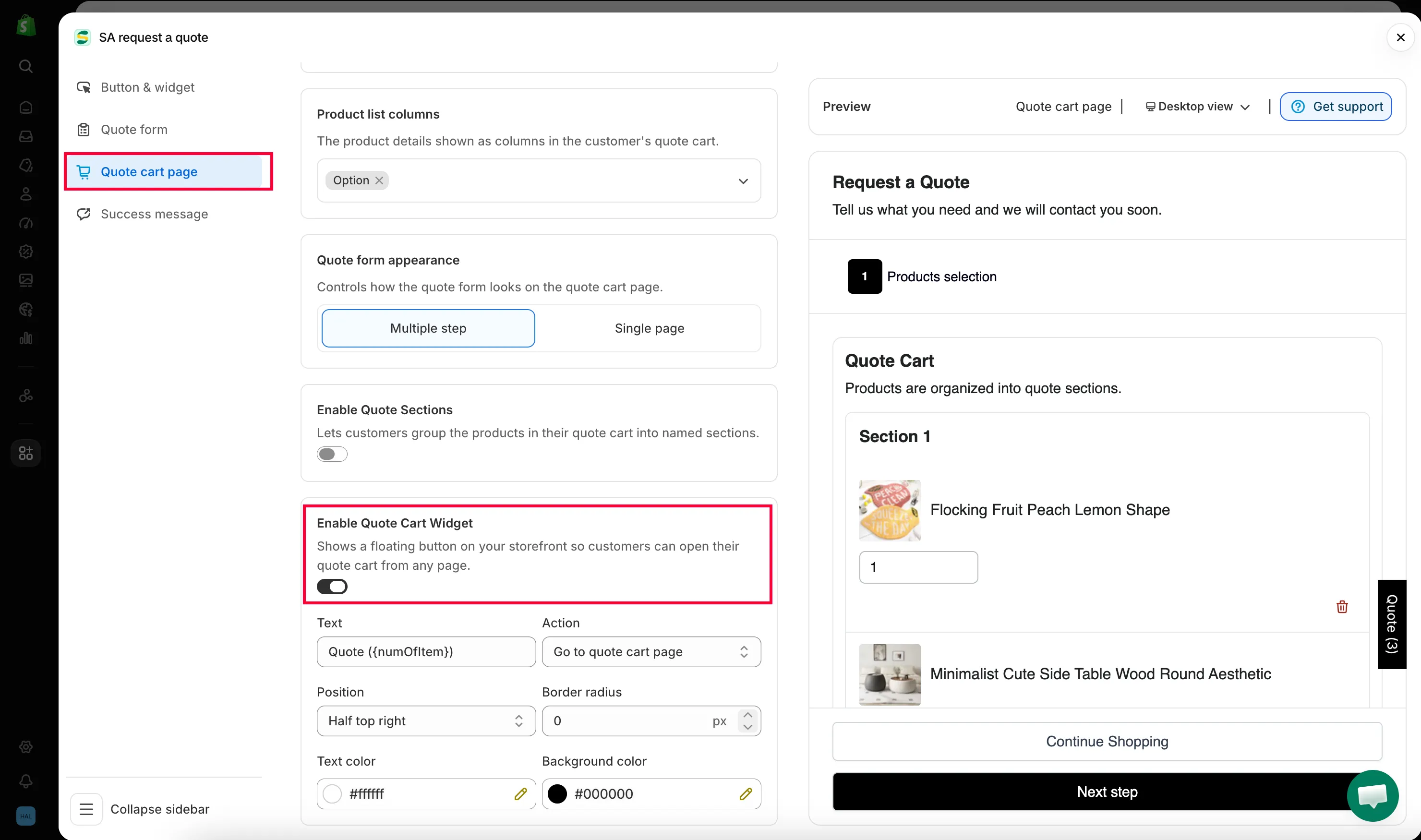
-
Set the six widget settings
Section titled “Set the six widget settings”Work through Text, Action, Position, Border radius, Text color and Background color — each one is explained in the table below. The Preview panel on the right shows the widget as you change them.
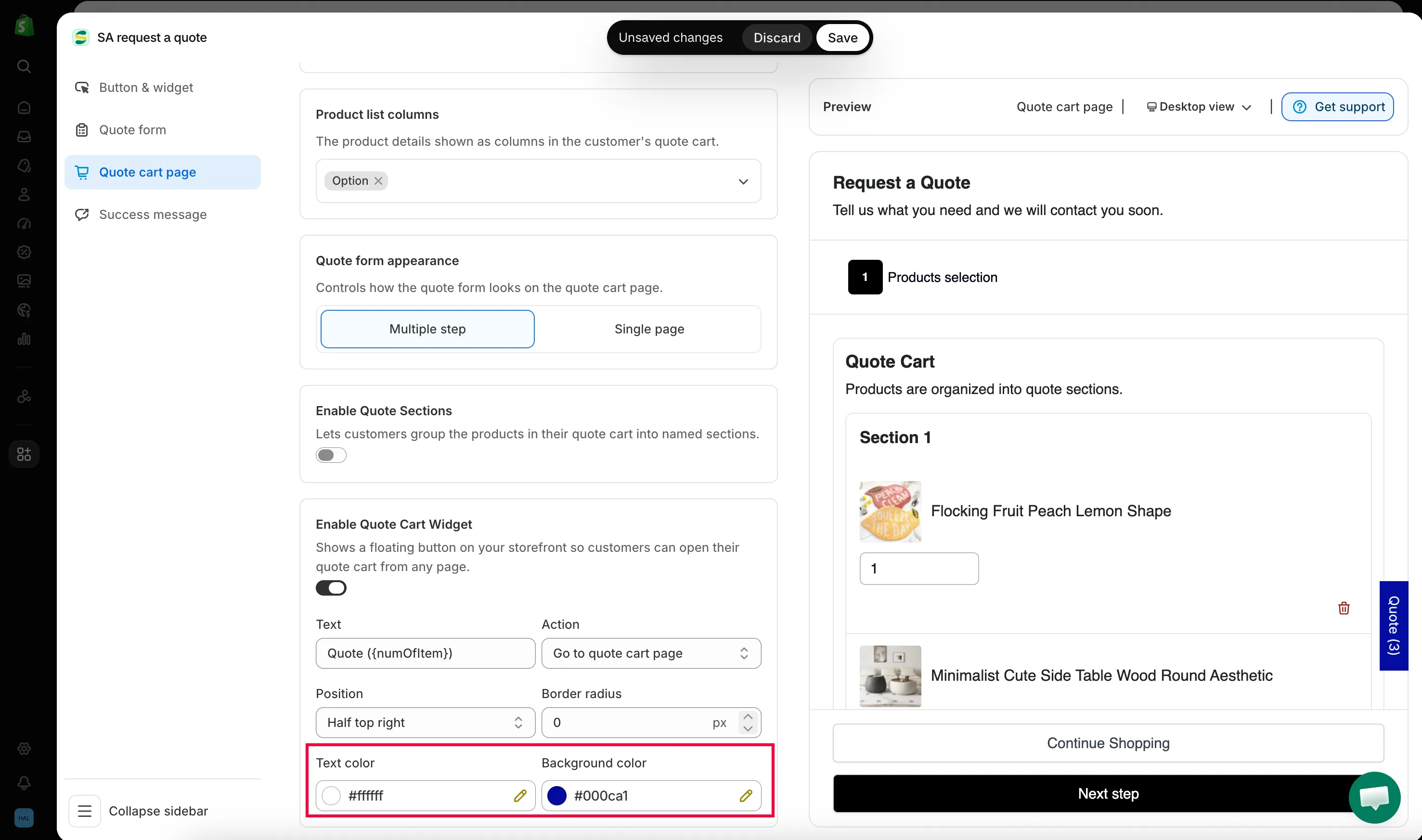
Only two colours to choose: background and text.
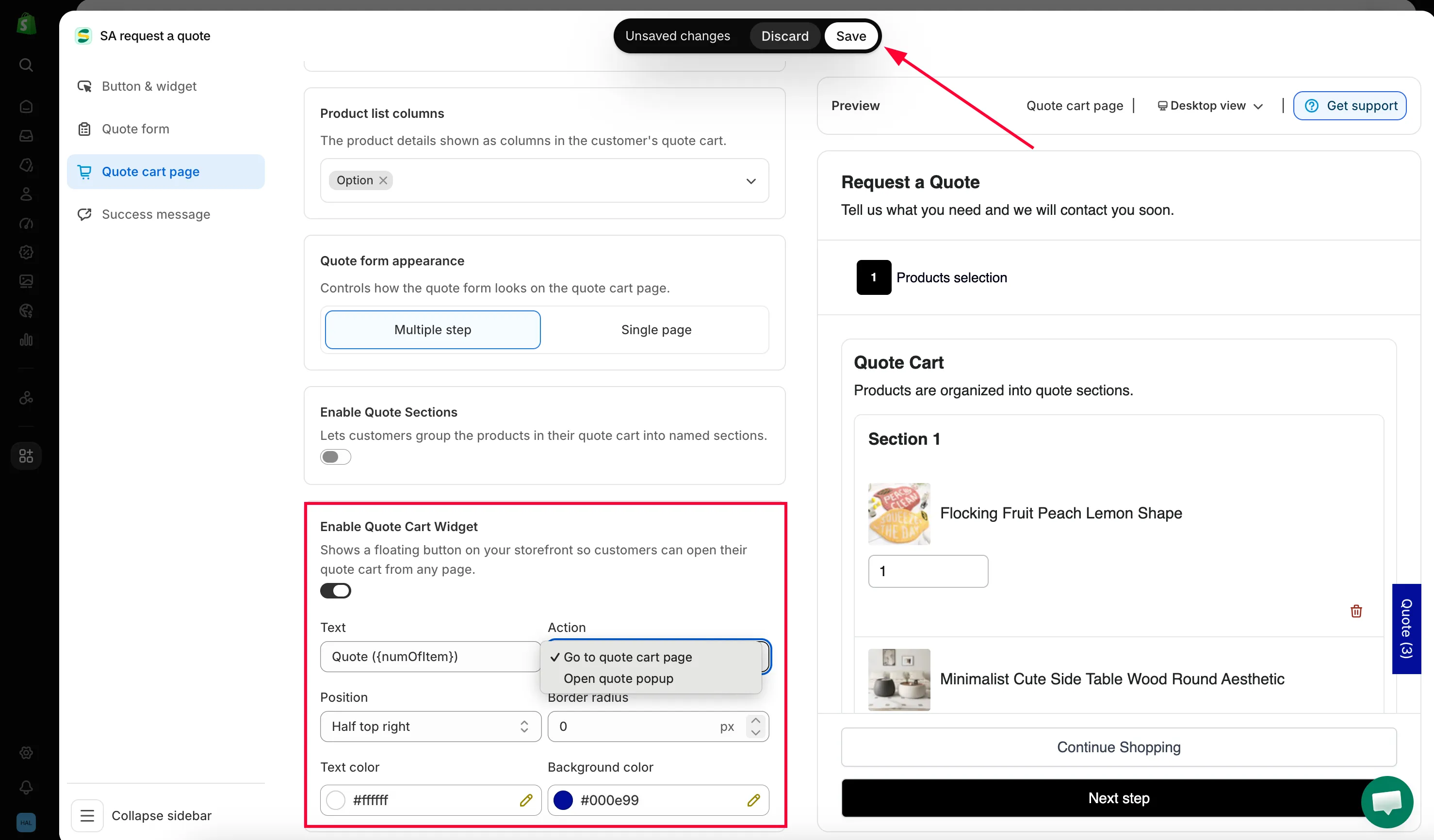
-
Save and check your storefront
Section titled “Save and check your storefront”Click Save at the top right of the editor, then add a product to a quote on your storefront. The widget appears at the edge of the screen, labelled Quote with the number of products in brackets.
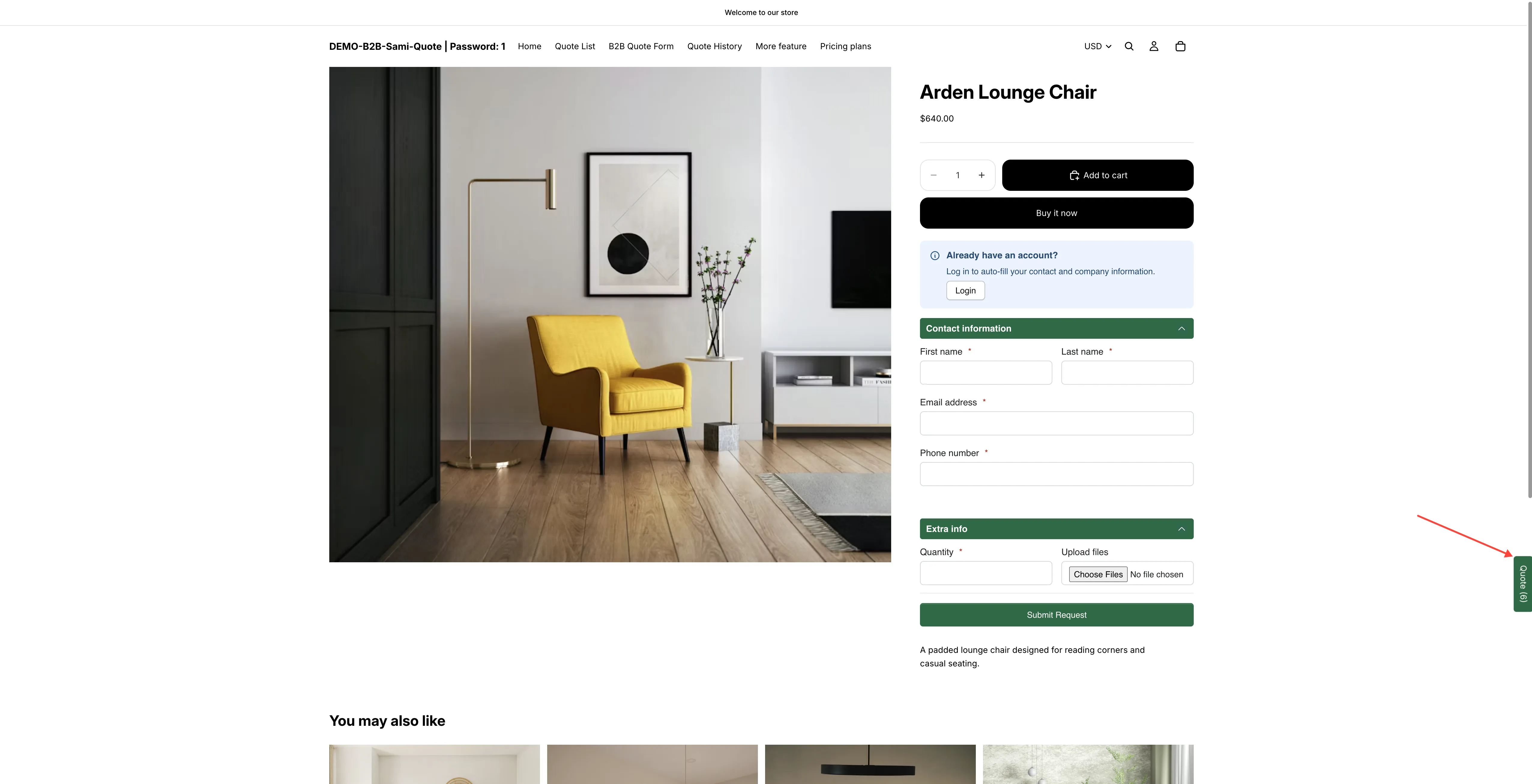
The widget as customers see it, on every page of your store.
Every widget setting
Section titled “Every widget setting”| Setting | Values and default | What it does |
|---|---|---|
| Text | Arrives as Quote ({numOfItem}) | The wording on the widget. {numOfItem} is replaced by the number of products in the customer's quote, so this renders as Quote (3). Take the token out and the widget shows a plain label with no count. |
| Action | Go to quote cart page · Open quote popup | What clicking the widget does. See below. |
| Position | Half bottom right · Bottom right · Half top right · Half bottom left · Bottom left · Half top left | Which edge the widget clings to, and how far up or down it sits. The "half" options pin it to the side of the screen; Bottom right and Bottom left put it in the corner. |
| Border radius | A number in px, starting at 0 | How rounded the widget's corners are. 0 is square. |
| Text color | A colour | The colour of the wording. |
| Background color | A colour | The colour of the widget itself. |
Where it takes customers
Section titled “Where it takes customers”Action decides this, and the two values behave differently:
| Action | What happens when a customer clicks |
|---|---|
| Go to quote cart page | The widget is a link to your quote cart page — the storefront page at /pages/request-for-quote, which "Shows the quote form and the customer's quote cart." They leave the page they were on. |
| Open quote popup | The quote popup opens over the page they are already on. They never leave their place in your catalogue. |
Both the quote cart page and the widget are set up on the same Quote cart page tab, so the page’s own name and path are right above the widget block.
Which one to pick follows from how customers build a quote. If they collect several products before asking, Go to quote cart page is the better choice: the quote cart page shows the whole list with quantities, and that is what they want to check. If they add one product and are ready to send, Open quote popup saves them a page load.
Where the widget does not appear
Section titled “Where the widget does not appear”The app hides the widget on the quote cart page itself — there is nothing for it to link to once a customer is already looking at their quote. Everywhere else on your storefront it follows them.
Choosing the colours
Section titled “Choosing the colours”Pick a Background color that stands out against your pages without fighting your buy buttons, and a Text color with enough contrast to be legible at a glance. Check it on a phone as well — a floating element competes for room with live chat bubbles and cookie banners, so make sure yours is still readable where it lands. If it collides with something, move it with Position rather than turning it off: Half top right and Half top left sit clear of the bottom-corner controls most chat tools use.
Translating the widget text
Section titled “Translating the widget text”Whatever you type in Text is storefront text, so it goes through the app’s translations along with the rest of what customers read. Set the wording per language there rather than settling for English on a translated store — see Translate storefront text.
Need a hand?
Section titled “Need a hand?”If the widget collides with something else on your storefront and Position doesn’t clear it, send us a screenshot — see Contact support.
Next steps
Section titled “Next steps”- Set the after-click behavior — control what happens when products are added
- Request a Quote page — the quote cart page the widget opens
- Quote history page — where customers find past quotes