
Require login to quote
Decide who can see the quote button and whether customers must be logged in before they can add anything to a quote.
Some stores only want to quote people who are already registered as Shopify customers in the back end. Two settings on the Button & widget tab control that: Customer visibility decides who even sees the button, and Require login before adding to quote decides who can use it.
Require login before adding to quote
Section titled “Require login before adding to quote”-
Open the button settings
Section titled “Open the button settings”In the app, go to Quote settings and click Customize, then open the Button & widget tab.
-
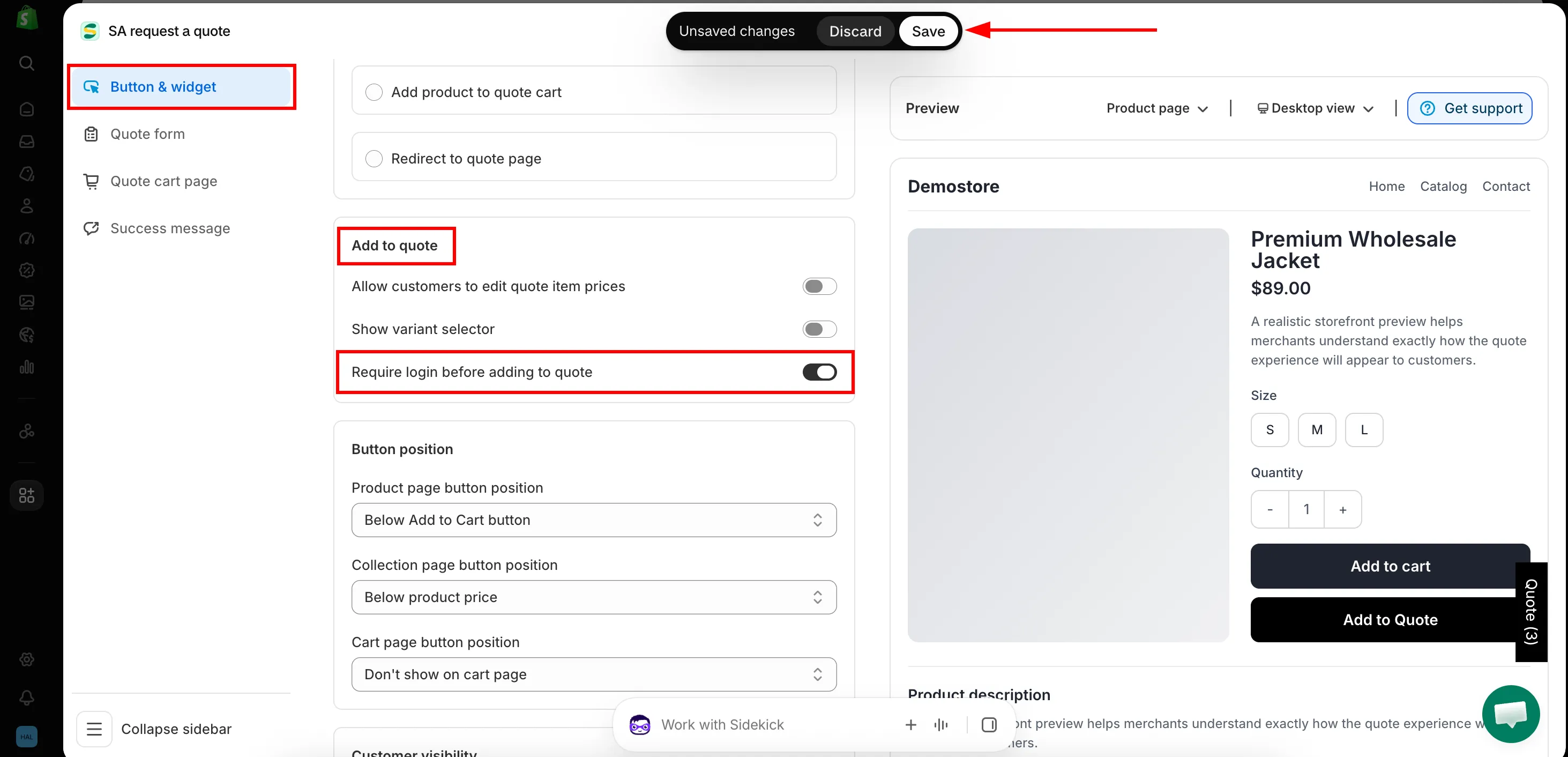
Find the Add to quote section
Section titled “Find the Add to quote section”Scroll down the Button & widget tab to the Add to quote section — the same group of checkboxes that holds Allow customers to edit quote item prices and Show variant selector — and tick Require login before adding to quote.
-
Click Save to update the changes.
-
Check the result on the front store
Section titled “Check the result on the front store”Open a product page in a private browser window, so you are signed out of your own store, and click the quote button. You should land on your store’s login page instead of the quote form.
This setting is about using the button, not seeing it: with it ticked, a visitor who is not signed in has to log in before a product goes into their quote. Customers who are already signed in are unaffected. Who sees the button in the first place is decided separately, by Customer visibility below — so check both settings together before you decide what a logged-out visitor can do.
What the shopper sees
Section titled “What the shopper sees”The round trip happens by itself — nobody is left on a dead end:
- A customer who has not logged in to their customer account clicks the quote button.
- The button sends them to the login page of your site immediately.
- They log in to their customer account.
- They go back to the product page, where they can carry on requesting a quote.
Because step 4 returns them to the product page they started from, the product they were interested in is not lost on the way through the login page.
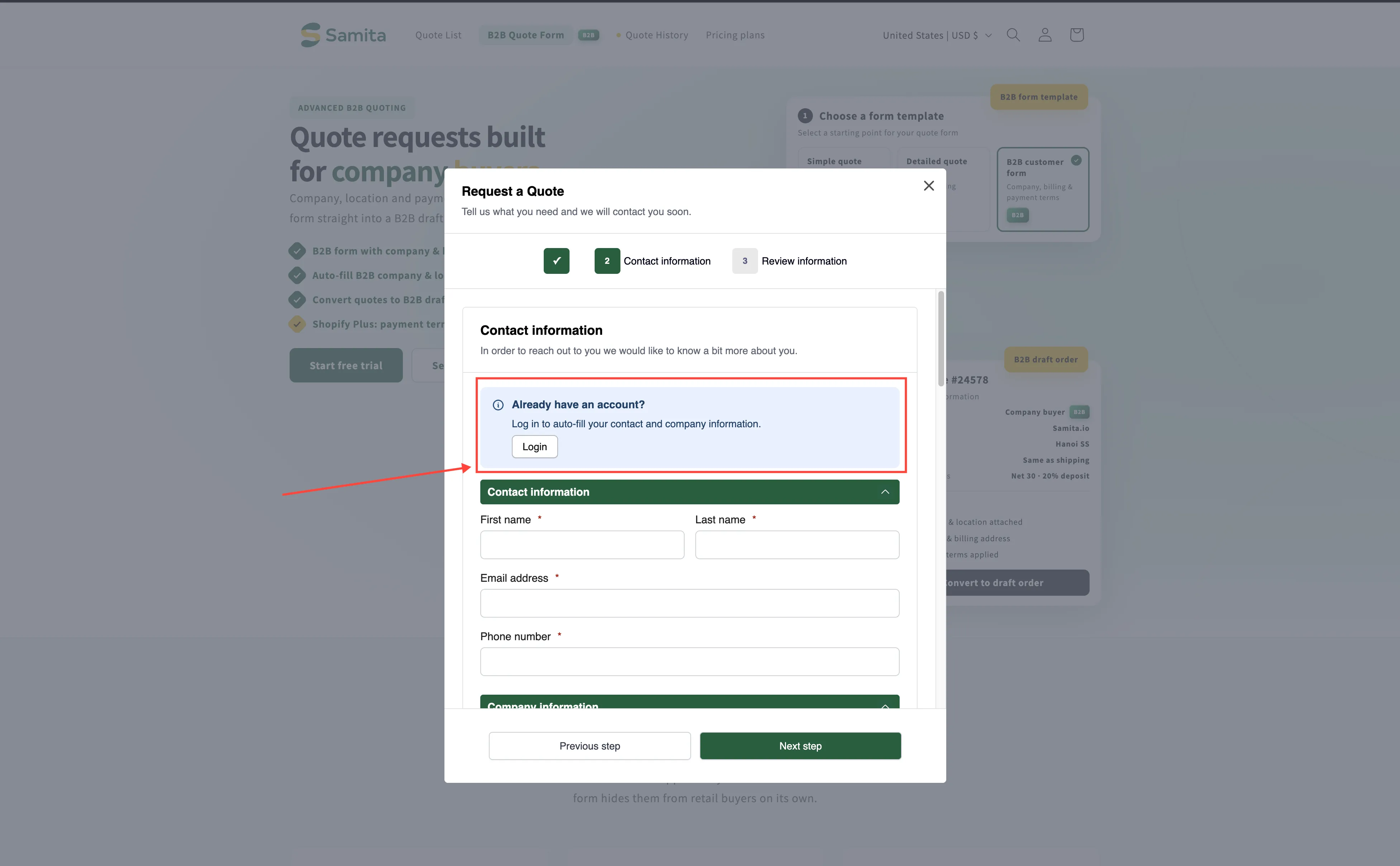
On the quote cart page, the prompt “Already have an account? Log in to auto-fill your contact and company information.” carries a Login link. See Request a Quote page.
Customer visibility
Section titled “Customer visibility”If you would rather some visitors never saw the button at all, use Customer visibility.
| Who can see the RFQ button? | Use it when |
|---|---|
| All customers | Anyone can ask for a price. The right choice if quotes are how you collect leads. |
| Logged-in customers | You only quote people who already have an account with you. |
| Guest (non-logged) customers | Account holders buy at their agreed prices, and only new visitors are invited to ask. |
| Logged-in customers with specific tags | Only approved buyers — a wholesale or trade tag, for example — get the button. |
Exclude customer tags takes the other side of the same decision: everyone in your chosen group sees the button except customers carrying the tags you list. It is the quickest way to keep the button away from one account type without rebuilding the rest of the rule.
Which should you use?
Section titled “Which should you use?”| Your aim | Setting |
|---|---|
| Collect leads from anyone | All customers, and leave Require login before adding to quote unticked. |
| Quote only approved buyers | Logged-in customers with specific tags. |
| Show the button widely, but require an account before quoting | All customers plus Require login before adding to quote. |
Next steps
Section titled “Next steps”- Create a Shopify customer after submit — create Shopify customers from quotes automatically
- Choose quotable products — which products show the button
- Hiding prices overview — control who sees your prices
- Contact support — if the redirect does not behave as described, send us the product URL and we will look