
Emails overview
The two emails SA Request a Quote sends, who receives them, and where in Advanced settings you change them.
Quotes live or die on email. One message tells you a request has arrived; the other tells your customer you have it. Both are set up in the same place.
Where the settings are
Section titled “Where the settings are”Go to Advanced settings in the app sidebar. It has five tabs — Hide price, Email notifications, PDF template, Translations and Integrations — and everything on this page lives under Email notifications.
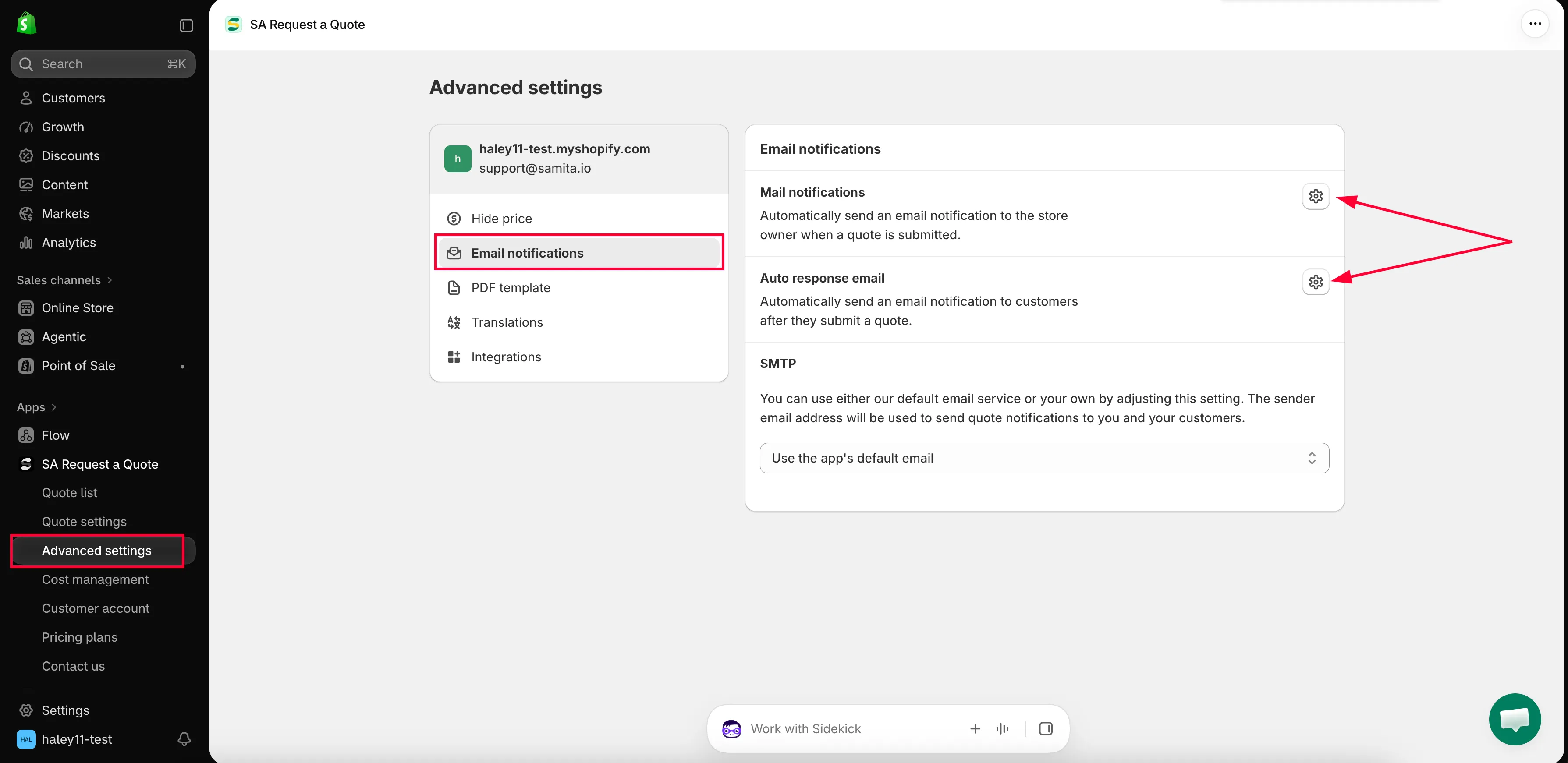
The Email notifications tab in Advanced settings.
What the tab contains
Section titled “What the tab contains”| Section | What it does |
|---|---|
| Mail notifications | Automatically send an email notification to the store owner when a quote is submitted. |
| Auto response email | Automatically send an email notification to customers after they submit a quote. |
| SMTP | Choose which mail server the two emails are sent from. |
Mail notifications and Auto response email each have an icon button on their row. That button opens the email in its own editor. SMTP is a dropdown you set directly on the tab.
Inside the email editor
Section titled “Inside the email editor”Opening Mail notifications shows what that editor holds.
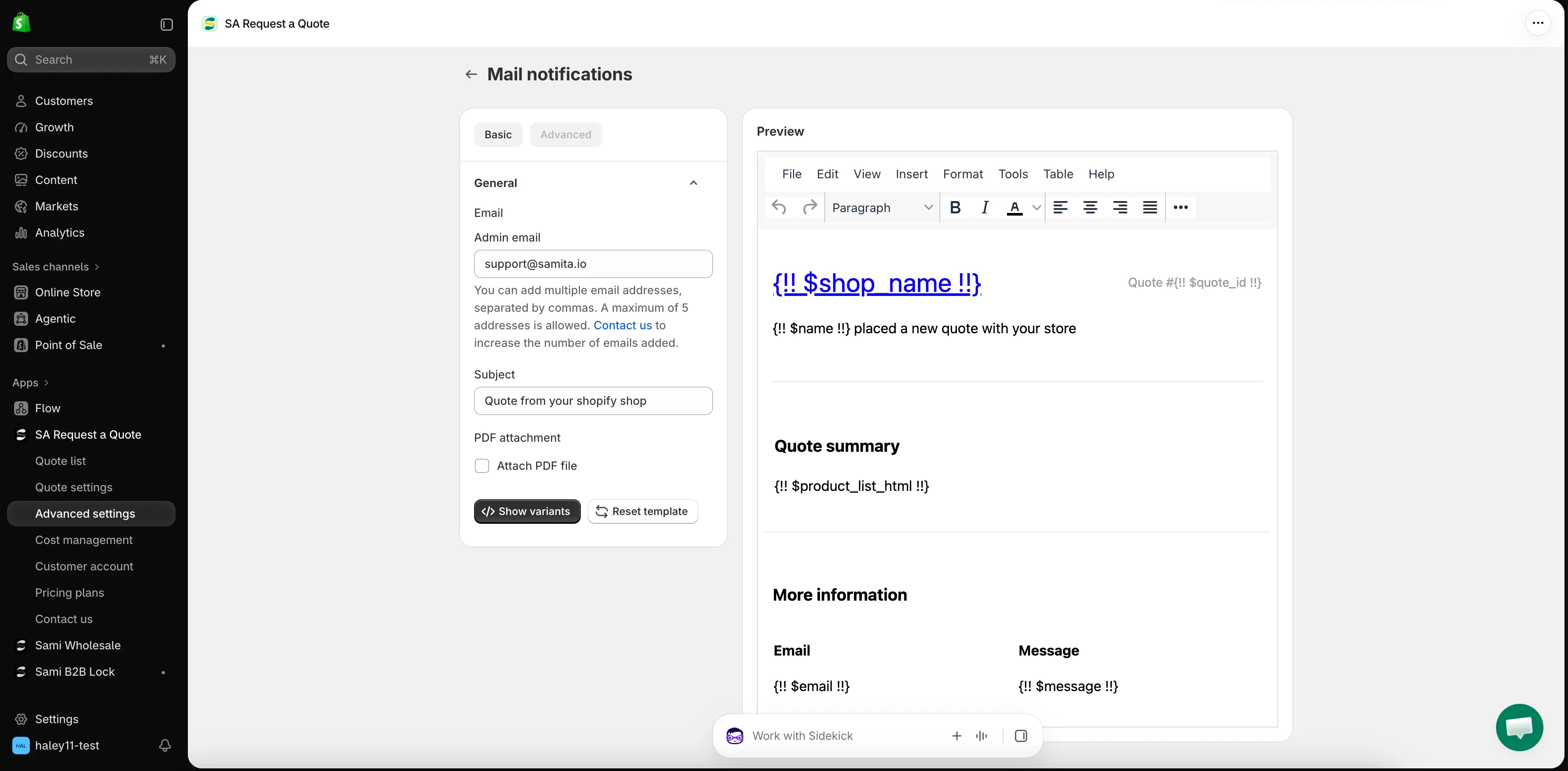
The Mail notifications editor, opened from the icon button on its row.
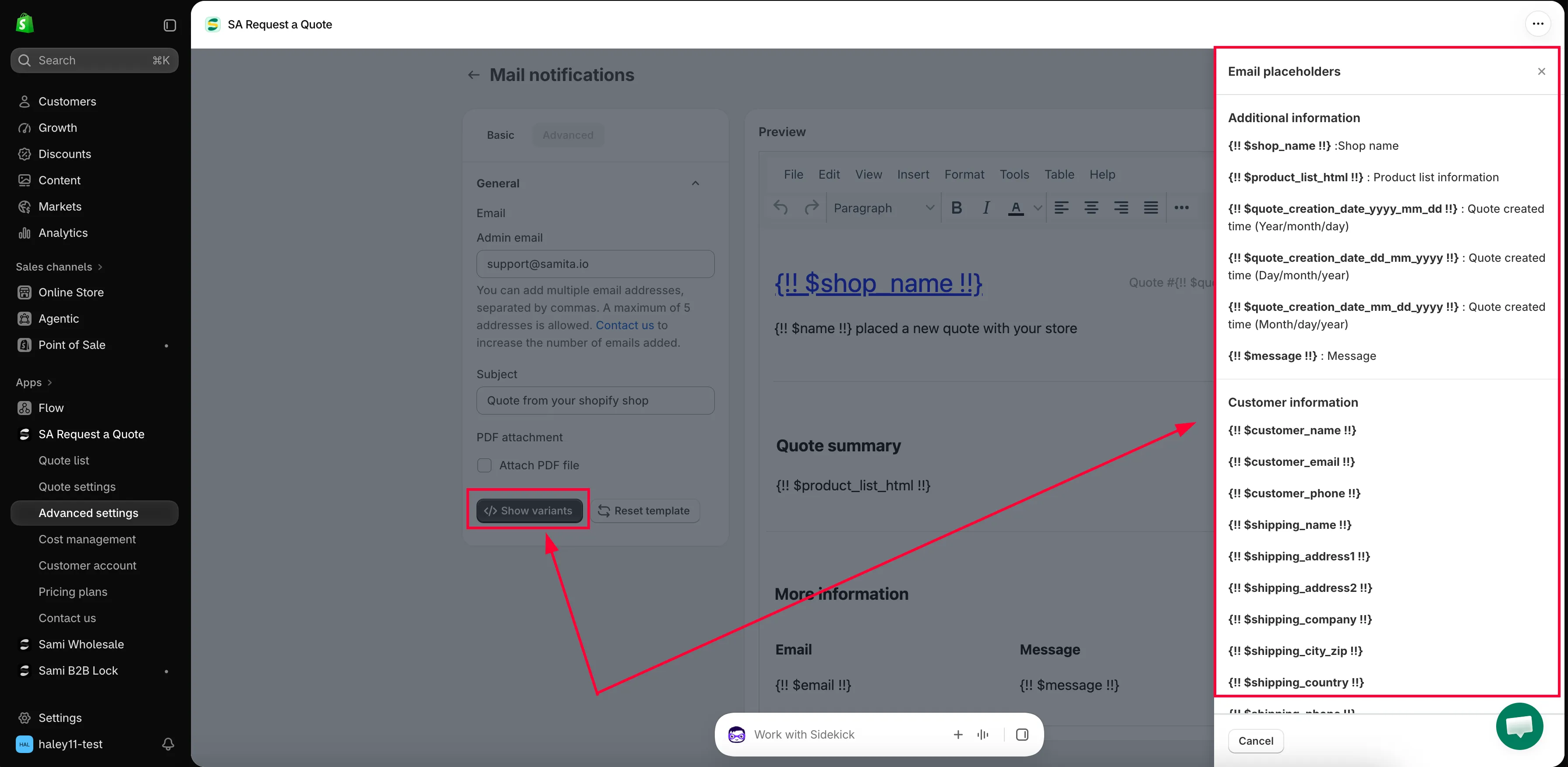
The editor behind both quote emails.
| Control | What it is for |
|---|---|
| Basic / Advanced | The two template tabs. Everything below sits on Basic. |
| General → Email | The section that holds the addresses and the subject line. |
| Admin email | Who receives the notification. Several addresses, comma-separated, up to a maximum of five. |
| Subject | The subject line the email arrives with. |
| PDF attachment → Attach PDF file | Send the quote as a PDF alongside the message. |
| Reset template | Go back to the template you started with. |
| Preview | Read the email back as it will arrive. |
The message itself is written in a rich-text editor, with the usual File, Edit, View, Insert, Format, Tools, Table and Help menus. You do not need to touch any code.
The Auto response email opens the same way, from the icon button on its own row.
Two of these controls have a page of their own: Change notification recipients for Admin email, and Attach a PDF to quote emails for Attach PDF file.
Who the emails come from
Section titled “Who the emails come from”By default the app sends from its own mail service, and the SMTP dropdown reads Use the app’s default email. The sender address is no-reply@samita.io.
You can send from your own mail server instead — the app supports nine providers. See Send from your own address (SMTP).
Emails in other languages
Section titled “Emails in other languages”Both quote emails are translated by Translations AI on the Translations tab, alongside your quote form and storefront text. See Translate quote emails.
In this section
Section titled “In this section”- Emails sent to admin — the notification you receive
- Emails sent to customers — what the customer receives
- Change notification recipients — who gets notified
- Send from your own address (SMTP) — send from your own address
- Attach a PDF to quote emails — attach a PDF to the quote email
- Translate quote emails — email in your customers’ languages
Next steps
Section titled “Next steps”- Emails sent to admin — make sure quote alerts reach the right people
- Send from your own address (SMTP) — send from your own address instead of the app’s
- Troubleshooting — if emails are not arriving