
Add custom CSS
Use the app's own style settings first, and add CSS in your theme only for the few things they don't cover.
The app’s style settings cover most of what stores need. When they don’t — a particular border radius, a tweak that should only apply on mobile — you can add CSS of your own.
Start with the built-in settings
Section titled “Start with the built-in settings”Almost every appearance change people reach for CSS to make is already a setting in Quote settings > Customize. Check these before writing anything.
| Where | What you can set |
|---|---|
| Button & widget > Style | Button type (Filled / Outline / Text link), Size (Medium / Large / Full width), Text color, Background color and Font size. |
| Quote form > Style | A style preset, plus Match theme styling if possible. |
| Quote form > Customize text | Font style. |
| Quote form > Customize form color | Title bar color, Title bar background, Color, Background color, Border color and Quote popup primary color. |
| Quote cart page > Enable Quote Cart Widget | Text color and Background color — these are the only two the floating widget takes. |
Most appearance changes are already settings — start here.
Where to keep your CSS
Section titled “Where to keep your CSS”Wherever you keep custom CSS, keep it somewhere you can find again and undo. CSS kept in your own theme has a useful side effect: it is versioned with the theme, so duplicating the theme before you edit gives you something to roll back to.
Finding what to target
Section titled “Finding what to target”Right-click the element on your storefront and choose Inspect. That shows you the class names to write rules against.
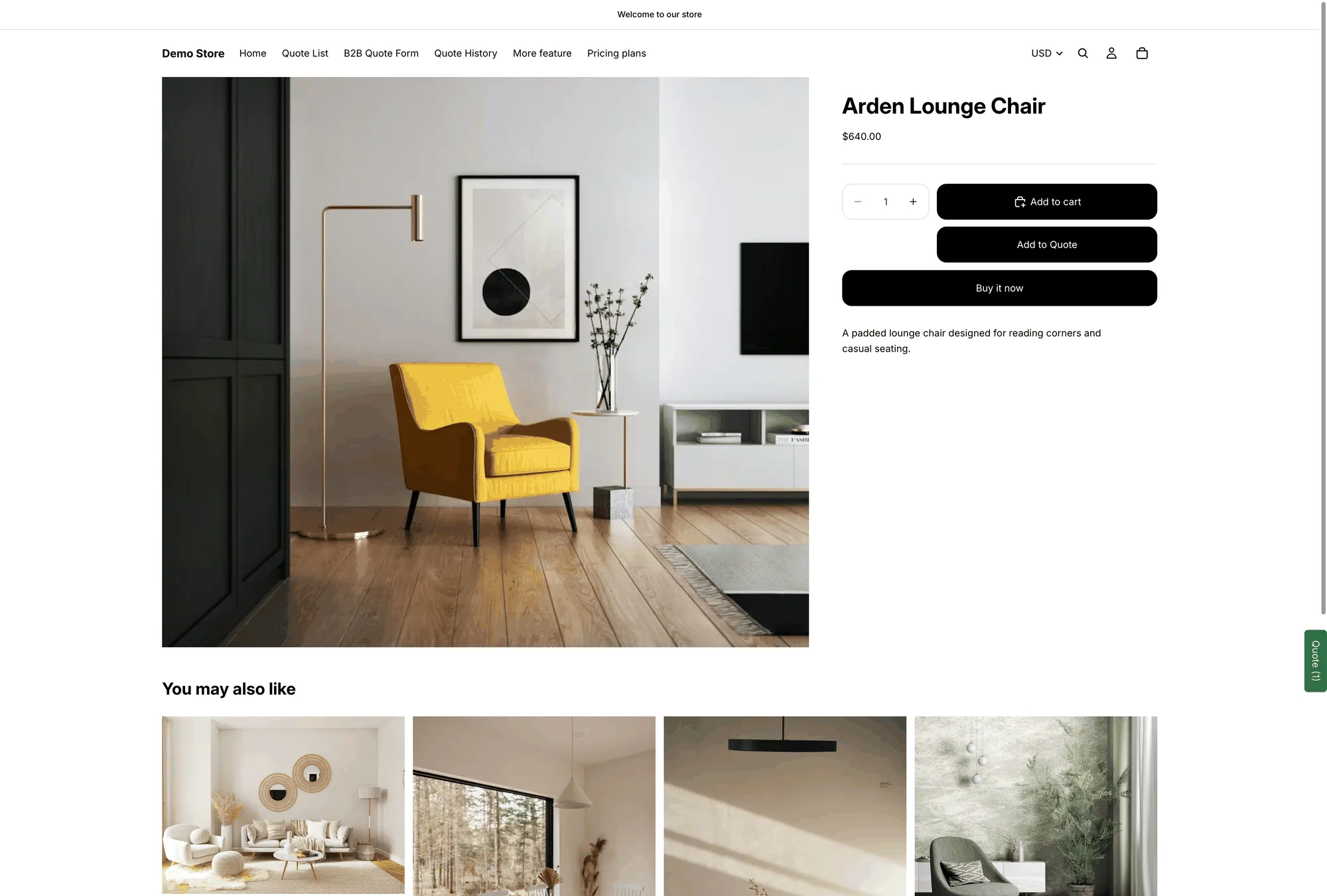
Inspect the quote button on your own storefront to find what to target.
Two things are worth knowing before you start:
- The quote button renders with whatever Button text you set, in the place you picked under Button position — so check Product page button position before you go looking for it.
- The floating quote widget, labelled Quote (n), sits in a container with the class
grfq-quote-widget-container.
A few practical rules
Section titled “A few practical rules”| Rule | Why |
|---|---|
| Change one thing at a time | When something breaks you'll know which rule did it. |
| Test on mobile | Most quote requests come from phones, and a desktop-only tweak often breaks there. |
| Keep a copy elsewhere | Paste your CSS into a note as well, so you can restore it if needed. |
Avoid !important where you can | It wins today and makes every future change harder. |
| Comment every rule | In six months, an unexplained block of CSS is something nobody dares delete. |
After a theme change
Section titled “After a theme change”Start with the app embed on the new theme. It is enabled in your theme, and until it is enabled nothing the app does appears on your storefront — see Enable the app in your theme.
Then check your CSS. It is written against your theme’s markup, so after a theme switch or a major theme update, look at your quote button, quote form and floating widget — rules may need adjusting.
Next steps
Section titled “Next steps”- Change button text and colors — the button settings to try first
- Match your theme style — let the form follow your theme automatically
- Contact support — ask for a snippet