
Account change requests
Approve or reject the company edits and new locations buyers send from their customer account.
When a buyer edits their company on the Company self-service page, some changes wait for you instead of going to Shopify straight away. Sami B2B Onboarding holds them on the Change requests page, where a reviewer approves or rejects each one. Approving writes the change to Shopify. Rejecting leaves Shopify as it was.
| What waits here | When |
|---|---|
| An edit to a field of Company profile, Company location or Contact profile | The field has Changes need approval on. It’s on by default for every field of Company profile and Company location, and off for Contact profile. See Account forms. |
| A new location a buyer adds | New locations need approval is on in the Company location form, or Needs merchant approval under Settings › Application rules › New locations. Both are the same setting, on by default. |
One save by the buyer makes one request, with every field that needs approval in it. Fields without approval in the same save go to Shopify at once.
Decide a request
Section titled “Decide a request”-
Open Change requests
Section titled “Open Change requests”Go to Forms in the app. When requests are waiting, the Account forms card shows a button with how many, for example 2 waiting. Click it.
The page opens on Waiting. Use Approved and Rejected to see requests already decided.
-
Read the request
Section titled “Read the request”Each row shows:
- The company’s name, a New location badge for a new location, and the status (Waiting, Approved or Rejected).
- The form, the buyer’s email and how long ago they sent it.
- Each change as “Label: before → after”, for example “City: Springfield → Chicago”. Empty stands for a box that had nothing in it. A new location lists only what the buyer entered.
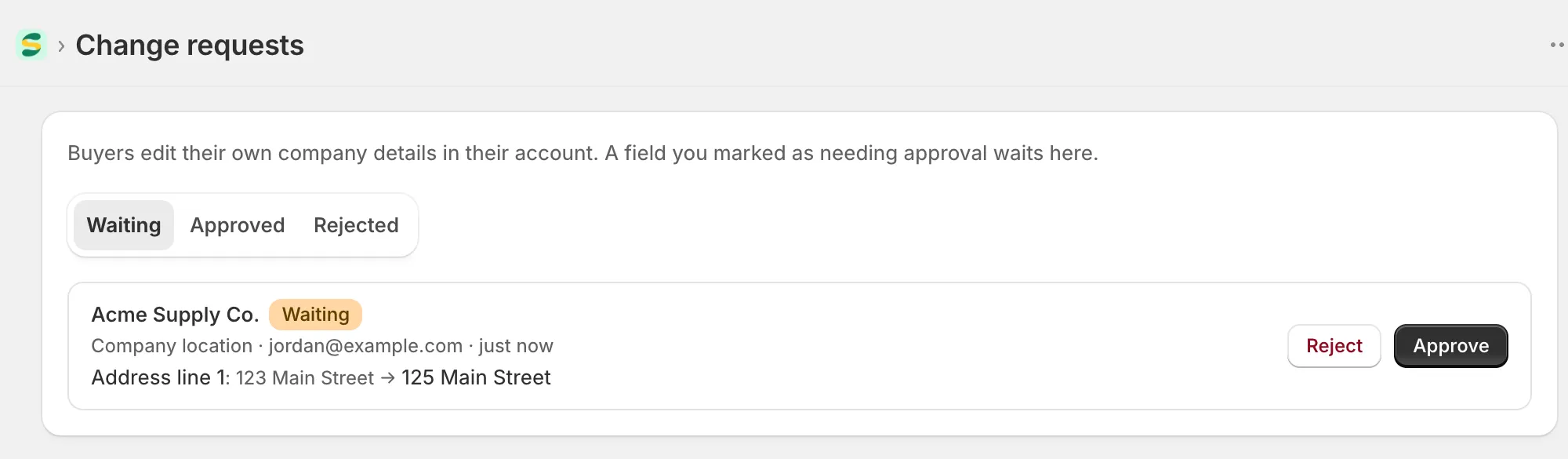
Each request shows what the buyer changed, from the value Shopify has to the one they asked for.
-
Approve or reject it
Section titled “Approve or reject it”- Click Approve to write the change to Shopify. “Change applied” confirms an edit, and “Location created” a new location.
- Click Reject to turn it down. “Change request rejected” confirms it. Nothing changes in Shopify.
The request moves to Approved or Rejected, where it stays for your records.
What approving does in Shopify
Section titled “What approving does in Shopify”| Request | What the app does |
|---|---|
| An edit | Writes every change in the request to the company, the company location or the buyer’s customer record, for the company the request was sent for. |
| A new location | Creates the location in that company. It copies the company’s first location’s catalogs, payment terms, checkout and tax settings, and makes the buyer its Location admin when they’re still a contact of the company. |
If Shopify refuses a change, for example a phone number in a format it doesn’t take, the app shows Shopify’s reason and the request stays in Waiting. If Shopify can’t be reached, nothing changes and the request stays waiting for you to try again.
When a location is created with a gap
Section titled “When a location is created with a gap”Once a new location exists, the app finishes it step by step. If a later step doesn’t land, such as adding a catalog or giving the buyer their role, a banner says “The location was created, with a gap” and lists what’s missing. The location exists and the request counts as approved. Finish the rest on the company’s page in Shopify admin, under Customers › Companies. If you need a hand, use the Contact support button in the banner.
What the buyer sees
Section titled “What the buyer sees”- While it waits. After saving, the buyer reads “Sent for approval. We’ll email you when it’s decided.” The card for that form then shows “We’re reviewing your change to …” with the fields’ names, and still lists what Shopify has on file.
- After you approve. The card shows the new values and the note is gone.
- After you reject. The card keeps the old values and the note is gone. Tell the buyer yourself if they need to know why.
Once you approve a new location, the buyer who asked for it becomes its admin and can pick it on the page.
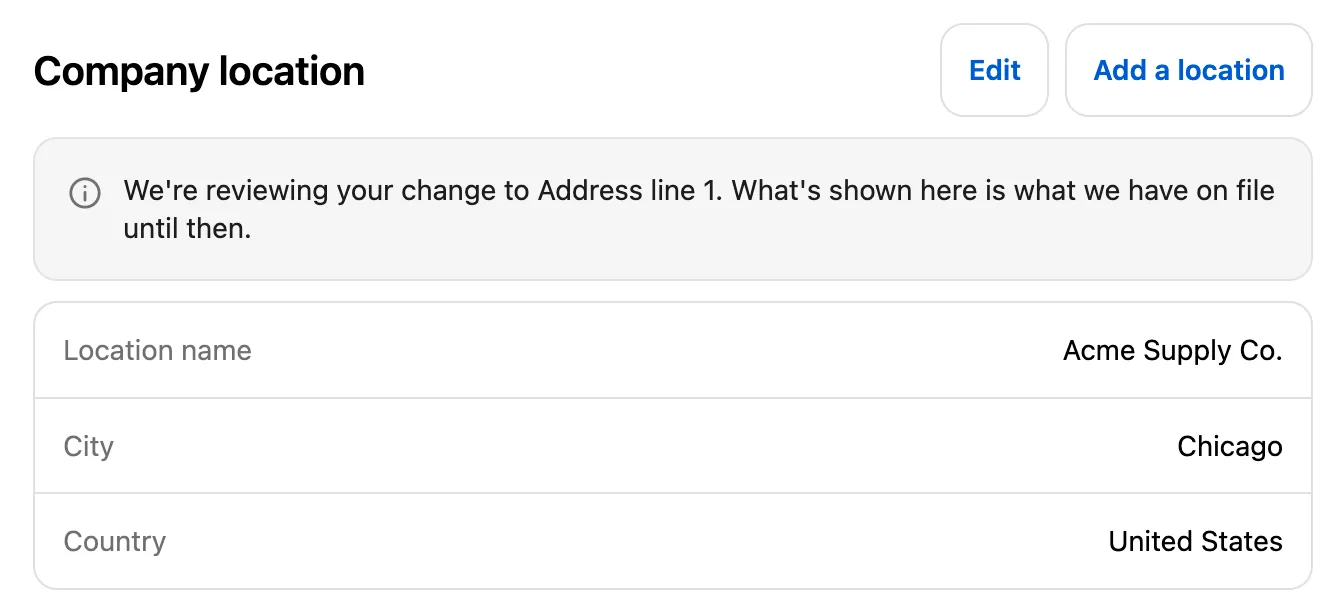
Until you decide, the buyer sees that their change is waiting and what you still have on file.
Who can decide
Section titled “Who can decide”Staff with the admin or reviewer role can approve and reject requests. See Team and roles.
To approve, your own Shopify account also needs the Companies and Customers permissions, because the change is written to Shopify. Without them, Approve is turned off and the page says “Your Shopify account needs the Companies and Customers permission to approve. Ask the store owner to add it in Shopify under Settings > Users.” You can still reject.
If two people decide the same request at the same time, the second one sees “That request has already been decided.”
Next steps
Section titled “Next steps”- Account forms — choose which fields need your approval.
- Application rules — choose whether new locations wait for you.
- Company self-service page — see where buyers make these changes.