
Companies
Sync companies from Shopify
Bring the companies you already have in Shopify into the Companies list, and refresh their details later.
Companies you created in Shopify’s own admin, or before you installed Sami B2B Onboarding, aren’t in the app’s Companies list until you sync. Sync from Shopify reads your Shopify companies and adds them to the list, so you can give them a sales rep, put them on hold and keep notes about them.
A sync only reads. Nothing is changed in Shopify.
Run a sync
Section titled “Run a sync”-
Open the Companies tab
In the Shopify admin, open Sami B2B Onboarding, click Companies in the app menu, then click the Companies tab.
-
Click Sync from Shopify
Click Sync from Shopify at the top of the page. If the list is empty, the button is in the middle of the page instead.
A Sync started message appears, then a blue Syncing companies from Shopify banner that counts the companies read so far. The sync runs in the background, so you can leave the page.
-
Check the result
When the sync is done, a green Sync finished banner says how many companies were found in Shopify, how many were added and how many were already in the list and refreshed. The list reloads with the new companies.
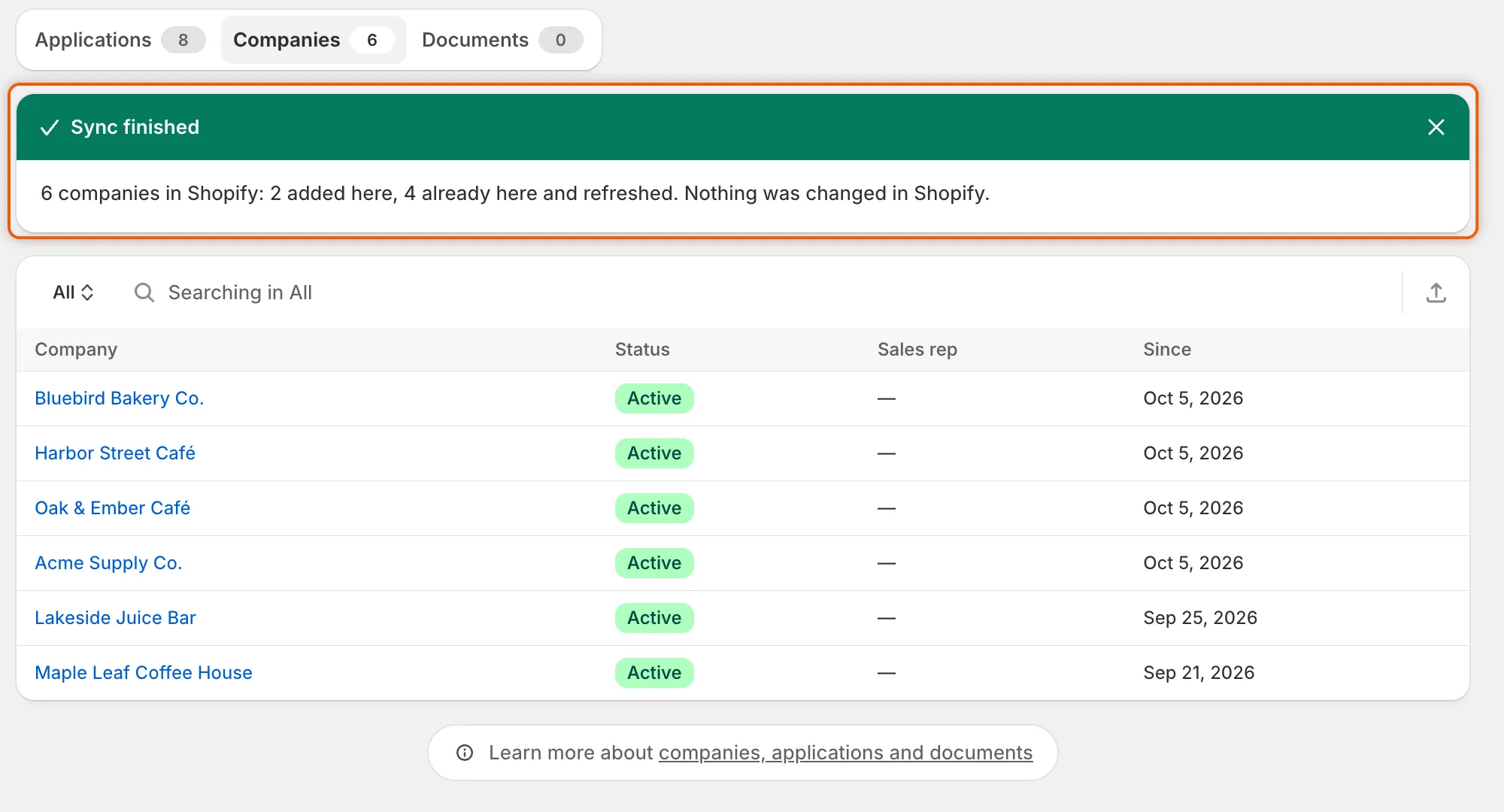
The banner tells you how many companies were added and how many were refreshed.
You can also start a sync from Companies › Import companies: click Sync from Shopify at the top of the page, or in the Already in Shopify? card.
What a sync reads
Section titled “What a sync reads”For each company in Shopify, the sync reads:
| Detail | Where it comes from in Shopify |
|---|---|
| Company name | The company |
| External ID | The company |
| Customer since | The company |
| Contact name and email | The company’s main contact |
| Country | The shipping address of the company’s first location |
| Tax ID | The tax settings of the company’s first location |
| Payment terms | The payment terms of the company’s first location |
Run a sync again whenever you want these details refreshed in the app. A company’s page doesn’t need it: its figures, locations, members, orders and custom data are read from Shopify each time you open it.
What a sync keeps
Section titled “What a sync keeps”- Status and sales rep stay yours. A company that’s already in the list keeps its status and sales rep. A sync never puts a company on hold or lifts a hold.
- New companies start as Active, with no sales rep.
- Details are only added or updated. If a detail is empty in Shopify, the detail already in the app stays.
- Companies imported from a CSV file are left alone. They’re never matched to a Shopify company by name, so the same company can appear twice. You’ll see both in the list.
One sync at a time
Section titled “One sync at a time”While your sync runs, the Sync from Shopify button is greyed out. If someone else on your team clicks it while a sync is running, they join the sync that’s already running. It isn’t started twice.
One sync reads up to 25,000 companies.
Check past syncs
Section titled “Check past syncs”Every sync is listed in Import history on the Import companies page, beside your CSV imports. Open Companies, click Import companies at the top of the page, and look for rows named Sync from Shopify.
| Column | What it shows for a sync |
|---|---|
| Source | Sync from Shopify, and how many companies were found in Shopify. |
| Status | Queued, Syncing, Finished or Failed. |
| Result | How many companies were added and updated, or No companies in Shopify. |
| Started | When the sync started. |
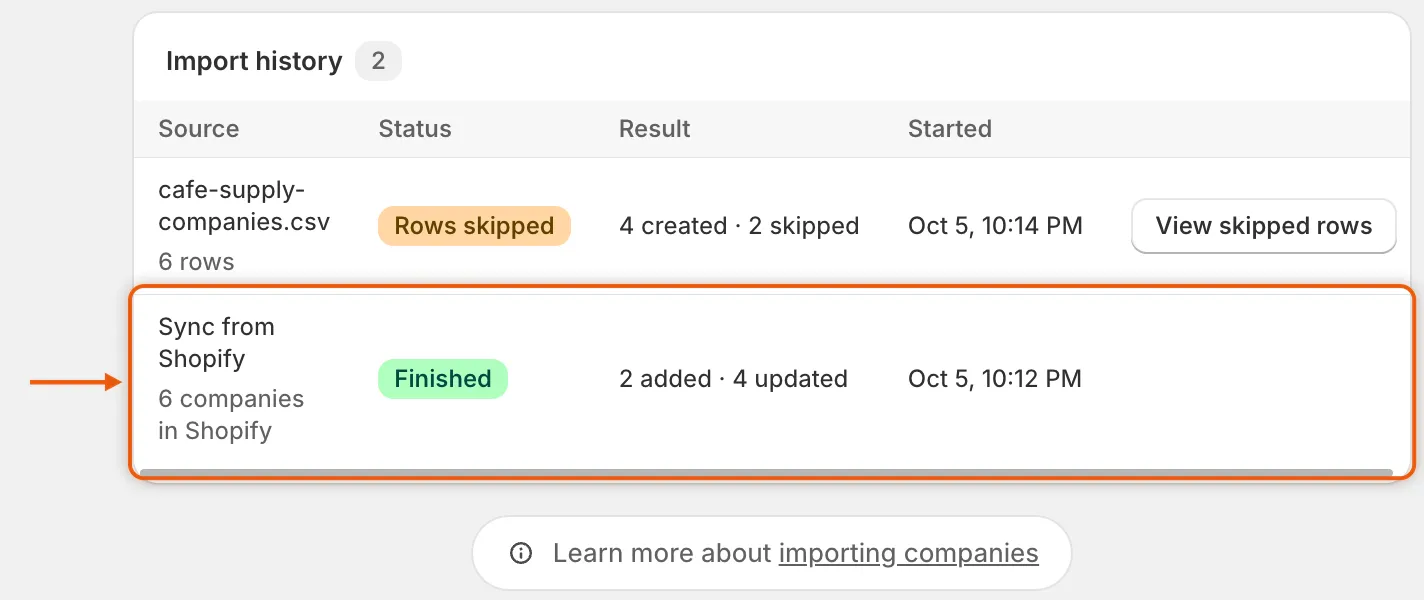
Syncs and CSV imports share the Import history, newest first.
If a sync fails
Section titled “If a sync fails”The run shows Failed in Import history. If you started it from the Companies tab, a red Sync failed banner also appears there. The companies read before it stopped are kept. Click Sync from Shopify to try again. If it keeps failing, click Contact support in the banner, or contact support.
Next steps
Section titled “Next steps”- Manage a company — set a sales rep and read the company’s orders.
- Import companies from a CSV file — add companies that aren’t in Shopify.
- Put a company on hold or remove it from B2B — stop a company’s buyers at checkout.