
Import companies from a CSV file
Add the companies you already sell to from a CSV file, check the result, and fix the rows that were skipped.
If you keep your wholesale customers in a spreadsheet, you can bring them into Sami B2B Onboarding in one go. Each row of your file becomes a company on the Companies list, where you can give it a sales rep, keep notes about it, and export it.
Only admins can import companies.
File limits
Section titled “File limits”| Limit | Value |
|---|---|
| File type | .csv |
| File size | Up to 20 MB |
| Rows per import | Up to 50,000. Rows after that aren’t imported. |
| Layout | A header row, then one row per company |
Import your file
Section titled “Import your file”-
Open Import companies
Section titled “Open Import companies”In the Shopify admin, open Sami B2B Onboarding and click Companies in the app menu. Click Import companies at the top of the page. When the list is empty, the button is in the middle of the page instead, and on the Applications tab it reads Import CSV. You can also click the Import companies shortcut on Home.
The page shows your Import history, or No imports yet before your first import. The cards on the right explain how importing works and list the columns a row can hold.
-
Download the template
Section titled “Download the template”In the How it works card, click Download template. The template has the header row and one example row for Acme Supply Co. Starting from it means every column is matched for you later.
-
Fill it in
Section titled “Fill it in”Add one row per company. Company name is the only required column. Any other cell can stay empty. Delete the example row before you import, or Acme Supply Co. is imported too. See the columns below.
Save the file as CSV. If your spreadsheet app offers CSV UTF-8, choose it so accented names come through.
-
Upload the file
Section titled “Upload the file”Click Start a new import at the top of the page, or in the middle of the page before your first import. In the Import companies from a CSV file dialog, click Add file and choose your file, or drop it on the dialog. The dialog moves to Match columns by itself.
-
Match columns
Section titled “Match columns”Each field the app understands is listed on the left. Beside it, Column in your file shows the column it reads from, and First row shows the value from your first row. Columns named as in the template are already matched.
Change a match with its dropdown, or pick Don’t import to leave the field out. Company name must have a column. If it doesn’t, the app asks you to pick one before it starts.
-
Start the import
Section titled “Start the import”Click Import with the number of rows, for example Import 120 rows. The dialog closes, an Import started message appears, and a blue banner says the file is importing.
The import runs in the background, so you can leave the page. When it’s done, the result shows in Import history, and the app emails your notification recipients the Import completed email, which is on by default. See Choose who gets notified.
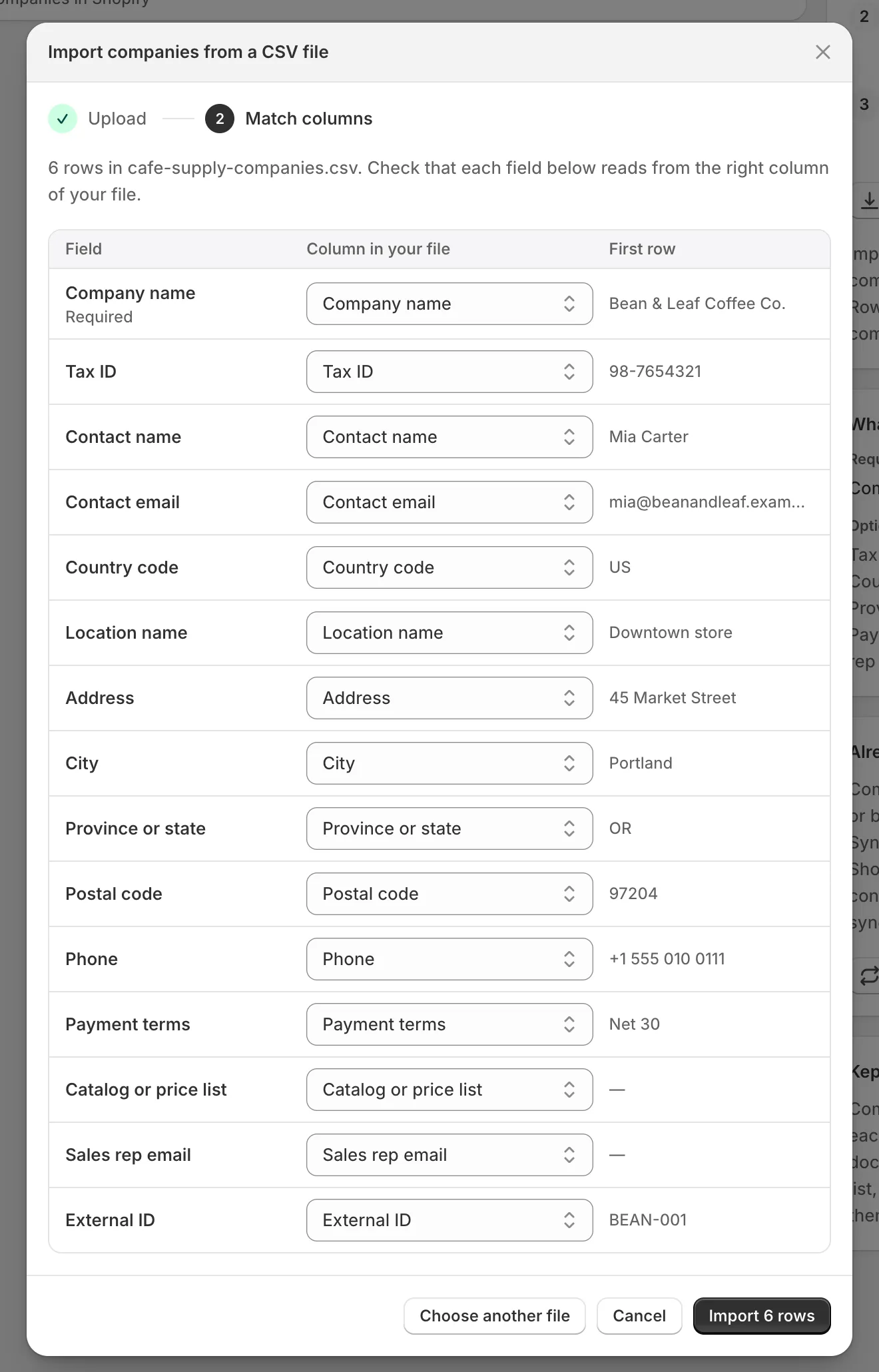
Check that each field reads from the right column, then click Import with the row count.
Columns a row can hold
Section titled “Columns a row can hold”| Column | What to put in it |
|---|---|
| Company name | Required. The company’s name, for example Acme Supply Co. |
| Tax ID | The company’s tax or VAT number. |
| Contact name | The person you deal with, for example Jordan Lee. |
| Contact email | Their email address. A row with an email that isn’t valid is skipped. |
| Country code | Two letters, for example US. |
| Location name | A name for the address, for example Main warehouse. |
| Address | The street address. |
| City | The city. |
| Province or state | The province or state, for example IL. |
| Postal code | The postal or ZIP code. |
| Phone | The company’s phone number. |
| Payment terms | For example Net 30. Recorded in the app only. |
| Catalog or price list | For example Wholesale price list. Recorded in the app only. |
| Sales rep email | The email of the team member who looks after the company. They must have opened the app. See Team and roles. |
| External ID | Your own ID for the company, for example ACME-001. |
Importing the same companies again
Section titled “Importing the same companies again”You can import an updated file as often as you like. A company that’s already in the list is updated rather than added twice. Each row is matched by its External ID. A row without one is matched by its Tax ID, and a row without either by its Company name.
When a company is updated:
- Empty cells leave the details already recorded.
- Its status stays as it is, so a company on hold stays on hold.
- Its sales rep is set from Sales rep email every time. If that cell is empty, the column isn’t imported, or the email isn’t someone on your team, the company is left with no sales rep.
A CSV row only matches companies imported before. It never updates a company approved from an application or synced from Shopify.
Check the result
Section titled “Check the result”Each import is a row in Import history, newest first:
| Column | What it shows |
|---|---|
| Source | The file name and its number of rows. |
| Status | Queued, Importing, Finished, Rows skipped or Failed. |
| Result | How many companies were created, updated and skipped. |
| Started | When the import started. |
The new companies are on the Companies tab, with “imported from a CSV” under their name on their page.
Fix skipped rows
Section titled “Fix skipped rows”A row is skipped when Company name is empty, or when Contact email isn’t a valid email address. The other rows still go through.
-
See why rows were skipped
Section titled “See why rows were skipped”In Import history, click View skipped rows on the import. The Skipped rows dialog lists each skipped row with its Line in your file, its Company and the Reason, such as “Missing Company name”.
-
Download them
Section titled “Download them”Click Download skipped rows. You get a CSV file with only those rows, in the template’s columns, plus a Line and a Reason column at the front.
-
Fix and import again
Section titled “Fix and import again”Correct the rows in that file and import it as before. The Line and Reason columns aren’t matched to any field, so they’re left out.
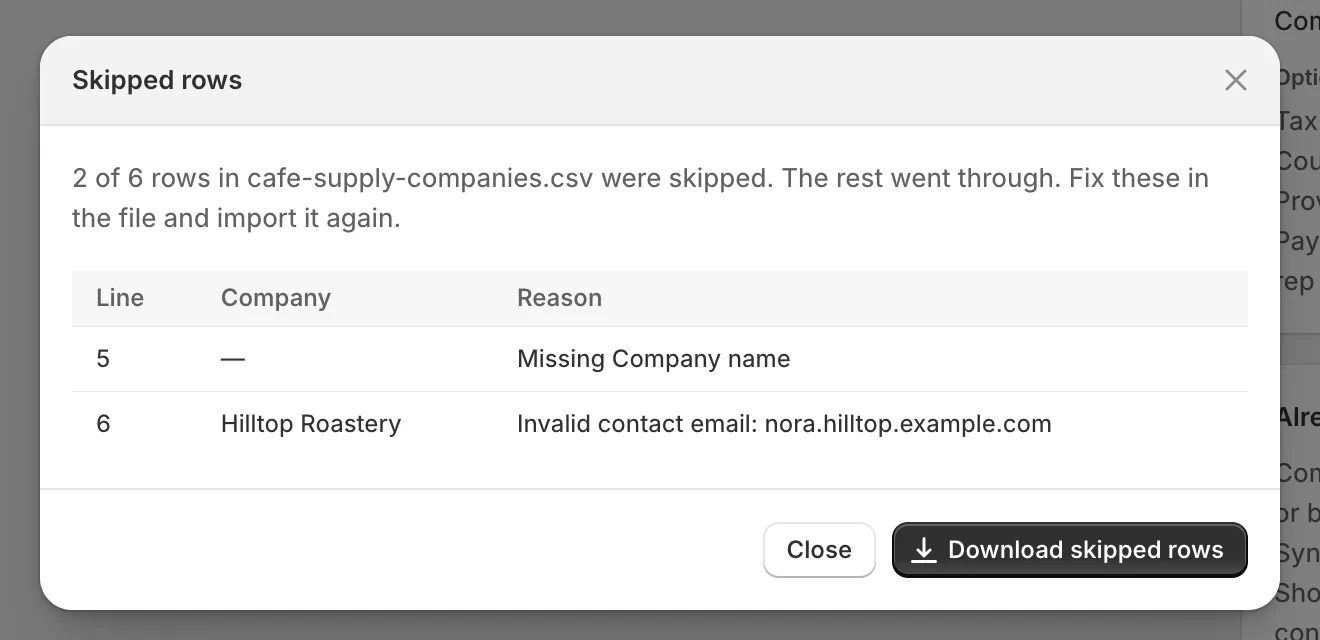
Download the skipped rows, fix them, and import that file again.
If an import shows Failed, it stopped before the end of the file. Import the file again: rows that already went through are updated, not added twice. If it fails again, contact support.
Next steps
Section titled “Next steps”- Manage a company — set sales reps and leave notes on the companies you imported.
- Sync companies from Shopify — bring in the companies that already exist in Shopify.
- Companies — search, filter and export the list.