
Applications
Find the applications buyers send you, see where each one stands and pick the next one to decide.
Every application a buyer sends through your form lands in one list in Sami B2B Onboarding. From there you review it, then approve it, ask the buyer for more information or reject it.
To open the list, open the app in the Shopify admin and click Companies in the app menu. The page opens on Applications, the first of three tabs at the top: Applications, Companies and Documents.
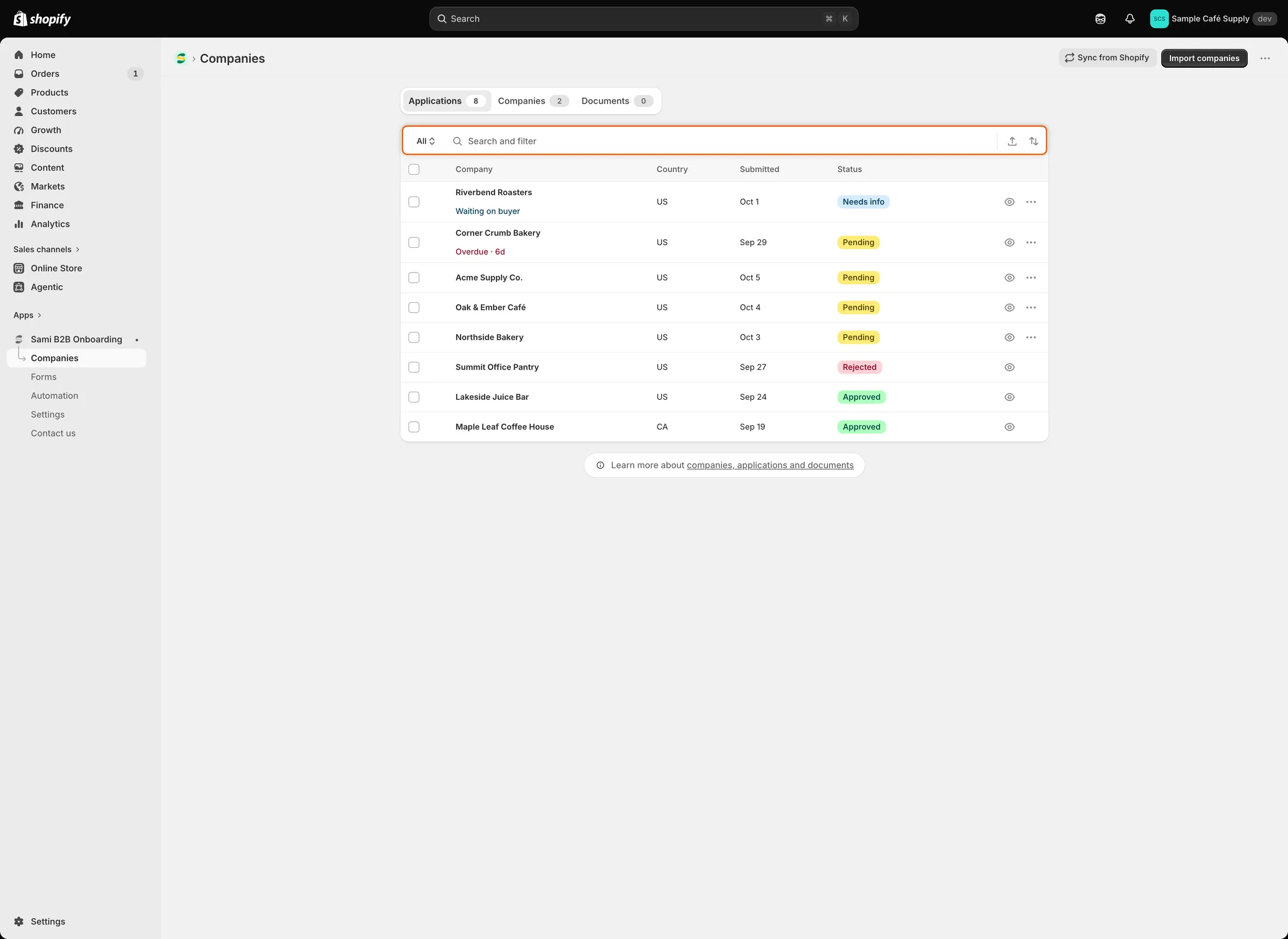
The button at the start of the search bar switches views; each row shows the application’s status and, when it needs attention, a note under the company name.
The button at the start of the search bar shows the view you’re in. It reads All at first. Click it to switch views; each view shows how many applications it holds.
| View | What it lists |
|---|---|
| All | Every application. |
| Needs your action | Pending and Resubmitted applications. The buyer is waiting for your decision. |
| Waiting on buyer | Needs info applications. The buyer was asked for more and hasn’t answered yet. |
| Overdue | Applications still open (Pending, Resubmitted or Needs info) more than 3 days after they were submitted. |
| Decided | Approved, Rejected and Abandoned applications. |
Statuses
Section titled “Statuses”| Status | What it means | View |
|---|---|---|
| Pending | A new application. Nobody has decided yet. | Needs your action |
| Resubmitted | The buyer sent the application again, after you asked for more information or after a rejection that let them update it. | Needs your action |
| Needs info | Someone on your team, a rule or a Shopify Flow workflow asked the buyer for more. | Waiting on buyer |
| Approved | Approved by your team or by a Shopify Flow workflow. | Decided |
| Approved with Auto-applied beside it | Approved by one of your automation rules. | Decided |
| Rejected | Rejected by your team, a rule, the tax ID check or a Shopify Flow workflow. | Decided |
| Abandoned | The buyer never answered your request, so the app closed it. You set how long it waits in Settings › Application rules › Data retention. | Decided |
Under the company name, a row can also show a short note:
- Waiting on buyer in blue: the application is in Needs info.
- Overdue · 6d in red: the application is still open more than 5 days after it was submitted. The number is the days since then. This note replaces Waiting on buyer.
The Overdue view and the red note use different limits. An open application joins the view more than 3 days after it was submitted, but the red note appears only after more than 5.
Find an application
Section titled “Find an application”- Search: type in the search bar. It matches the company name, the contact’s name and email, and the application reference.
- Filter: click in the search bar and pick Country or Form, then tick one or more values. The filter stays in the bar as a token, for example Country is US. Click its × to remove it, or the clear button at the end of the bar to remove everything.
- Sort: click the sort icon at the end of the bar. Under Sort by, pick Urgency (applications in the Overdue view first, then by date), Date submitted or Company. Under Order by, pick the direction, for example Most urgent first or Oldest first. You can also click the Company and Submitted column headers.
- Export: click the export icon beside the sort icon to download the list as a CSV file. See Decide several applications at once.
The list shows 25 applications per page. Click a row to open the full application, or the eye icon at the end of it for a quick look.
In this section
Section titled “In this section”Next steps
Section titled “Next steps”- Review an application — open your first application and check it.
- Approval presets — set up the terms you’ll approve with.
- Rules that decide applications — let the app approve, assign or flag applications for you.