
Map answers to Shopify
Choose which Shopify customer, company, address and metafield each answer fills when you approve an application.
Mapping tells Sami B2B Onboarding where each answer on your form belongs. When you approve an application, the app uses it to create the Shopify customer and company with the buyer’s details already filled in, so nobody has to retype them.
What mapping does
Section titled “What mapping does”- It fills in the application. The fields mapped to the company’s name, the buyer’s first and last name and the email give each application its company name, contact name and email in Companies › Applications. The buyer’s emails from the app go to that email address.
- It fills in Shopify when you approve. Nothing is written to Shopify when a buyer submits. When you, or a rule, approve the application, the app creates the customer (or finds the one with the same email), then creates the company and its first location from the mapped answers.
- It files documents. Uploads from document fields are filed by document type. See Files as documents.
The catalog, payment terms and contact role don’t come from the form. They come from the approval preset you pick when you approve. See Approval presets.
Open the Shopify panel
Section titled “Open the Shopify panel”-
Open the form
Section titled “Open the form”Go to Forms and click Edit beside the form. The builder opens.
-
Open Integrations
Section titled “Open Integrations”In the rail on the left, click Integrations. Under Connected apps, click Manage on the Shopify row.
The Shopify panel opens with four sections: Customer, Company, Company location and Metafields. The badge beside each section’s title counts how many of its Shopify fields have an answer mapped to them, for example 4/5. The badge turns green when all of them do.
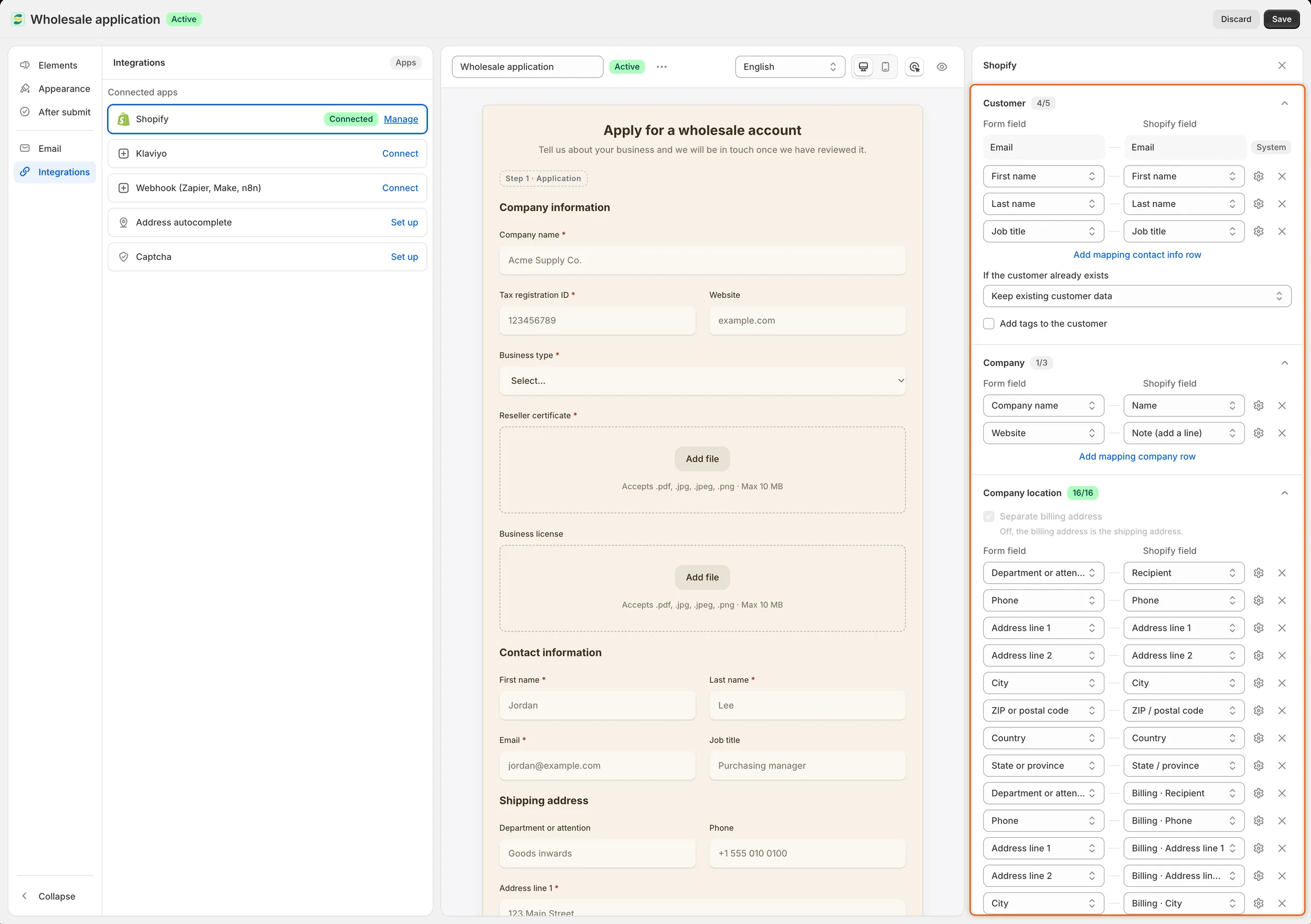
Each row pairs a field on your form with the Shopify field its answer fills.
What the default form already maps
Section titled “What the default form already maps”The Wholesale application form the app creates at install comes mapped, so approving it gives you a complete company with no setup.
| Field on the form | Section | Shopify field |
|---|---|---|
| Company name | Company | Name |
| Website | Company | Note (add a line) |
| First name | Customer | First name |
| Last name | Customer | Last name |
| Customer | Email (marked System) | |
| Job title | Customer | Job title |
| Department or attention | Company location | Recipient |
| Phone | Company location | Phone |
| Address line 1, Address line 2 | Company location | Address line 1, Address line 2 |
| City | Company location | City |
| ZIP or postal code | Company location | ZIP / postal code |
| Country | Company location | Country |
| State or province | Company location | State / province |
The billing address fields are mapped the same way, to the Billing · fields.
Two fields aren’t mapped, on purpose:
- Tax registration ID needs no mapping. On approval, the app adds the buyer’s tax ID to the company location as its tax registration ID.
- Same as shipping address hides the billing fields when the buyer ticks it. With no billing address, the company location uses the shipping address for billing too.
Map a field
Section titled “Map a field”-
Add a row in the right section
Section titled “Add a row in the right section”Pick the section for the Shopify field: Customer for the buyer, Company for the business, Company location for its addresses. At the bottom of that section, click Add mapping contact info row, Add mapping company row or Add mapping address row.
A new row appears with two dropdowns: Form field on the left and Shopify field on the right.
-
Choose the form field
Section titled “Choose the form field”In the left dropdown, pick the question on your form. A field that is already mapped somewhere else shows it after its name, for example Website — now Company · Note (add a line). Picking it replaces that mapping with this one.
-
Choose the Shopify field
Section titled “Choose the Shopify field”In the right dropdown, pick where the answer goes. The list only shows Shopify fields that can hold this kind of answer, and it leaves out the ones another row already fills. As soon as both dropdowns are set, the row is part of the mapping.
-
Choose what happens when the answer is empty (optional)
Section titled “Choose what happens when the answer is empty (optional)”Click the settings button near the end of the row, just before the X. See When an answer is empty.
-
Click Save in the save bar. The builder checks the mapping first. See Checks before the form saves.
To change a row, pick another field or Shopify field in it. To remove a row, click the X at its end.
Shopify fields you can map to
Section titled “Shopify fields you can map to”| Section | Shopify field | What the answer fills |
|---|---|---|
| Customer | Email (System) | The Shopify customer’s email, and the address the buyer’s emails go to. This row is fixed: it shows your form’s email field, or Add the email field when the form has none. |
| Customer | First name, Last name, Phone | The Shopify customer’s name and phone number. |
| Customer | Job title | Usually not saved in Shopify. The job title only reaches the company contact when the app couldn’t create the customer first. The answer always stays on the application. |
| Customer | Tags (add) | Adds the answer as tags on the Shopify customer, when the app creates the customer or updates one with Update with application data. Several fields can share it. |
| Company | Name | The Shopify company’s name and the application’s company name. Every form needs one field here. |
| Company | External ID | The company’s external ID in Shopify. |
| Company | Note | The company’s note in Shopify. |
| Company | Note (add a line) | Adds a line to the company’s note that reads “question: answer”. Several fields can share it, and any answer fits, even a file upload (as the file’s name). |
| Company location | Recipient, Address line 1, Address line 2, City, State / province, ZIP / postal code, Country, Phone | The shipping address of the company’s first location. The shipping Phone is also the location’s phone. |
| Company location | Billing · the same parts | The location’s billing address. Shown when Separate billing address is on. |
| Metafields | Customer · or Company · and the definition’s name | That metafield on the Shopify customer or company. See Map an answer to a metafield. |
The Company section also lists Tags (add), but answers mapped there aren’t saved in Shopify. To tag the buyer from an answer, use Tags (add) under Customer.
The company location is created only when the shipping address has at least Address line 1 and a country. A billing address without them is left out, and the location uses the shipping address for billing.
Not every answer fits every Shopify field:
- A single answer, such as text, a number, a date or one choice, fits the fields above.
- Several choices (Checkboxes, or a Dropdown with Allow multiple choices) fit Note, Note (add a line), the customer’s Tags (add) and list or multi-line metafields.
- A single checkbox is saved as Yes or No. It fits Note, Note (add a line) and true-or-false or multi-line metafields.
- A File upload only fits Note (add a line). To file the upload as a document, use a document field instead.
To tag buyers by the choice they pick, give that choice Customer tags in the field’s options. See Build your form.
When an answer is empty
Section titled “When an answer is empty”Click the settings button near the end of a mapped row, just before the X. The If the answer is empty panel opens beside the list.
| Option | What happens |
|---|---|
| Leave the Shopify field unset | Nothing is written to that Shopify field. This is the default. |
| Use a default value | The text you type in Default value is written instead, for example Not provided. The row then reads If empty: uses “Not provided”. For a field with several choices, separate the values with commas. |
| Don’t allow approval | The application can’t be approved until someone fills the answer in. The row reads If empty: approval waits until it’s filled in. |
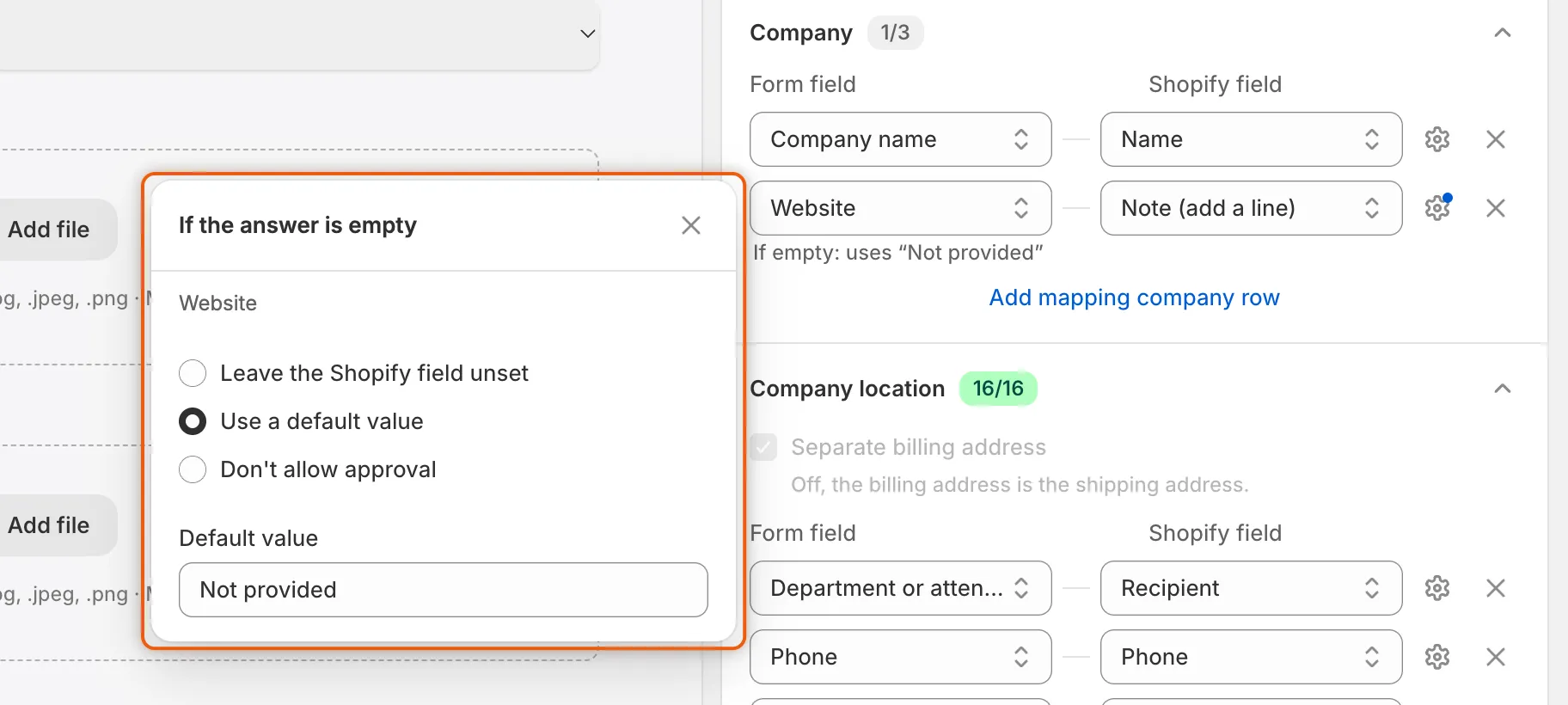
Pick what Shopify gets when the buyer leaves this answer blank.
With Don’t allow approval, an application with that answer blank shows Required answers with Missing: and the field’s name in its Decision readiness card. Approving it is refused, with the list of answers that are missing. A rule that would approve it leaves it in the queue instead. Fill the answer in on the application (the Edit answers pencil on its answers card), then approve. See Review an application.
Settings for the customer
Section titled “Settings for the customer”Below the Customer rows:
| Setting | What it does |
|---|---|
| If the customer already exists | The app looks for a Shopify customer with the buyer’s email. Keep existing customer data (the default) links the application to that customer and changes nothing else on them. Update with application data writes the mapped name, phone, tags and customer metafields over theirs, and keeps the tags they already had. Either way, approval marks the customer as approved. |
| Add tags to the customer | Tick it and type one or more tags. They are added, on top of the approval preset’s tags, when the app creates the customer or updates one with Update with application data. To tag from an answer, map a field to Tags (add). |
An application sent by a signed-in customer is already linked to that customer’s account, so approving it doesn’t change their customer data. It still marks them as approved.
Billing address
Section titled “Billing address”In Company location, Separate billing address decides whether billing fields are offered at all. Off, the billing address is the shipping address and only shipping fields are listed. On, the Billing · fields are added. While any billing field is mapped, the box stays ticked.
Map an answer to a metafield
Section titled “Map an answer to a metafield”Use a metafield for an answer that has no Shopify field of its own, such as how many cafés the buyer runs. The Metafields section lists your store’s customer and company metafield definitions that an answer can be saved in. With none, it reads No definitions in this store yet.
-
Add a metafield row
Section titled “Add a metafield row”In the Metafields section, click Add mapping metafield row.
-
Pick the field and the metafield
Section titled “Pick the field and the metafield”In Form field, pick the question. In Shopify field, pick the definition. Each one reads Customer · or Company · followed by its name, so you can see which object it’s saved on.
-
Click Save in the save bar. On approval, the answer is saved in that metafield on the customer or the company.
Create a definition for an answer
Section titled “Create a definition for an answer”When the right definition doesn’t exist yet, create it from the panel.
-
Open the panel
Section titled “Open the panel”At the bottom of the Metafields section, click Create a definition for an answer. The Create a metafield definition panel opens.
-
Fill it in
Section titled “Fill it in”- Answer to store: the field whose answer it holds. If that field is already mapped, the box says its mapping moves to the new definition.
- Store it on the: Customer or Company.
- Definition name: filled with the field’s label. Change it if you like.
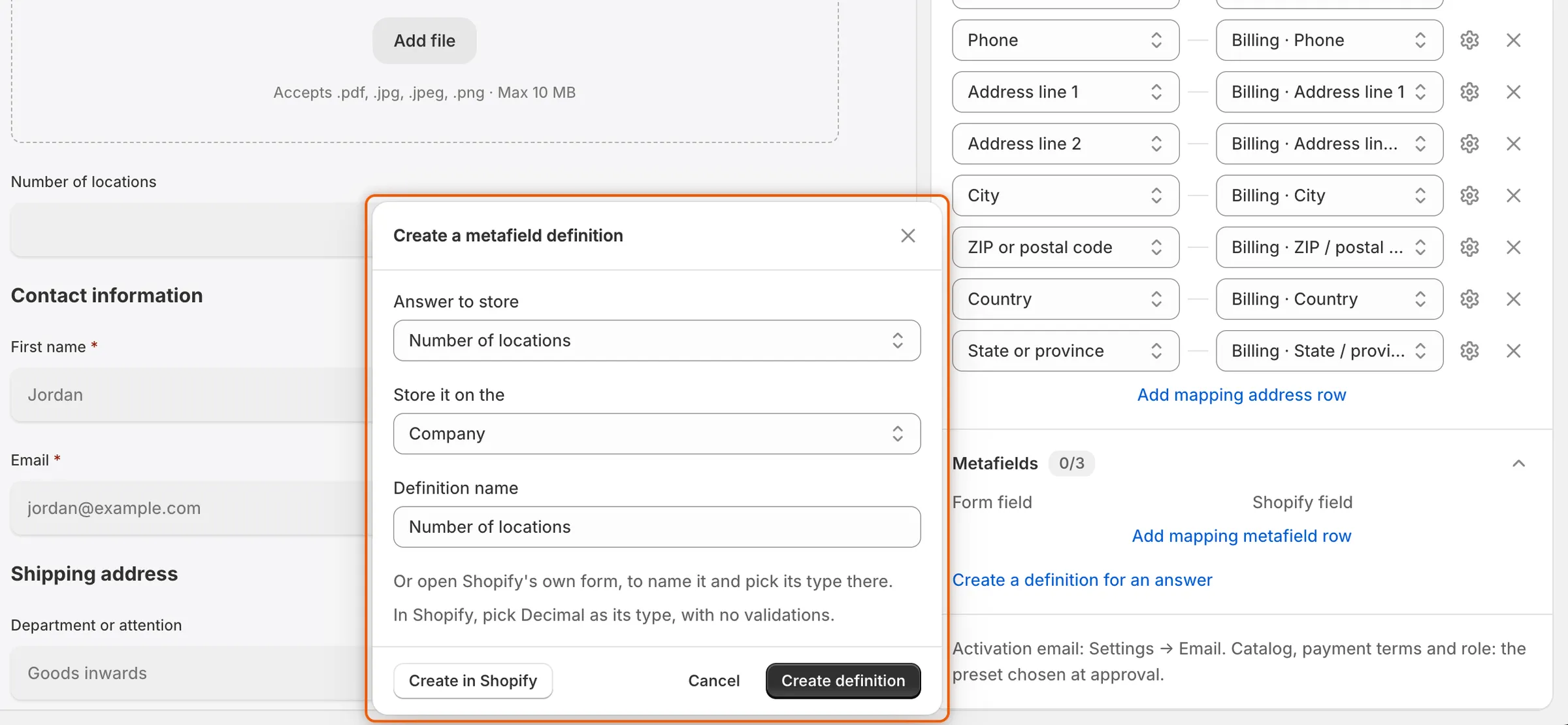
The app can create a metafield definition that fits the answer and map the field to it in one step.
-
Create it
Section titled “Create it”Click Create definition. The app creates the definition in Shopify with a type that fits the answer, maps the field to it, and shows Definition created. Click Save in the save bar to keep the mapping.
The type the app picks:
| Form field | Metafield type |
|---|---|
| Checkboxes, or a Dropdown with Allow multiple choices | A list of single line text |
| A single Checkbox | True or false |
| Number | Decimal |
| Long text | Multi-line text |
| Any other field | Single line text |
To name the definition and pick its type yourself, click Create in Shopify instead. Shopify’s own form opens, and the panel tells you which type to choose for this answer. When you save Shopify’s form, the field is mapped to the new definition if its answer fits. If it doesn’t, the panel reads “This field can’t be kept under the metafield you created. Check its type and validations in Shopify.”
A File upload field can’t be saved in a metafield.
Which metafields are offered
Section titled “Which metafields are offered”A definition is listed only when all of these are true:
- Its type is one an answer can be written as: single line text, multi-line text, decimal, date, true or false, or a list of single line text.
- The app may write to it. Definitions that belong to another app, or to Shopify itself, aren’t offered.
- The answer fits its type and its validation rules. A definition with a rule such as a character limit, a pattern or a range isn’t offered. The one exception is a list of allowed values that holds every choice of a Dropdown, Radio buttons or Checkboxes field.
| Form field | Metafield types it fits |
|---|---|
| Short text, Email, Phone, a one-choice Dropdown, Radio buttons | Single line text, multi-line text |
| Long text | Multi-line text |
| Number | Decimal, single line text, multi-line text |
| Date and time with Asks for set to Date | Date, single line text, multi-line text |
| Checkboxes, a multi-choice Dropdown | List of single line text, multi-line text |
| A single Checkbox | True or false, multi-line text |
Warnings about mapped metafields
Section titled “Warnings about mapped metafields”If a definition changes in Shopify after you map it, the builder warns you in three places. The warnings don’t stop you saving.
- A banner over the preview: Shopify may refuse some mapped answers, with an Open Shopify mapping button.
- A Check mappings badge on the Shopify row in Integrations.
- A note under the row, which says what is wrong:
| Note | What to do |
|---|---|
| That metafield isn’t in Shopify any more, so Shopify refuses this answer when an application is approved. | Map the field to another definition, or remove the row. |
| This app can’t write to that metafield, so the answer is never saved there. | Map the field to a definition of your own. |
| That metafield takes a different kind of answer, so Shopify may refuse this one when an application is approved. | Change the definition’s type in Shopify, or pick another definition. |
| That metafield has rules in Shopify this answer can’t keep to, so Shopify may refuse it when an application is approved. | Remove the definition’s validation rules in Shopify, or pick another definition. |
Checks before the form saves
Section titled “Checks before the form saves”The builder refuses to save, and lists the problem in a banner, until:
- The form has exactly one applicant’s email field (the field on the Email row marked System), and it isn’t hidden: Add the applicant’s email field., Only one field can be the applicant’s email., The email field can’t be hidden.
- A field is mapped to the company’s name: Map a field to Company · Name.
- No two fields fill the same Shopify field, for example “Company name” and “Website” are mapped to the same Shopify field. Note (add a line) and Tags (add) are the exceptions: any number of fields can share them.
Click a problem in the banner to open the Shopify panel.
Files as documents
Section titled “Files as documents”To file an upload as a document, add the field from Add field › Document fields: Business license, Tax certificate, Tax registration or Reseller certificate. When the buyer submits, each upload from one of these fields is filed under that document type. You find it on the application and under Companies › Documents. An upload from a plain File upload field stays with the application’s answers.
Next steps
Section titled “Next steps”- Build your form — add the fields you want to map, and give choices their own customer tags.
- Approve an application — see the customer and company the mapping creates.
- Approval presets — set the catalog, payment terms and role an approval applies.
- Documents — review the files buyers send from document fields.