
Add the form block in the theme editor
Show an application form as a section on a page template, using the app's block in the theme editor.
Sami B2B Onboarding adds a B2B application form block to your theme. It shows a form as a section of its own on a page template, so you can put your own sections above and below it, such as a banner or a list of what wholesale buyers get.
Pick a template for the form
Section titled “Pick a template for the form”A section added to a page template shows on every page that uses that template. Most pages use your theme’s default page template, including the page the app made for your form, which already holds the form. To show the form on one page only, give that page a template of its own, as in the steps below.
Add the block to a template of its own
Section titled “Add the block to a template of its own”-
Open the theme editor
Section titled “Open the theme editor”In your Shopify admin, go to Online Store › Themes and click Edit theme on your current theme.
-
Create a page template
Section titled “Create a page template”Open the template menu at the top of the theme editor (it reads Home page when the editor opens). Choose Pages, then Create template. Name it, for example
wholesale, base it on Default page, and click Create template.The editor switches to the new template.
-
Add the form section
Section titled “Add the form section”In the sidebar on the left, click Add section under Template, open the Apps tab and choose B2B application form.
The form is added as a block in an Apps section, and the preview shows your default form in it. In the theme editor you always see the form itself, even when you’re signed in to your store.
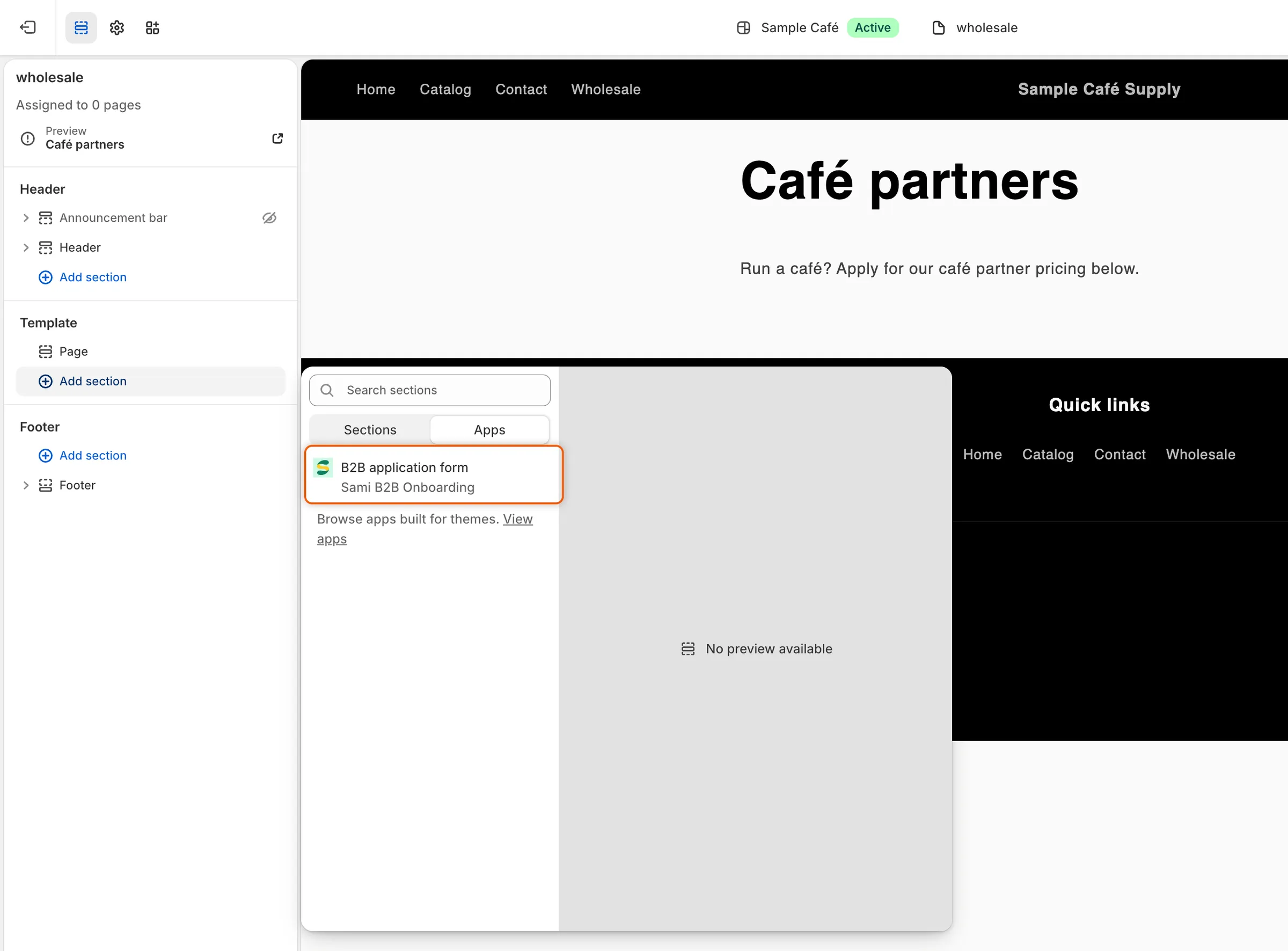
Add section under Template, then pick B2B application form on the Apps tab.
-
Choose the form
Section titled “Choose the form”Click B2B application form under Apps in the sidebar. In its Form box:
- leave it empty to show your default form, or
- type another form’s slug, the short name the box’s help text asks for.
To find a form’s slug, go to Forms in the app, click … (More actions) on the form’s row and choose Copy embed code. Paste it somewhere you can read it: the slug is the text in the last pair of quotes. For the Wholesale application form, it’s
wholesale-application.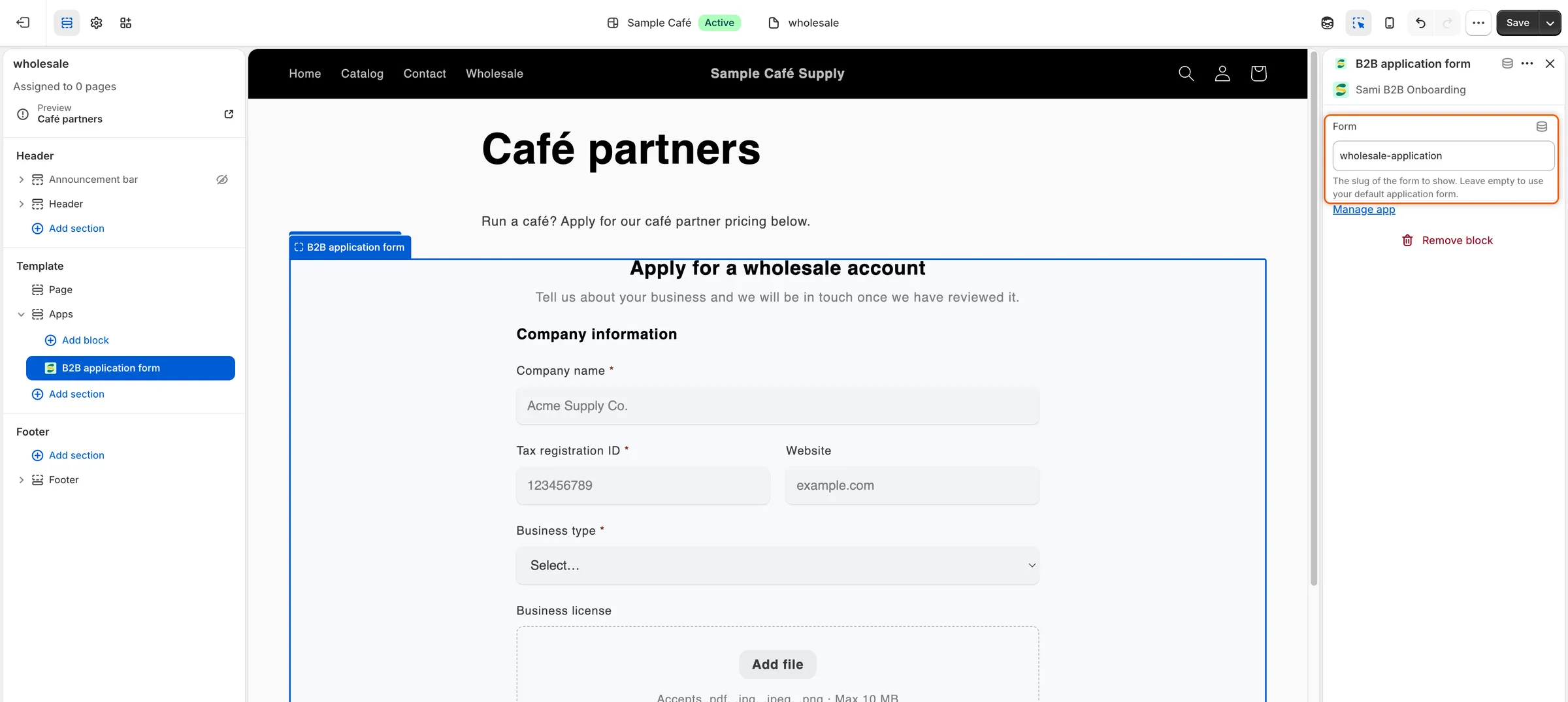
Leave Form empty for your default form, or type another form’s slug.
-
Click Save at the top right of the theme editor.
-
Give a page the template
Section titled “Give a page the template”In your Shopify admin, go to Online Store › Pages. Open the page that should show the form, or click Add page to make one and give it a title, for example
Wholesale. Under Theme template, choosewholesale, then click Save.Don’t choose it for the page the app made for the form: that page already holds the form, so it would show twice.
Use the shortcut from Forms
Section titled “Use the shortcut from Forms”The app has a shortcut that opens the theme editor with the block ready.
-
Open the shortcut
Section titled “Open the shortcut”In the app, go to Forms. Click … (More actions) on the form’s row and choose Add block in theme editor.
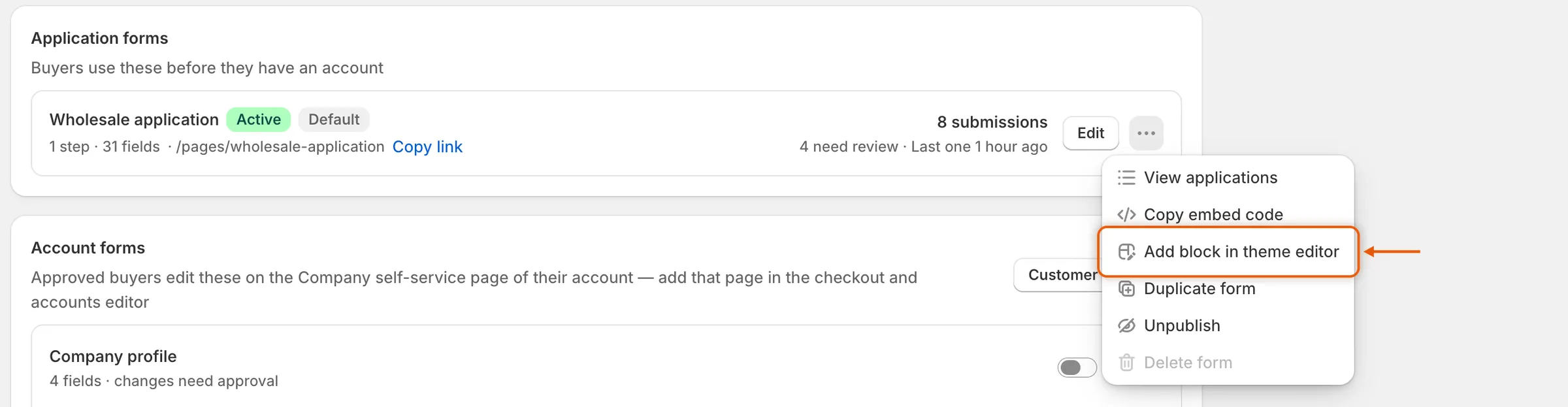
Add block in theme editor opens the theme editor with the form block added.
-
Pick the form and save
Section titled “Pick the form and save”The theme editor of your current theme opens on the default page template, with the B2B application form block added. Click the block, type the form’s slug in Form (or leave it empty for your default form), then click Save.
Check it on your store
Section titled “Check it on your store”-
Open the page as a guest
Section titled “Open the page as a guest”Open the page on your store in a private browser window, so you see it as a buyer who isn’t signed in. The form shows in its section, between your other sections.
-
Fix what you see, if needed
Section titled “Fix what you see, if needed”- This form is not available right now. The slug in Form doesn’t match a published form. Check the spelling, or publish the form in Forms.
- A different form shows. Form is empty, so the section shows your default form. Type the slug of the form you want, or make that form the default with … (More actions) › Set as default in Forms.
If you lock your store, a page from Online Store › Pages that shows the form stays open to visitors. See Lock the store.
Next steps
Section titled “Next steps”- Design the form — match the form’s font, colors and width to the page around it.
- Paste the embed code — put the form in a Custom Liquid section or a page builder instead.
- Use the form page the app creates — share a ready-made page when you don’t need a designed one.