
Getting started
Turn on the app embed
Switch on the app embed in your theme so the application form and your store access rules work on the storefront.
The app embed is the part of Sami B2B Onboarding that runs in your theme, on every storefront page. Shopify doesn’t turn app embeds on when you install an app, so you switch it on yourself, once for each theme.
What the embed does
Section titled “What the embed does”With the embed on, your storefront:
- shows the application form on the page the app creates for each form
- hides prices and add to cart from visitors who aren’t approved, if you turned that on
- locks the store, including a private wholesale store, and shows visitors the prompt to log in or apply
- runs Test mode, so you can try your rules on your own account first
You choose these rules in Settings › Access. Block checkout while pending doesn’t need the embed: Shopify checks it at checkout.
Turn it on from Home
Section titled “Turn it on from Home”-
Open the app
In Shopify admin, click Apps, then Sami B2B Onboarding. The app opens on Home.
-
Open the theme editor
On the Turn on the app embed card, click Activate embed.
If you closed that card, look at the top of the Recent activity card instead. Next to App embed, click Open theme editor.
The theme editor opens in a new tab, on your published theme. The Sami B2B Onboarding app embed is already switched on.
-
Save
In the theme editor, click Save. Then close the tab.
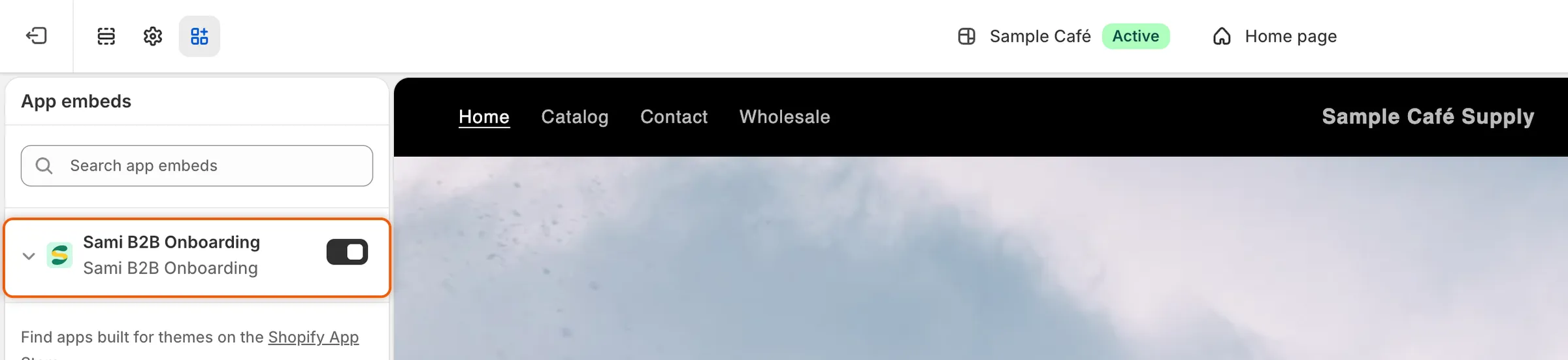
Sami B2B Onboarding is already switched on in App embeds, so all that’s left is to click Save.
-
Check the status
Go back to the app’s tab. Home checks the embed again when you return. The Turn on the app embed card shows Done, and App embed in Recent activity reads On.
Turn it on in the theme editor
Section titled “Turn it on in the theme editor”You can also switch the embed on without going through the app.
-
Open your theme
In Shopify admin, go to Online Store › Themes. Next to your current theme, click Edit theme.
-
Switch on the embed
In the theme editor’s sidebar, click App embeds. Find Sami B2B Onboarding and switch it on.
-
Save and check
Click Save. Then open the app again. Home checks the embed each time the app opens, and App embed reads On.
Check that it worked
Section titled “Check that it worked”- In the app. On Home, the Recent activity card shows App embed with On or Off. It reads Checking… while it looks. When the embed is on, click the refresh button beside the status to check again.
- On your storefront. In the app, go to Forms and click Copy link beside your form. Open the link in a private browser window. The form appears on the page. With the embed off, the page shows no form.
Your access rules never apply inside the theme editor, so you always see prices and buy buttons there. Test them on your live storefront, in a private window.
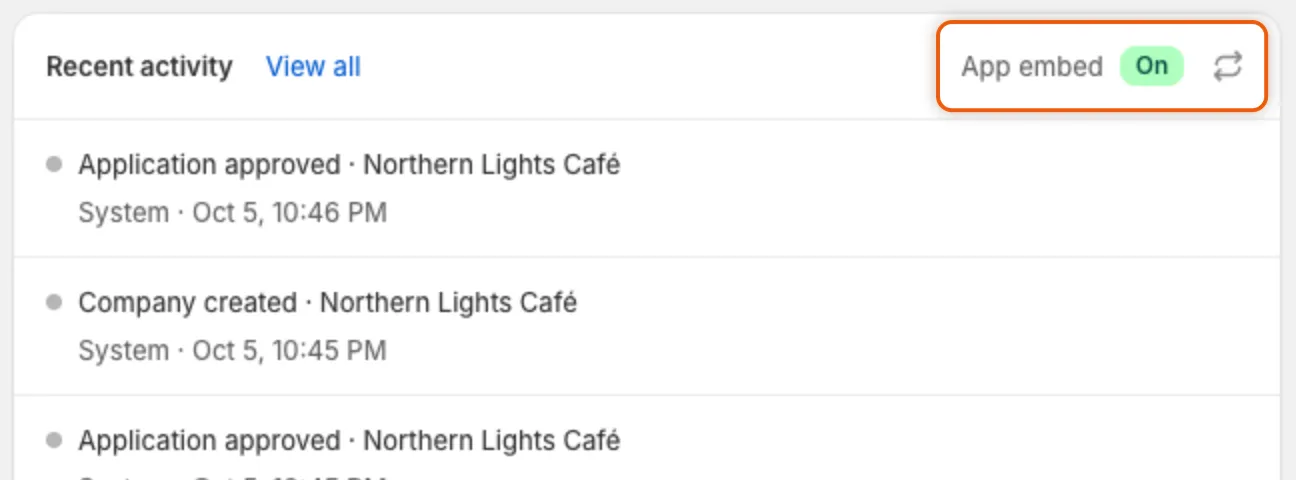
Home shows whether the app embed is on in your published theme.
Turn it off
Section titled “Turn it off”-
Go to your theme
In Shopify admin, go to Online Store › Themes. Next to your current theme, click Edit theme.
-
Switch off the embed
Click App embeds, switch off Sami B2B Onboarding, and click Save.
With the embed off, the form pages the app creates show no form, and Settings › Access stops working on the storefront, except for the checkout block.
When you change themes
Section titled “When you change themes”Each theme keeps its own app embed setting. Before you publish a different theme, open it in the theme editor, switch on Sami B2B Onboarding under App embeds, and save. Home reports the embed on your published theme.
Next steps
Section titled “Next steps”- Quickstart — finish setting up and approve a test application.
- Use the form page the app creates — share the page that shows your form.
- Store access — choose what visitors who aren’t approved can see and do.
- Troubleshooting — what to check when the form or your rules don’t show.