
Store access
Ask buyers to log in before applying
Ask buyers to log in or create a customer account before they can fill in your application form.
By default, anyone can fill in your application form, and Sami B2B Onboarding creates the buyer’s customer account when you approve them. You can ask buyers to log in first instead. Their application is then tied to the customer account they log in with.
Choose who can apply
Section titled “Choose who can apply”The Account required setting has two options:
| Option | What guests see | What logged-in customers see |
|---|---|---|
| Anyone can apply, account created on approval (default) | The form. They can send it. | The form, with their account email filled in and locked. |
| Log in first, then apply | A log-in prompt instead of the form. | The form, with their account email filled in and locked. |
The setting covers every application form in your store. It works with every Storefront visibility option, including Public catalog, public purchasing. Test mode doesn’t limit it: it applies to everyone as soon as you save.
Turn it on
Section titled “Turn it on”-
Open Access
In the app, click Settings. Access opens first. If another section opens, click Access in the settings menu.
-
Choose Log in first, then apply
Under How buyers apply, in Account required, choose Log in first, then apply.
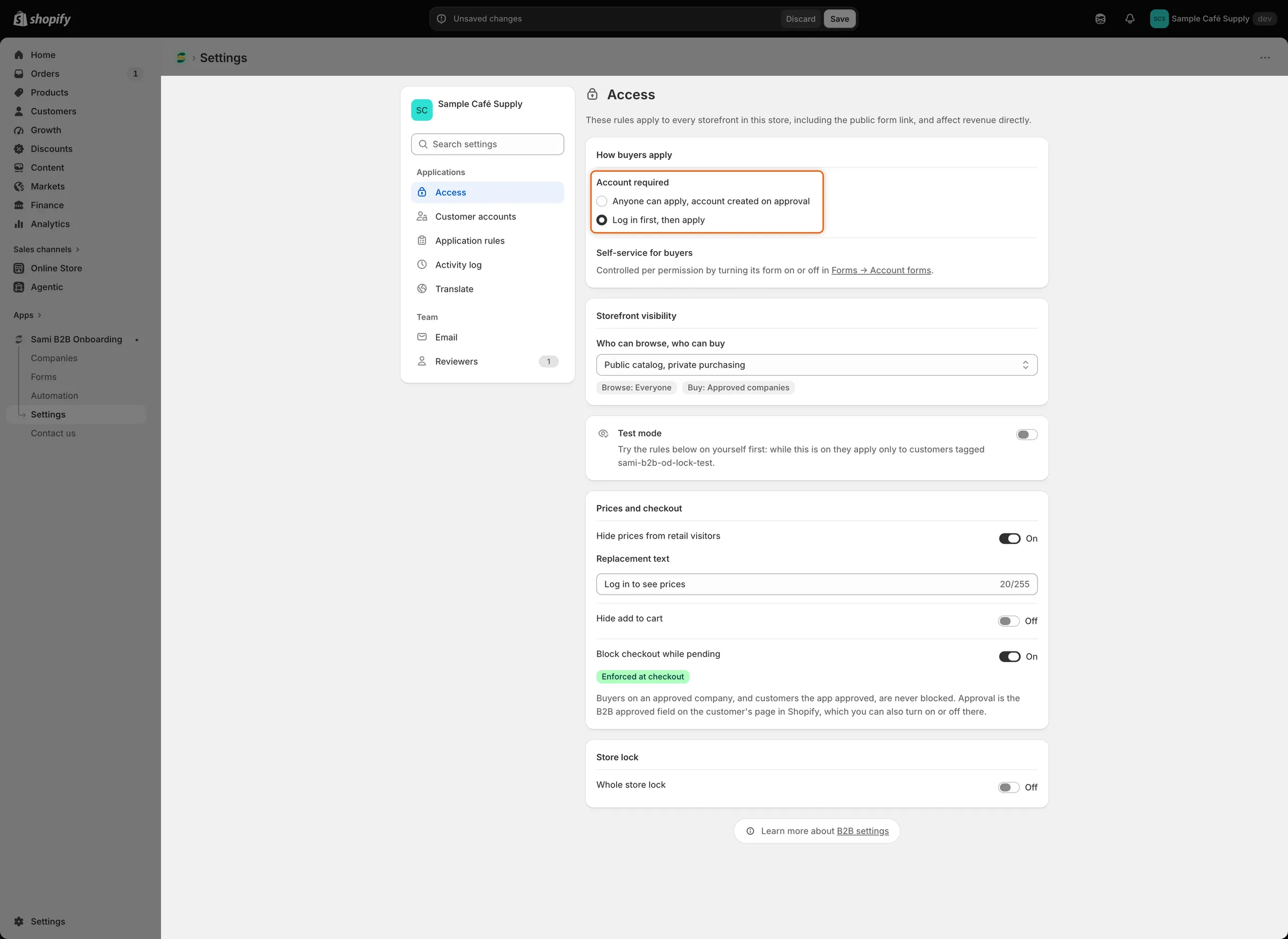
Choose Log in first, then apply to show guests a log-in prompt instead of the form.
-
Save
Click Save in the save bar. Settings saved appears.
What guests see
Section titled “What guests see”On your form’s page, guests see a prompt in place of the form. It keeps your form’s header and design, and shows:
- the heading Log in to apply
- the message Log in or create a customer account first, then fill in the application.
- a Log in button, which opens your store’s log-in page and brings the buyer back to the form afterwards
- a Create account link, which opens your store’s sign-up page
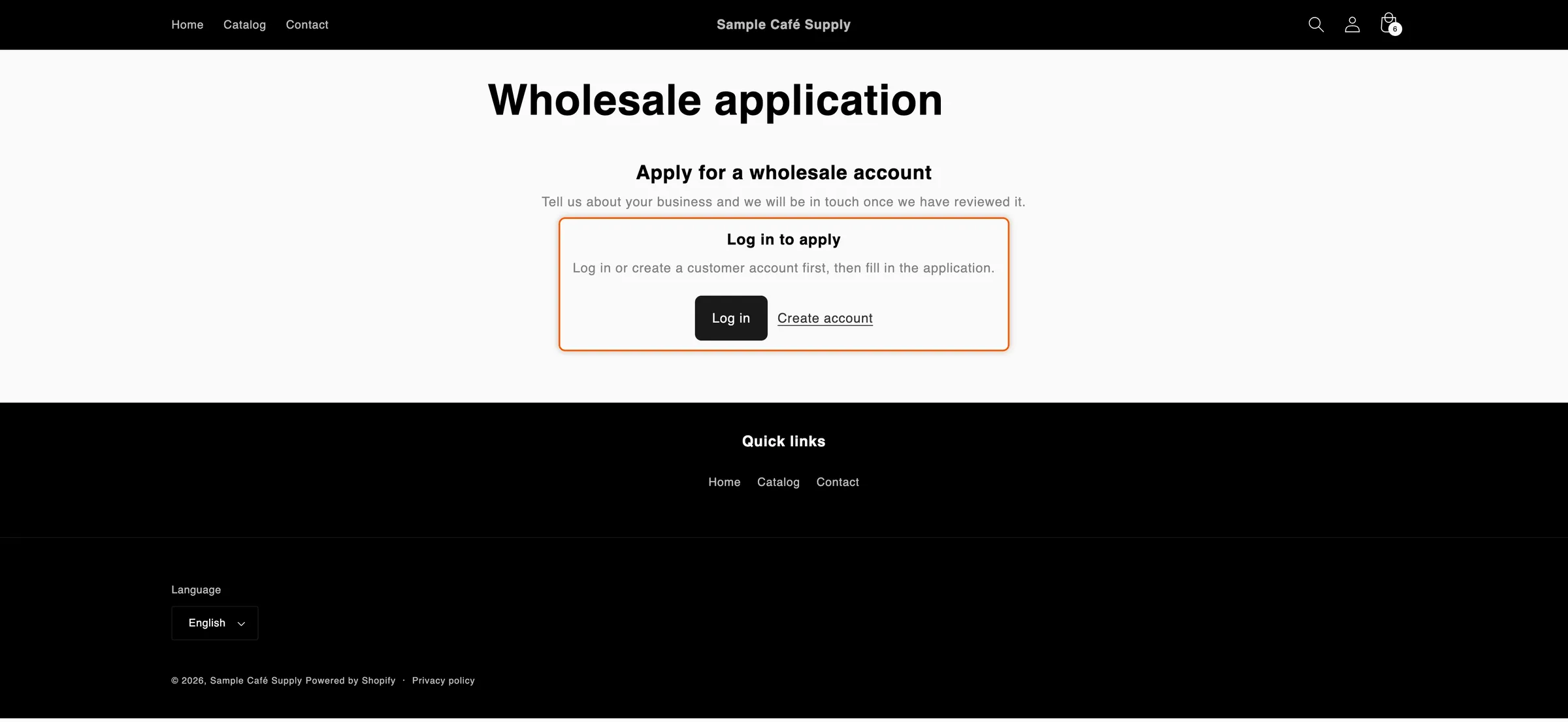
Guests see a log-in prompt in place of the form until they log in.
Once logged in, the buyer sees the form. Their account email is filled in and can’t be changed, so your decision reaches the address they log in with. A buyer who has applied before sees where their application stands instead of a blank form.
If a guest sends a form they opened before logging out, it’s refused with Log in to your account to send this application.
When the form opens without logging in
Section titled “When the form opens without logging in”- The private link to update an application. When you ask a buyer for more information, their link opens the form so they can update their application, logged in or not. See Request more information.
- The theme editor. You see the form there, so you can design it.
Buyers who start from the application page in their customer account are already logged in, so they go straight to the form. See Company application page.
Change or translate the prompt
Section titled “Change or translate the prompt”-
Open Translate
Go to Settings › Translate.
- To change the English wording, click Edit next to your default language.
- To translate it, click Translate next to the language.
-
Edit the prompt
In the list on the left, under Storefront, click Storefront messages. In the Form card, change Log-in prompt heading, Log-in prompt message, Log-in prompt button and Create account link.
-
Save
Click Save in the save bar.
Check it
Section titled “Check it”- Open your form’s page in a private browser window. The Log in to apply prompt shows instead of the form.
- Click Log in and log in with a customer account. You come back to the form page, and the form shows with your email filled in.
- To let guests apply again, choose Anyone can apply, account created on approval and click Save.
Next steps
Section titled “Next steps”- Use the form page the app creates — find and share your form’s page.
- Company application page — let logged-in customers apply from their account.
- Lock the store — your form’s page stays open under the lock.
- Translate — translate the rest of the form’s wording.