
Sami B2B Onboarding
Application forms
Collect wholesale applications from buyers who don't have a business account yet.
An application form is what a buyer fills in to ask for a business account. Buyers use it before they have an account: they open the form on your store, answer your questions and submit. Each submission becomes an application that you review in Companies › Applications.
Sami B2B Onboarding creates a ready-to-use form, Wholesale application, when you install the app. It asks for the company, the contact person, a shipping address and a billing address, and it is published from the start. You can edit it, or build more forms beside it.
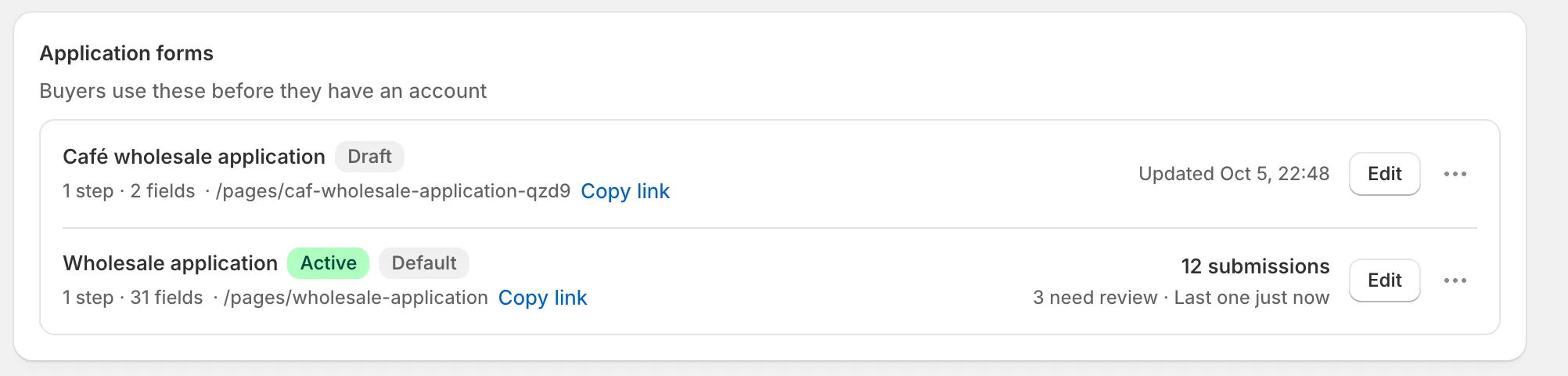
Each row shows the form’s status, its page address with a Copy link button, and its submission count, or when it was last updated if it has no submissions.
How it fits together
Section titled “How it fits together”- Several forms, one default. You can have as many application forms as you need, for example one per region or per type of buyer. One of them is the Default form. The app uses the default wherever you haven’t picked a specific form: the form block in the theme editor when its Form setting is left empty, the Apply for an account button on a locked store, and the customer account pages. To change it, open … (More actions) on a published form and choose Set as default.
- Two statuses. Active means the form is published and buyers can open it. Draft means it is unpublished: its page is taken off your store and buyers can’t apply through it. Use Publish and Unpublish to switch.
- A page for every form. The app creates a page on your Online Store for each application form. Its address is shown under the form’s name on the Forms page. The form shows on that page once the app embed is on.
- Account forms live here too. The Forms page also lists four Account forms. Approved buyers use those in their customer account to edit their company details. See Account forms.
Only staff with the admin role can create or change forms. Reviewers can see the list and copy links. See Team and roles.
What you can do from the Forms page
Section titled “What you can do from the Forms page”Each form row has these actions.
| Action | Where | What it does |
|---|---|---|
| Edit | Button on the row, or click the form’s name | Opens the form in the builder. |
| Copy link | Under the form’s name | Copies the full address of the form’s page on your store. |
| Submissions count, for example 3 submissions | Right side of the row | Opens Companies › Applications, showing only this form’s applications. A form with no submissions shows when it was last updated instead. |
| View applications | … (More actions) | Same as the submissions link. |
| Copy embed code | … (More actions) | Copies a snippet you can paste into a page of your theme. |
| Add block in theme editor | … (More actions) | Opens the theme editor, ready to add the form block to a page. |
| Duplicate form | … (More actions) | Makes a Draft copy of the form and opens it in the builder. |
| Set as default | … (More actions) | Makes this form the default. Shown only on Active forms that aren’t already the default. |
| Publish / Unpublish | … (More actions) | Switches the form between Active and Draft. Takes effect at once. |
| Delete form | … (More actions) | Deletes the form. Applications you already received are kept. Not available when it’s your only application form. |
In this section
Section titled “In this section”Next steps
Section titled “Next steps”- Create and publish a form — make your first form of your own, or check the default one.
- Build your form — change the questions on the Wholesale application.
- Add a form to your store — choose where buyers find the form.
- Applications — review what buyers send.