
Application forms
Show, require or disable fields with rules
Show, hide, require or grey out a field, or show or hide a row or a page, based on what the buyer answered earlier in the form.
A rule changes part of an application form based on an answer the buyer already gave. Use rules to ask a question only when it applies, for example a reseller certificate only from resellers, so every buyer sees a shorter form.
How rules work
Section titled “How rules work”Each field, row or page can have one rule, set under Conditional display. A rule has two parts:
- What it does. You pick one action in When the conditions match.
- When it does it. One or more conditions, each made of a field, a test and an answer, such as Business type is Reseller.
A field’s rule can do one of these things:
| When the conditions match | What happens | When they don’t match |
|---|---|---|
| Show this | The field shows. | The field is hidden. |
| Hide this | The field is hidden. | The field shows. |
| Make this required | The buyer must answer the field. | The field follows its own Required switch. |
| Make this optional | The buyer can leave the field empty. | The field follows its own Required switch. |
| Disable this | The field is greyed out. The buyer can’t type in it, and it is never required. | The buyer can fill it in. |
The list also offers Enable this. Buyers can always fill in a field unless a Disable this rule greys it out, so Enable this doesn’t change the field.
A few things to know before you start:
- A rule reads earlier answers only. It can test fields above it on the same page and fields on earlier pages. Headings, paragraphs, HTML and dividers can’t be tested.
- Rows and pages only show or hide. Their rule offers Show and Hide, and none of the other choices.
- One action per rule. A field can’t be shown by one rule and required by another. To ask for something only sometimes and make it required when it’s asked, turn on the field’s Required switch and give it a Show this rule. A hidden field is never required.
- The preview ignores rules while you edit. With the inspector on, a field a rule would hide still shows, so you can select it. Click the inspector button (Deactivate inspector) to fill in the preview like a buyer and watch the rules work.
Example: ask resellers for a certificate
Section titled “Example: ask resellers for a certificate”This example adds a Business type question to the Wholesale application and shows a Reseller certificate upload only when the buyer picks Reseller.
-
Add the Business type question
In the preview, point at the bottom edge of the Website field and click the + that appears (Add field below). Under Basic fields, click Dropdown.
In the field’s settings, under Content, change Label to
Business type. -
Add its choices
Under Options, click Add option. The Edit options — Business type window opens with one choice, New option.
- Replace New option with
Café. - Click Add another option and type
Bakeryin place of New option. - Click Add another option again and type
Resellerin place of New option. - Click Done.
Under Validation, turn on Required.
- Replace New option with
-
Add the certificate upload
Point at the bottom edge of Business type and click +. Under Document fields, click Reseller certificate.
Under Validation, turn on Required. The rule you add next decides when the field shows, and it is only required while it shows.
-
Turn on Conditional display
With Reseller certificate still selected, go to Visibility and tick Conditional display.
- In When the conditions match, choose Show this.
- Leave If other fields must match on all conditions.
The Conditions card says No conditions yet and Until you add one, this always shows. Click Add condition.
-
Set the condition
In the Conditions window:
- In the first list, choose Business type.
- Leave the test on is.
- In the last list, choose Reseller.
- Click Done.
The Conditions card now reads Business type is Reseller.
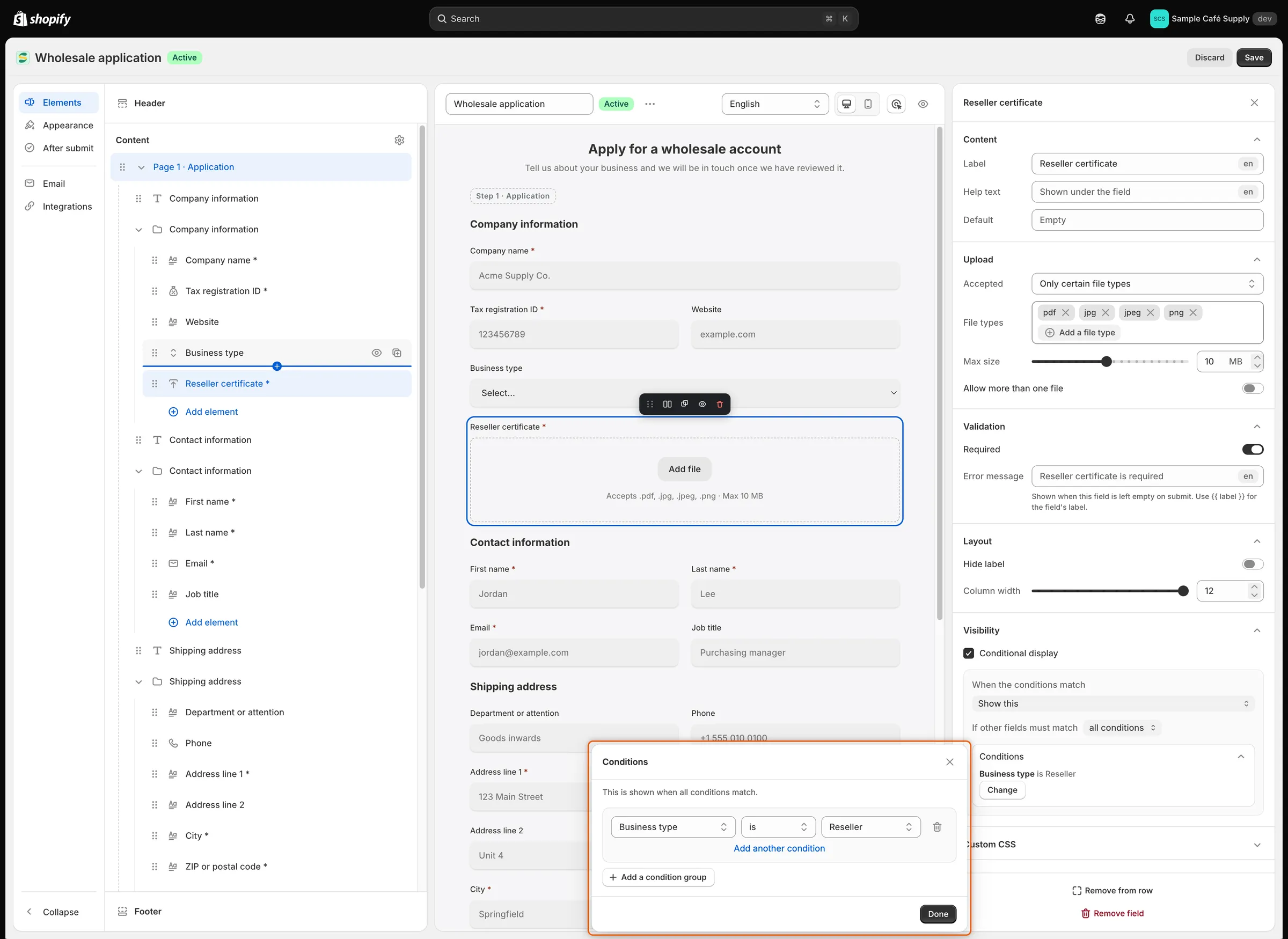
A condition names an earlier field, a test and the answer to look for.
-
Test it in the preview
Click the inspector button in the toolbar (Deactivate inspector). Reseller certificate disappears from the preview. Choose Reseller in Business type and it appears. Choose Café and it goes again.
Click the inspector button again (Activate inspector) to go back to editing.
-
Save and check your store
Click Save in the save bar. Open the form’s page on your store and pick Reseller in Business type. The Reseller certificate upload appears, and Submit application asks for it if it is left empty. Buyers who pick Café or Bakery never see it.
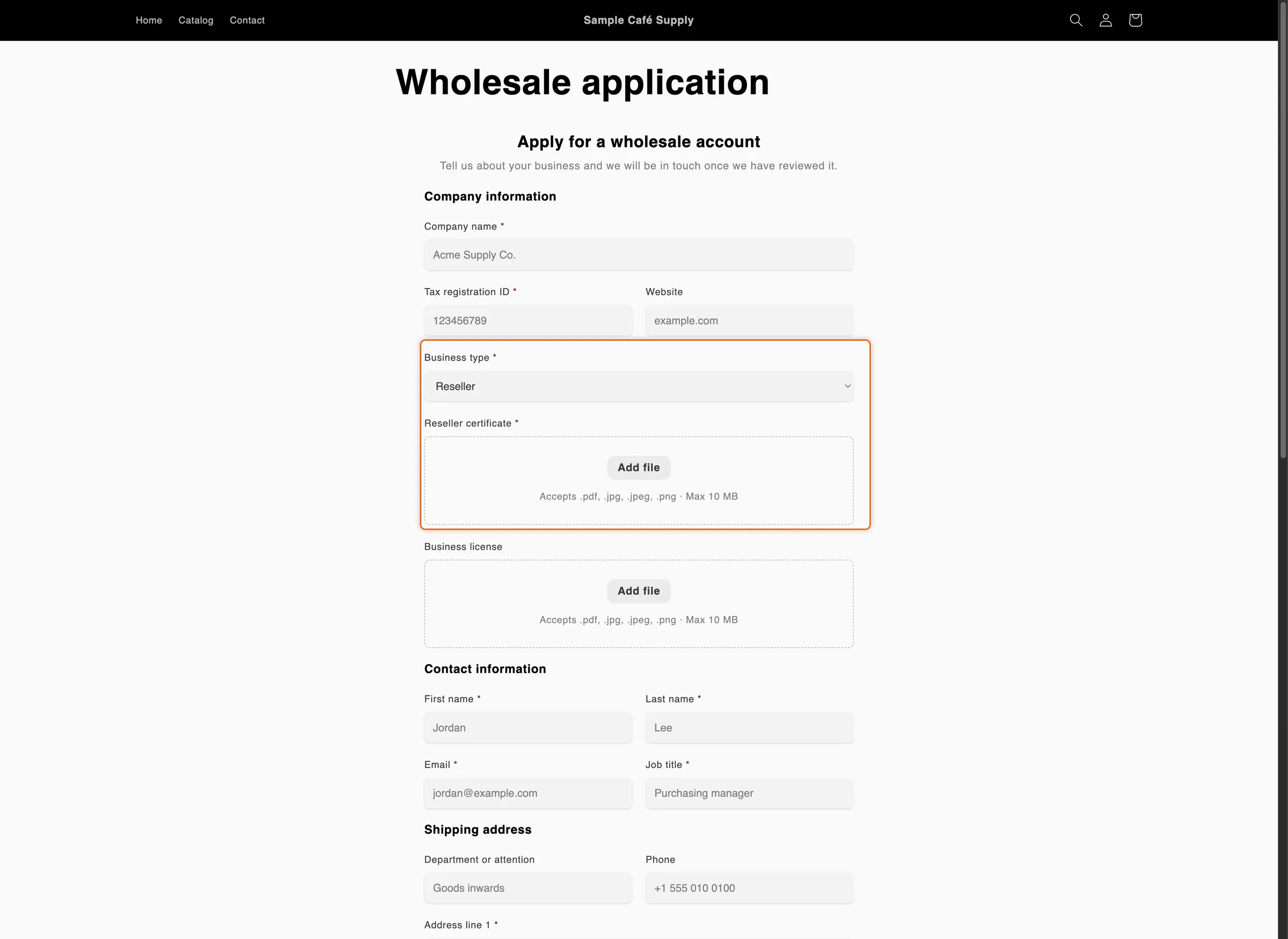
The upload only appears once the buyer says they are a reseller.
Make a field required only sometimes
Section titled “Make a field required only sometimes”To make Job title required for resellers only, select Job title in the preview. Under Visibility, tick Conditional display and choose Make this required. Click Add condition, set Business type is Reseller and click Done. Then click Save.
For everyone else, Job title follows its own Required switch. Make this optional works the other way round: the field is required by its switch, and optional when the conditions match.
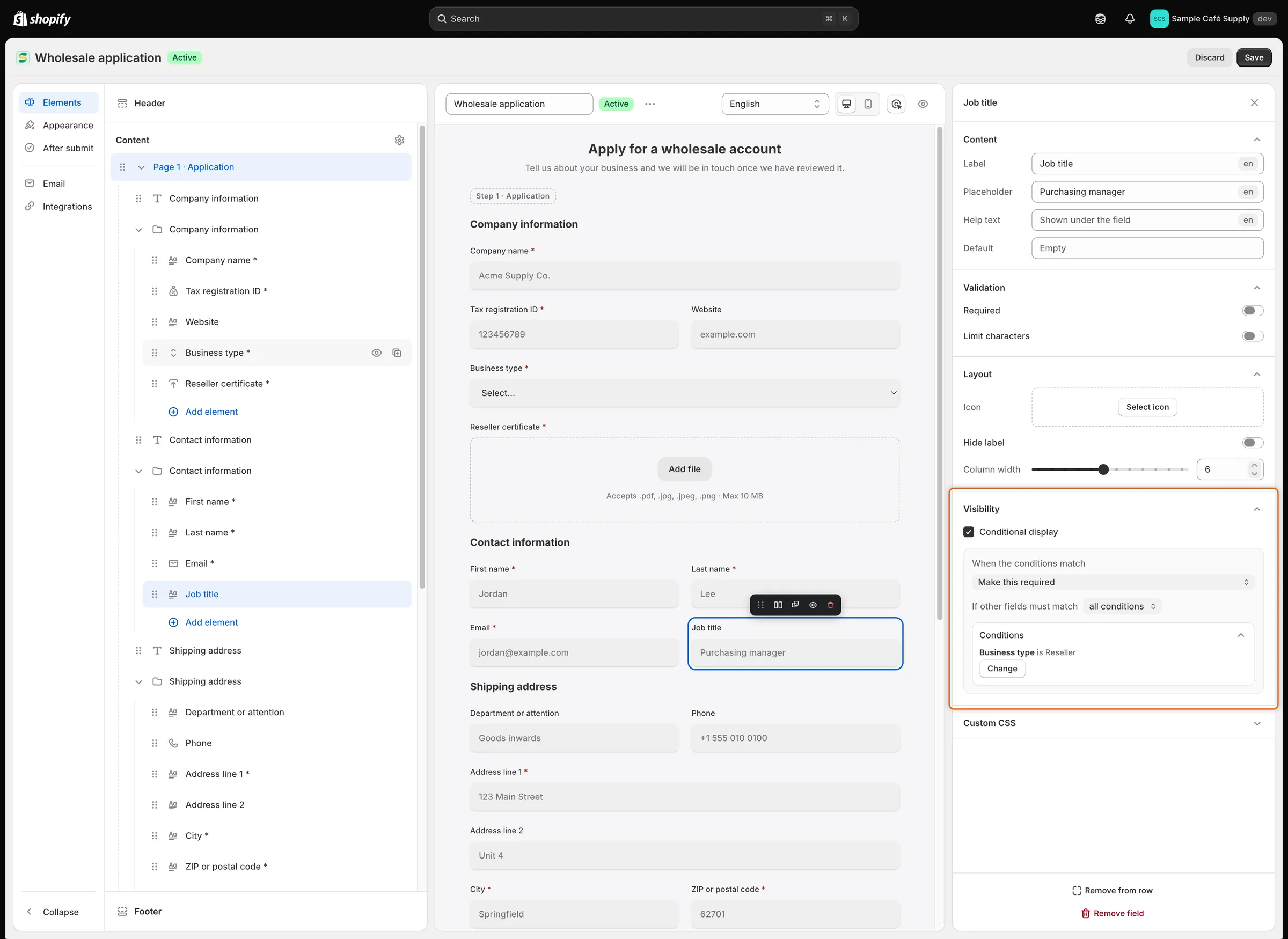
Each rule does one thing, and this one makes Job title required when the buyer is a reseller.
Show or hide a whole row or page
Section titled “Show or hide a whole row or page”A row. Click the row’s name in the Elements panel. Tick Conditional display, choose Show or Hide, and add conditions the same way. A row’s rule can test fields above the row and the row’s own fields.
The Wholesale application already has one: its Billing address row is hidden while the buyer ticks Same as shipping address. The tick box sits just above the row, outside it, so it stays on the form and the buyer can untick it.
A page. Click the page’s name in the Elements panel. Under Visibility, tick Conditional display, choose Show or Hide, and add conditions. A page’s rule can only test fields on earlier pages. A page that a rule hides is skipped, and its required fields aren’t asked.
Combine several conditions
Section titled “Combine several conditions”In the Conditions window:
- Add another condition adds a condition to the same group. Once a group has two or more, a Match list appears at its top: all conditions means every condition in the group must be true, any condition means one is enough.
- Add a condition group starts a second group. If other fields must match then decides how the groups combine: all conditions needs every group to match, any condition needs only one.
- The bin icon (Remove condition) deletes a condition.
Done checks every condition. A condition with no field or no answer is flagged, for example Condition 1: add an answer.
The tests you can use depend on the field being tested:
| Field tested | Tests | How you give the answer |
|---|---|---|
| Dropdown, Checkboxes, Radio buttons | is, is not, contains, does not contain | Pick a choice for is and is not. Type text for the others. |
| Country | is, is not | Pick a country. |
| Number | is, is not | Type the number. |
| Checkbox (a single tick box) | is, is not | Ticked or Not ticked. |
| Any other field | is, is not, starts with, ends with, contains, does not contain | Type the text. |
Tests ignore upper and lower case and spaces at either end. For Checkboxes, and for a Dropdown with Allow multiple choices, is matches when that choice is one of the buyer’s picks.
What happens when the buyer submits
Section titled “What happens when the buyer submits”The app applies the same rules again when the application arrives, so a buyer can’t skip what your rules ask for:
- A field a rule hides is never required, and anything typed into it before it was hidden isn’t saved.
- A field a rule makes required must be answered.
- A greyed-out field is never required.
If you remove a field that a rule tests, the condition shows Deleted field and is ignored. If you move the tested field below the field that has the rule, the Conditions window shows its name followed by (later in the form). Open the rule and choose another field, or move the tested field back above.
Next steps
Section titled “Next steps”- Build your form — add the fields your rules test.
- Map answers to Shopify — save answers such as Business type on the Shopify company or customer.
- Rules that decide applications — approve, flag or reject applications based on their answers.
- Review an application — see a buyer’s answers; fields your rules hid from them aren’t listed.