
File upload limits and retention
How many files customers can upload through the Registration Form and the Cart form, how big they can be, and how long the app keeps them.
Both the Registration Form and the Wholesale cart’s Cart form can include a File upload field, so customers can attach documents like a business license, a tax certificate, or a purchase order. This page covers the limits that apply to those uploads, the messages customers see when a limit is exceeded, and how long the app keeps the files.
Upload limits
Section titled “Upload limits”The same limits apply to Registration Forms and the Cart form, on every pricing plan:
| Limit | Value |
|---|---|
| Maximum size per file | 20 MB |
| Maximum number of files per submission | 20 files |
| Maximum total size per submission | 25 MB |
The number of files and the total size are counted across all file fields on the form, not per field. For example, a form with two File upload fields accepts 20 files in total — not 20 in each.
Which file types customers can upload is set per field with Allowed extensions (jpg, jpeg, and png by default). Tick Allow multiple if a single field should accept more than one file.
What customers see when a limit is exceeded
Section titled “What customers see when a limit is exceeded”On a Registration Form, the files are checked when the customer clicks Submit (or moves to the next step of a multi-step form). On the Cart form, files are uploaded as soon as they’re selected, so the check happens right then and nothing is uploaded until the selection fits the limits. In both cases, one of these messages shows under the field:
| Problem | Default message |
|---|---|
| The file type isn't in Allowed extensions | File not allowed |
| A file is larger than 20 MB | File size limit |
| More than 20 files in the submission | Too many files uploaded |
| The files add up to more than 25 MB | Total file size limit exceeded |
The default messages don’t mention the actual numbers, so you may want to reword them — for example “Each file must be 20 MB or smaller”.
- Registration Form: in the form editor, open the Settings tab, expand Error message, and edit File not allowed, File size limit, File number limit, and Total file size limit. Each message can be translated per language.
- Cart form: go to Settings > Translations, click the pencil icon next to a language, choose Cart Drawer, and edit the same four messages. See Edit and translate content for some of the app’s features.
How long uploaded files are kept
Section titled “How long uploaded files are kept”| Files | Kept for |
|---|---|
| Registration Form uploads made from October 13, 2026 onwards | 6 months from the upload date, then deleted automatically. |
| Registration Form uploads made before October 13, 2026 | As long as the app is installed. |
| Cart form uploads | As long as the app is installed. |
All uploaded files are deleted right away when you uninstall the app.
Download Registration Form files
Section titled “Download Registration Form files”-
Open the Customers list
Section titled “Open the Customers list”From the app, click Registration Form, then click Views registered customers.
-
Open the customer
Section titled “Open the customer”Click the customer whose files you need. Their submission is shown in the Wholesale Customers Registration Form card.
-
Download the files
Section titled “Download the files”Images are shown as thumbnails and other files as links with their original file name — click one to download it.
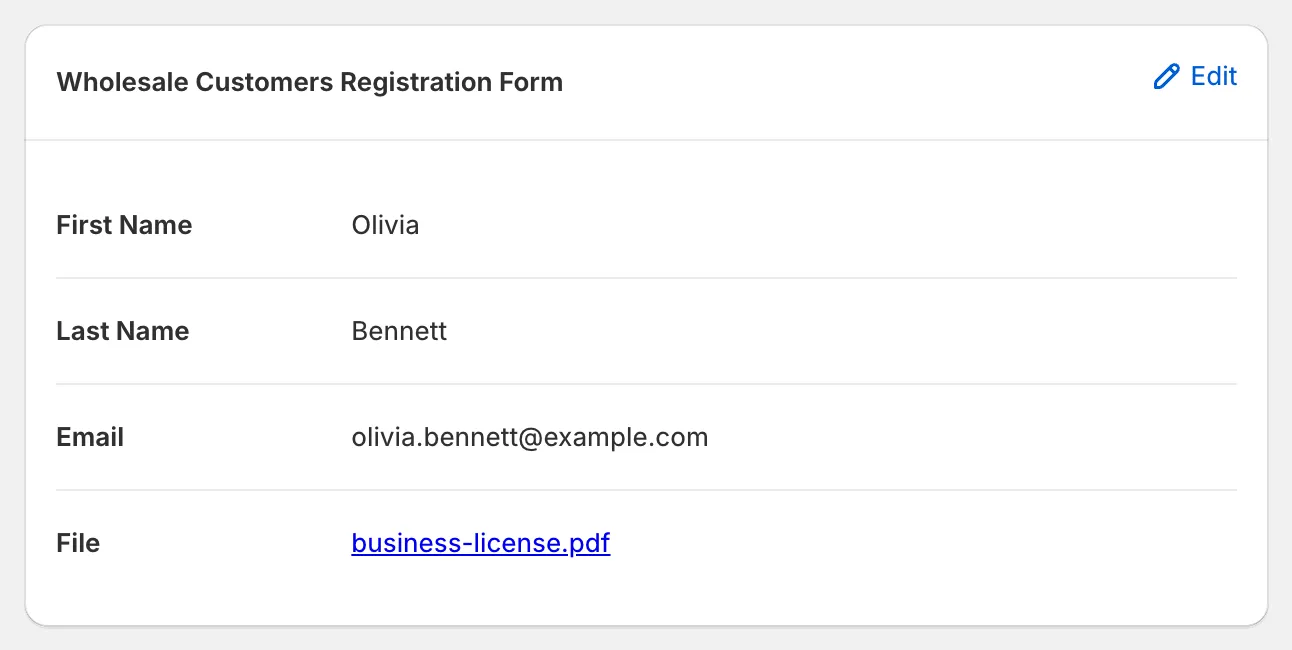
The file links are also included in the admin notification email for the submission, and in the CSV export of the Customers list. Note that the export contains the links, not the files themselves, so those links stop working once the file is deleted.
Find Cart form files
Section titled “Find Cart form files”Cart form files aren’t listed inside the app. Their links are attached to the order (or draft order) in your Shopify admin, under Additional details — one entry named after the file field, plus one entry per file with the file name and its link.
- Files are deleted by a daily cleanup, so a file may be removed up to a day after it turns 6 months old.
Need support?
Section titled “Need support?”If you do encounter any difficulty while proceeding these steps, don’t show any hesitation to contact us promptly via the email address support@samita.io.