
Banners
Where a banner appears
Choose the top, the foot, or a shortcode, then limit the banner by page, device, and date.
The Placement panel is the third icon in the builder’s rail. It answers four questions: where on the page, on which pages, on which devices, and when.
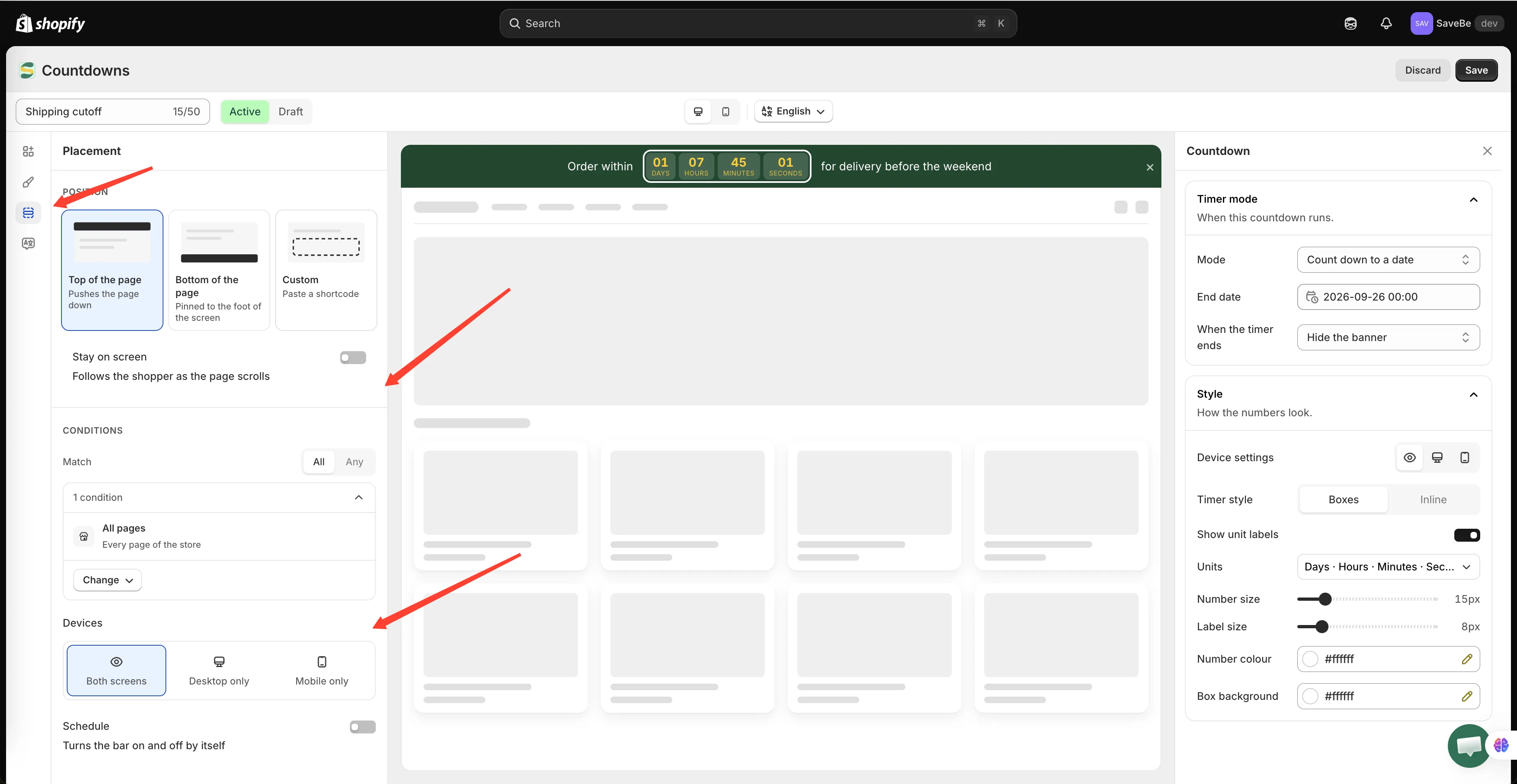
Position first, then who sees it and when.
Position
Section titled “Position”| Position | What it does |
|---|---|
| Top of the page | Sits above everything and pushes the page down |
| Bottom of the page | Pinned to the foot of the screen |
| Custom | Goes wherever you paste the shortcode |
Top and bottom need nothing from you — the app inserts the bar itself.
Stay on screen
Section titled “Stay on screen”Off, the bar scrolls away with the rest of the page. On, it follows the shopper as they scroll.
Custom and the shortcode
Section titled “Custom and the shortcode”Choose Custom and the panel shows a snippet to copy:
<div class="samita-banner" data-id="9"></div>Paste it into your theme where the bar should appear. The app fills it in. Top and bottom need nothing pasted.
Conditions
Section titled “Conditions”Conditions decide which pages and which shoppers get the banner.
At the top, All conditions or Any condition — whether every rule has to be true, or just one of them.
Under that is the list of rules. Click one to open it; click Add condition to add another.
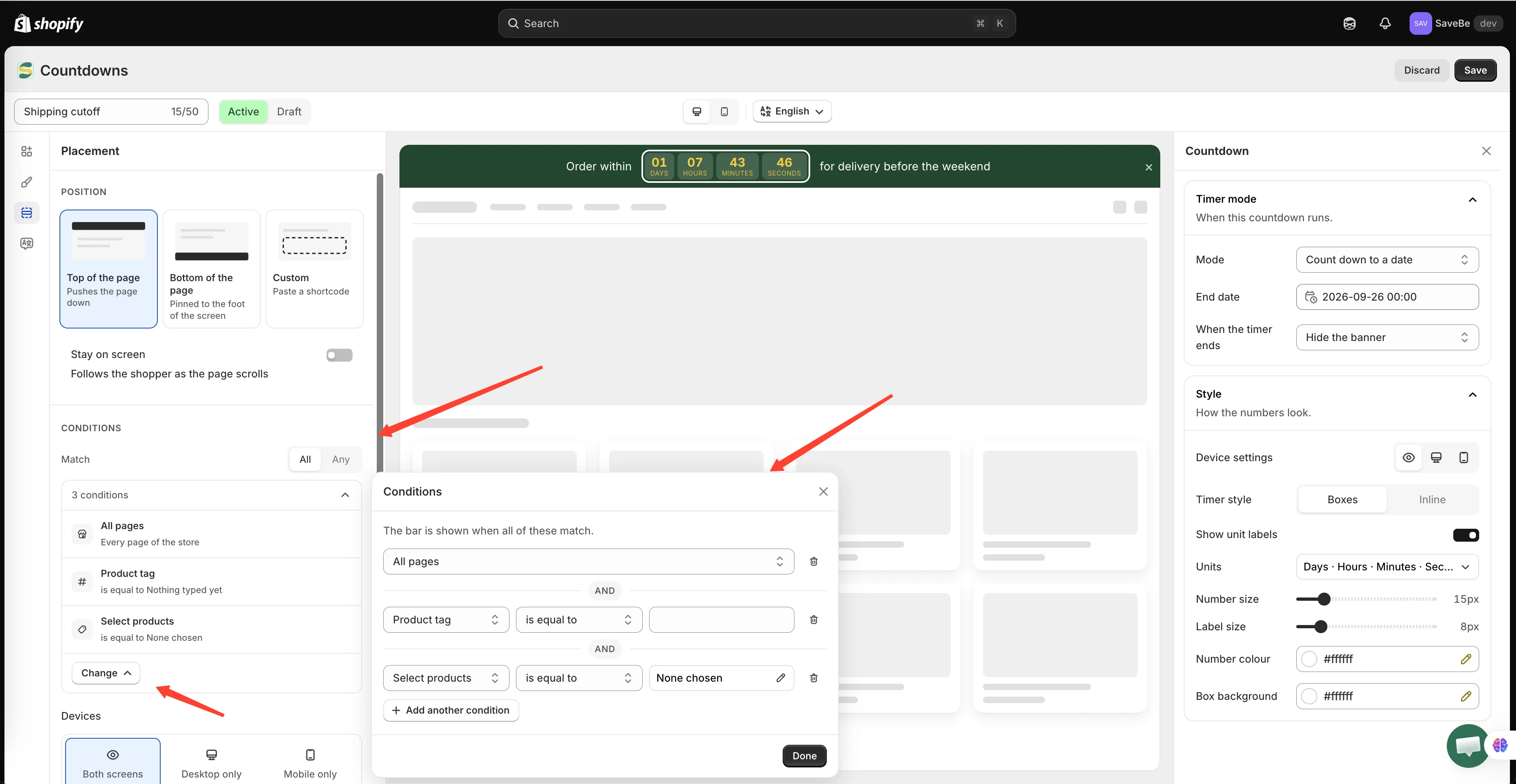
No rules at all means the bar shows everywhere.
The rules you can add
Section titled “The rules you can add”| Rule | Matches on |
|---|---|
| All pages | Every page of the store |
| Page | A page type — home, product, collection, cart, search, blog, article — or specific URLs |
| Select products | Product pages for the products you choose |
| Product tag | Product pages whose product carries a tag |
| Collections | Product pages for products in the collections you choose |
| Customer | Whether the shopper is logged in |
| Customer tag | A tag on the logged-in customer |
| Language | The language the shopper is reading the store in |
| Country | The shopper’s country |
Opening a rule shows a Comparison — is equal to, is not equal to, and for text rules starts with, ends with, contains, does not contain.
Removing a rule
Section titled “Removing a rule”Open it and click Remove condition at the foot.
Devices
Section titled “Devices”Both screens, Desktop only, or Mobile only — for the whole banner.
To drop one element on a phone rather than the whole bar — or to give a phone its own sizes and colours for it — use that element’s Device settings instead. See One element, two screens.
Schedule
Section titled “Schedule”Turns the bar on and off by itself, so you don’t have to remember to come back and set it to Draft.
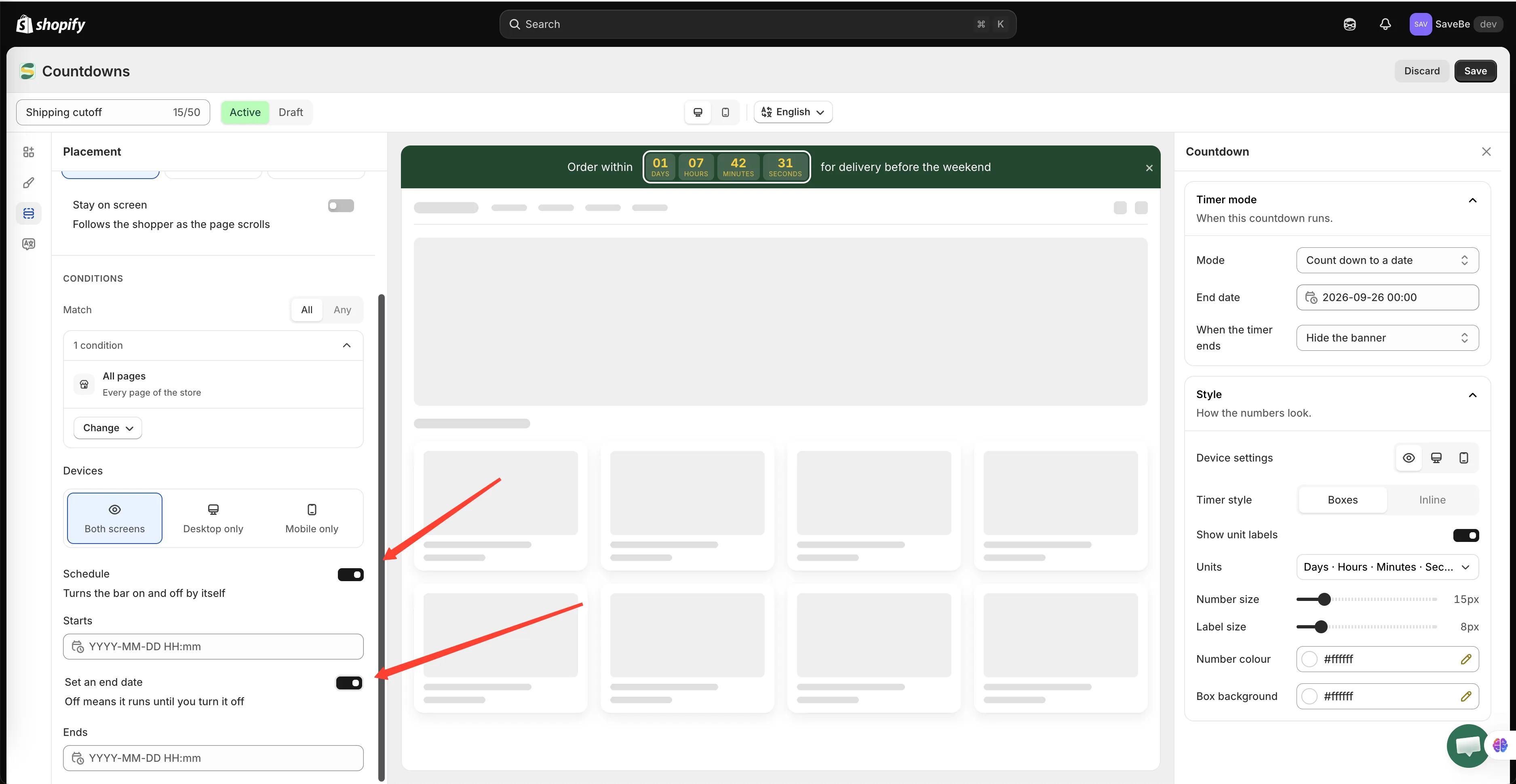
Before the start or after the end, the bar simply isn’t there.
-
Turn Schedule on
The Starts field appears.
-
Set when it starts
Pick a date and time. Before that moment the banner doesn’t render, even when it’s Active.
-
Set an end, if it has one
Turn on Set an end date and an Ends field appears.
Leave it off and the banner runs until you turn it off yourself.
The end has to come after the start — the app says so if it doesn’t.