
Where countdowns appear
Display conditions
Target a countdown at specific products, collections, pages, customers, languages, or countries.
Conditions decide which products, pages, and shoppers a countdown applies to. They’re at the top of the Display tab, above the display position, and the app marks the section as compulsory — every countdown has at least one condition, and a new one starts with All Products.
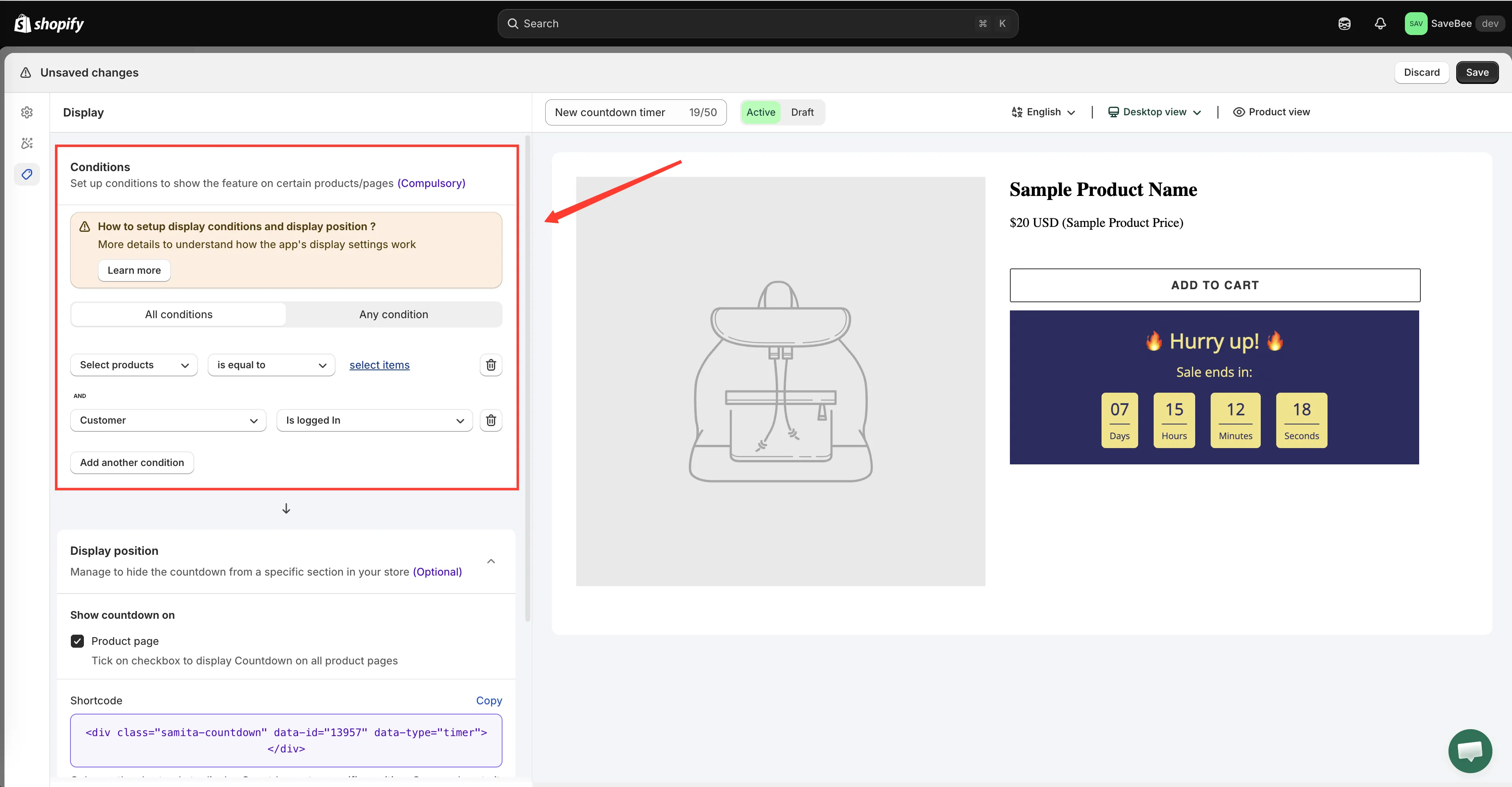
Conditions narrow a countdown down to the products, pages, and shoppers it should apply to.
Building a condition
Section titled “Building a condition”Each row is a sentence: a subject, a comparison, and a value. “Collections is equal to Summer Sale.” “Customer tag contains vip.”
Click Add another condition for more rows, and the ✕ on a row to remove it.
All conditions or Any condition
Section titled “All conditions or Any condition”Above the rows, Products must match: sets how the rows combine:
- All conditions — every row must be true. Use it to narrow down: this collection and this customer tag.
- Any condition — one true row is enough. Use it to widen: this collection or that collection.
What you can match on
Section titled “What you can match on”Countdowns offer eight condition subjects, in five groups.
Products
Section titled “Products”| Subject | Matches |
|---|---|
| All Products | Every product. The default, and the one to leave alone for a storewide countdown |
| Select products | A hand-picked list, chosen from a product picker |
| Product variants | Specific variants, so a countdown can apply to one size or colour |
Collections
Section titled “Collections”| Subject | Matches |
|---|---|
| Collections | One or more collections, chosen from a picker |
A collection is the best target for a campaign that will grow: add a product to the collection later and the countdown covers it automatically, with no edit here.
| Subject | Matches |
|---|---|
| Page | A page type, or a list of specific URLs |
The page types available are Index page, Collection page, Product page, Article page, Blog page, Cart page (including cart drawer), Search page, and Specific pages. Choosing Specific pages lets you paste URLs, in the form your-store.myshopify.com/pages/custom-page1.
Customers
Section titled “Customers”| Subject | Matches |
|---|---|
| Customer | Whether the shopper is signed in: Is logged In or Not logged In |
| Customer tag | A tag on the signed-in customer’s account |
These read the shopper’s own account as their browser sees it. A signed-out visitor has no tags, so a Customer tag condition never matches for them.
Use these for members-only offers, a wholesale timer, or a first-time-buyer message aimed at signed-out visitors.
Language and country
Section titled “Language and country”| Subject | Matches |
|---|---|
| Language | The storefront language the shopper is browsing in |
| Country | The country the app detects for the shopper |
Language is the right way to run a different countdown per market alongside translated text — one countdown per language, each with its own wording and its own Language condition.
Country is detected from the shopper’s IP address at the time they browse, not from an address on their account. A shopper on a VPN is detected as wherever their VPN exits, so don’t attach anything costly to it being exactly right.
Comparisons
Section titled “Comparisons”Which comparisons you get depends on the subject:
| Subject kind | Comparisons |
|---|---|
| Text values (tags, titles, page URLs, country, language) | is equal to · is not equal to · starts with · ends with · contains · does not contain |
| Pickers (products, collections, variants) | is equal to · is not equal to |
| Customer | Is logged In · Not logged In |
Worked examples
Section titled “Worked examples”A timer on one collection
Collections is equal to Summer Sale
A timer on two collections
Products must match: Any condition Collections is equal to Summer Sale Collections is equal to Clearance
A VIP-only delivery promise
Products must match: All conditions All Products Customer tag contains vip
A timer for signed-out visitors only
Products must match: All conditions All Products Customer Not logged In
Checking your conditions
Section titled “Checking your conditions”Test both sides: a page that should show the countdown, and one that shouldn’t.
For customer conditions, use a private browser window for the signed-out case and a real test customer account for the signed-in one — your own admin session doesn’t count as a logged-in storefront customer.