
Countdown timer
Countdown timer overview
The three ways a countdown timer can run, and which one fits your campaign.
A countdown timer is the classic urgency widget: a heading, a subtitle, four ticking numbers, and an optional button. What makes one timer different from another is its Time type — the rule that decides what it’s counting towards.
The app has three, and you choose one on the Settings tab under Setting timer.
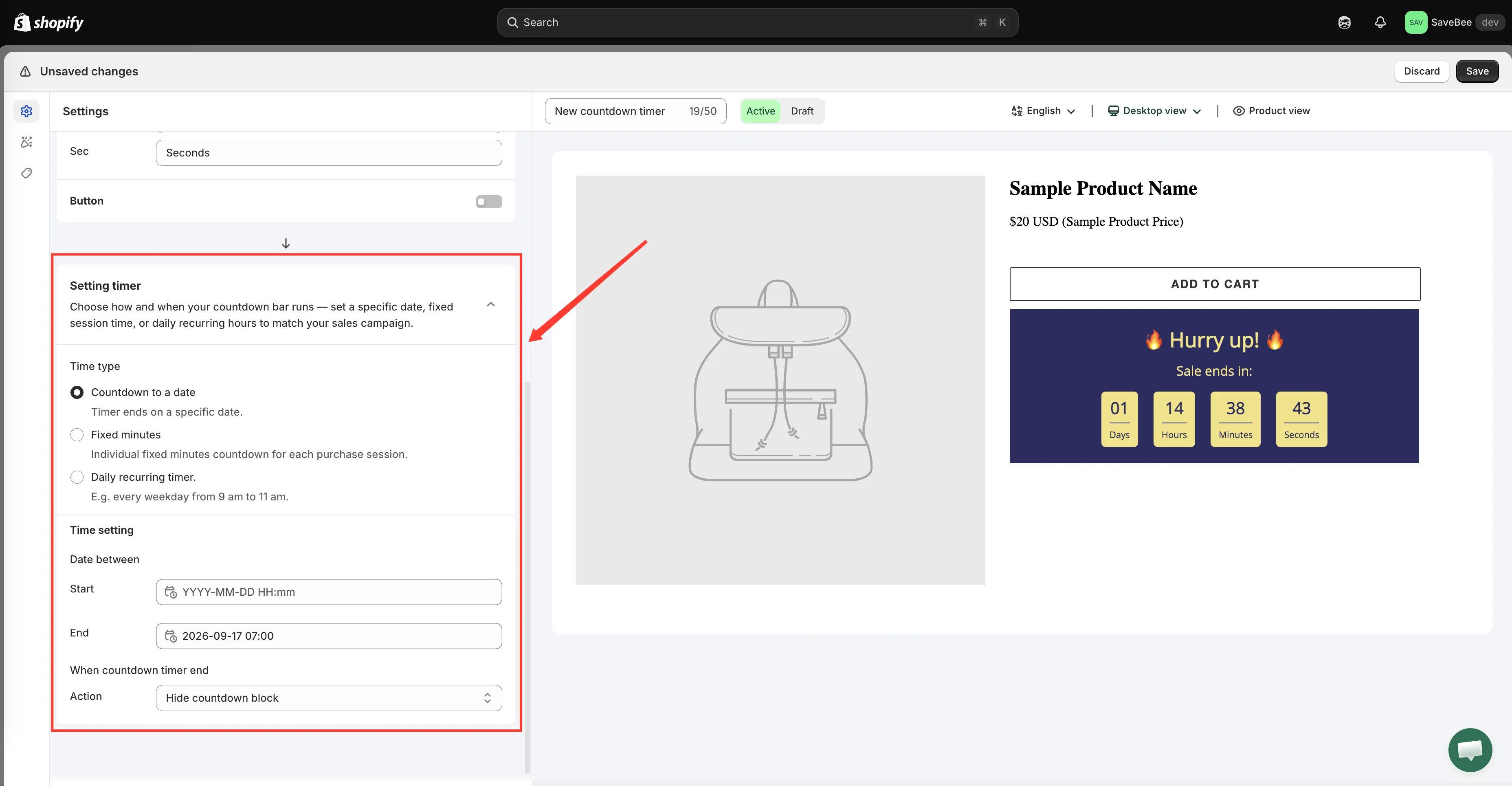
Time type is the first decision — everything else in the section follows from it.
Pick your Time type
Section titled “Pick your Time type”| Time type | Every shopper sees… | Best for | Guide |
|---|---|---|---|
| Countdown to a date | The same deadline, ticking down to one moment | A sale, a launch, a pre-order window | Count down to a date |
| Fixed minutes | Their own timer, starting when they arrive | Always-on urgency with no real deadline | Fixed minutes per visitor |
| Daily recurring timer | A window that opens and closes on set days | Happy hour, weekday flash sales, daily deals | Daily recurring timer |
Each guide is a complete walkthrough — from creating the countdown to checking it on your storefront — so you won’t need to come back here mid-setup.
What every timer shares
Section titled “What every timer shares”Whichever mode you pick, the rest of the timer works the same way:
- Text — a title, a subtitle, the four unit labels, and an optional button. See Timer text and button.
- An ending — what happens when the clock reaches zero. See When the timer ends.
- Placement — product pages automatically, or anywhere with a shortcode. See Display overview.
- Design — colors, fonts, background, borders, spacing. See Design a countdown.
Which mode is right?
Section titled “Which mode is right?”Use Countdown to a date when the deadline is real. A shopper who sees the same clock as everyone else, and can check it against your marketing, will trust it.
Use Fixed minutes when you want urgency without a deadline — but be aware every visitor gets their own clock, so two people looking at the same product see different numbers.
Use Daily recurring when the offer genuinely repeats: the timer counts down to the end of today’s window, then goes away until the next one.