
Banners
Banners overview
A bar across the top or foot of every page, holding a message, a countdown, a button, a code, or an image.
A banner is a strip that spans the width of your storefront. It’s where you announce free shipping, a sale that ends tonight, or a discount code — without editing your theme or taking over the page.
Banners aren’t a countdown type. They live in their own section of the app, reached from Banners in the app’s menu, with their own list page and their own editor.
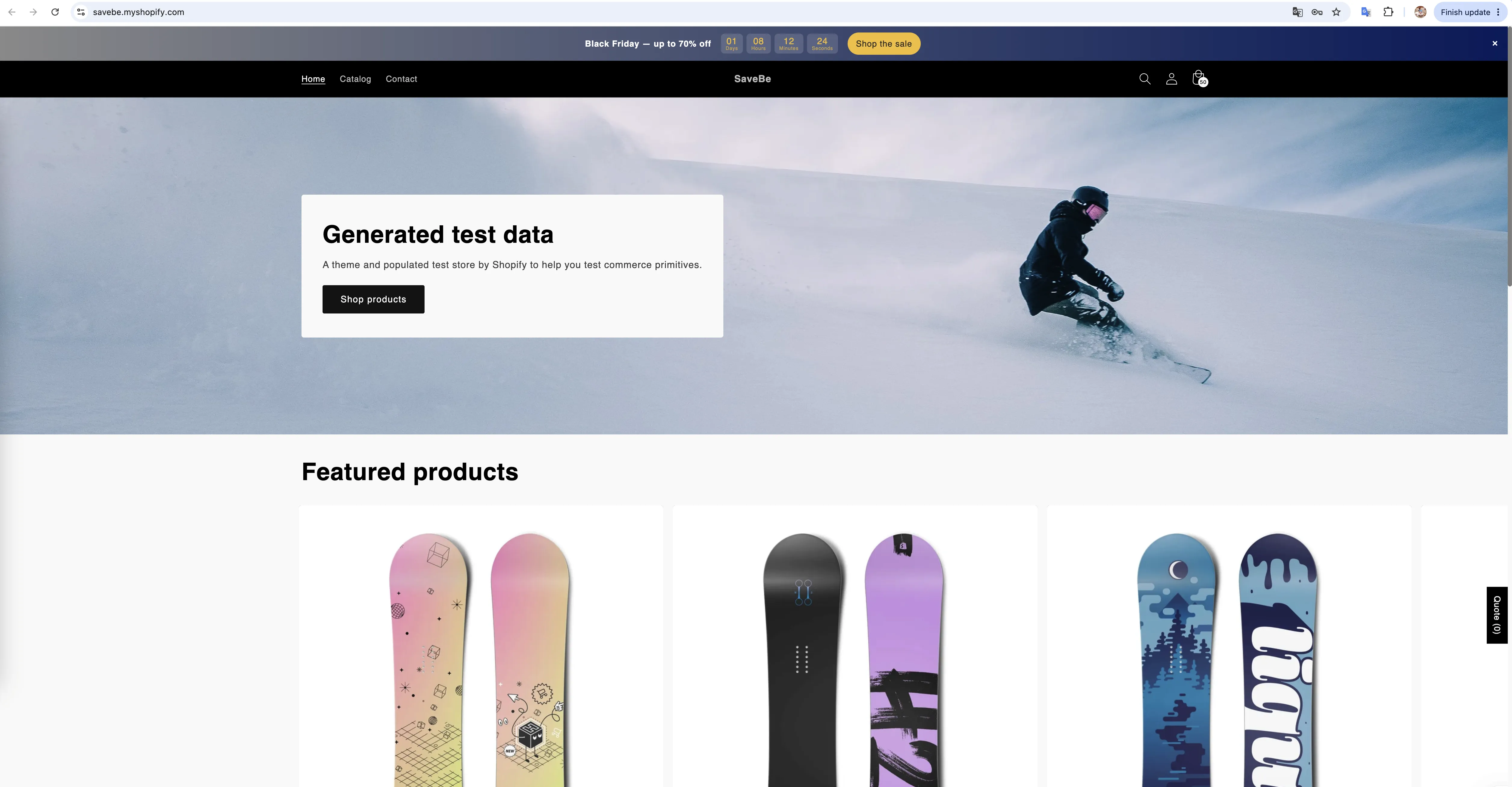
A banner at the top of the storefront, with a message, a countdown, and a button.
What a banner is made of
Section titled “What a banner is made of”A banner holds elements laid out in a row. There are six kinds:
| Element | What it is |
|---|---|
| Text | A line of words — the message itself |
| Countdown | A live timer that counts down to a date, or per shopper |
| Button | A link, a jump to a section, or a discount code the shopper applies |
| Discount code | A code the shopper copies with one click |
| Image | A logo, a badge, or a small illustration |
| Line break | Starts a new line, so the bar can run in two rows |
Elements sit inside a group. One group is the ordinary case and reads as a plain bar. Add a second group and the bar cycles between them, so one banner can say two things in turn.
How the editor is laid out
Section titled “How the editor is laid out”The builder has three panels down the left, and a fourth column on the right for whichever element you’ve picked.
| Panel | What it holds | Guide |
|---|---|---|
| Content | Groups, elements, and the order they sit in | Bar content and elements |
| Design | Background, colours, spacing, the close button, the bar link | Design a banner |
| Placement | Where it sits, which pages and devices see it, and when it runs | Where a banner appears |
Animation — how the bar arrives and how groups change over — is part of the Design panel and has a guide of its own.
It places itself
Section titled “It places itself”You don’t have to touch your theme. Choose Top of the page or Bottom of the page and the app inserts the bar for you.
If you want it somewhere else — under a specific section, halfway down a landing page — choose Custom and paste the shortcode where it belongs. See Where a banner appears.
Where to start
Section titled “Where to start”Managing your banners
Section titled “Managing your banners”The Banners page lists them all, with All, Active, and Draft tabs, search, and sorting. See Manage banners.