
Countdowns
Choose a template
Browse, filter, and search the ready-made designs for every countdown type.
Every countdown starts from a template. A template is a starting design — colors, layout, background artwork — and nothing about it is permanent: you can change every part of it in the builder afterwards, or swap to a different template later.
The Countdown templates page opens whenever you click Create countdown.
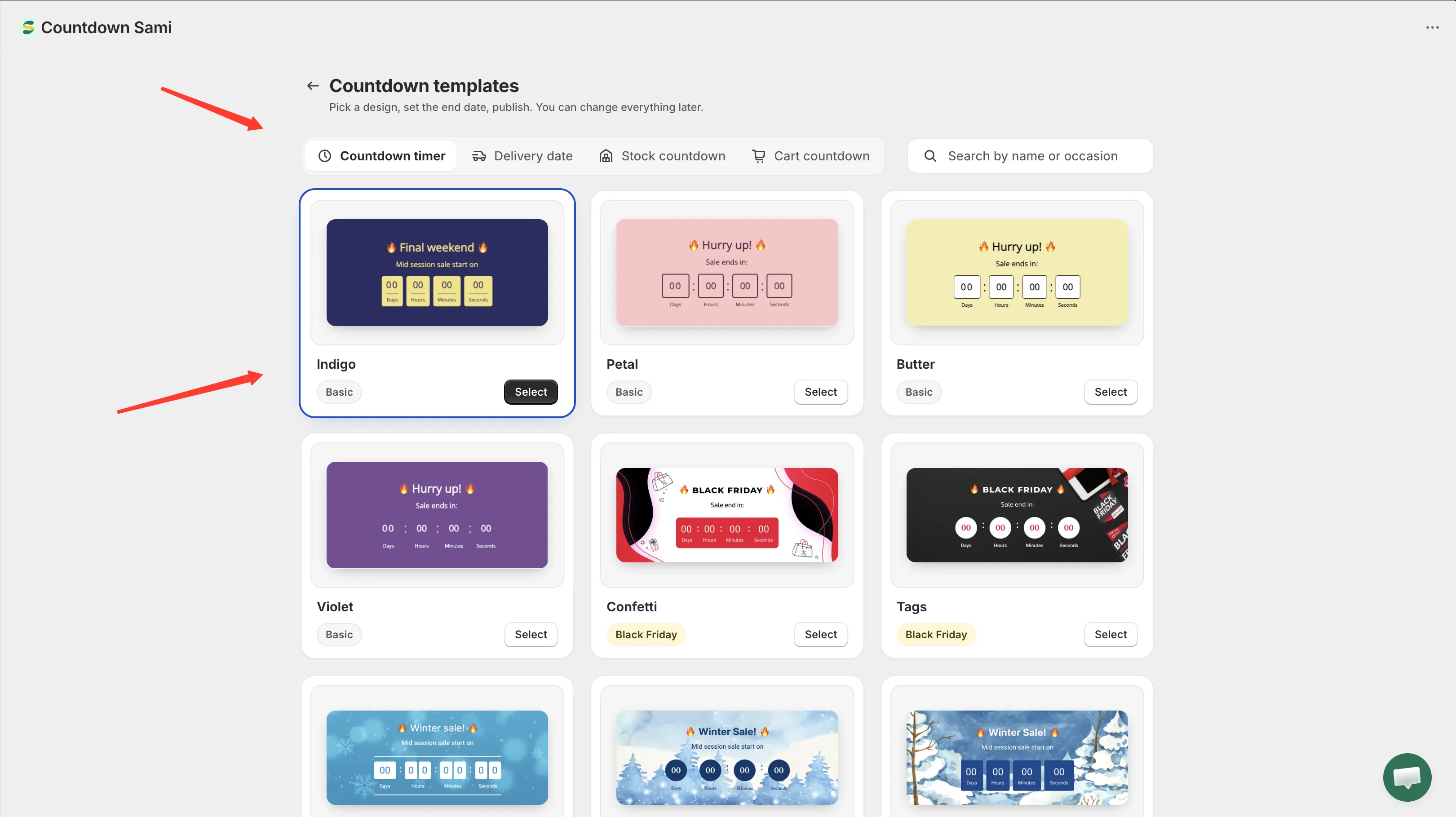
The template picker: type tabs across the top, search on the right, designs below.
Choose the type first
Section titled “Choose the type first”The segmented bar at the top switches between Countdown timer, Delivery date, Stock countdown, and Cart countdown. Each type has its own set of designs, and switching type clears whatever filter or search you had.
Timer designs are grouped by occasion
Section titled “Timer designs are grouped by occasion”Countdown timer templates come in ten occasions:
Basic · Black Friday · Winter Sale · Christmas · April Fool’s Day · Moon Festival · New Year · Summer Sale · Valentine · Halloween
Each design has a name read off its artwork — Onyx, Ribbon, Snowfall, Lantern, Parasol — rather than a number. The chip in the corner of each card tells you which occasion it belongs to.
Timer designs are also drawn for different places on your store. Some are shaped for the product page, some for a full-width bar across the top or bottom of the page, and some for a landing page. The shape travels with the design when you select it, so pick one that suits where you intend to show the timer.
The other three types are layouts, not occasions
Section titled “The other three types are layouts, not occasions”Delivery date has four layouts, matching the four ways the message and the order-progress bar can be arranged:
| Layout | Shows |
|---|---|
| Message and progress bar | The delivery message above the progress bar |
| Progress bar and message | The progress bar above the message |
| Message only | Just the delivery text |
| Progress bar only | Just the Ordered → Dispatched → Delivered bar |
Stock countdown and Cart countdown each have a single default layout.
Filter by occasion
Section titled “Filter by occasion”Clicking a season chip on the dashboard opens the picker already filtered to it. The filter shows as a chip above the grid — click the ✕ on that chip to clear it and see every design for the type again.
Search
Section titled “Search”The search field matches on both the design’s name and its occasion, in your admin language and in English. Typing halloween finds the Halloween design even though it’s named Midnight; typing midnight finds it too.
The grid shows 12 designs per page, with arrows underneath when there are more.
Select a design
Section titled “Select a design”Click Select on a card. The builder opens with that design already applied and your countdown ready to configure.