
Dashboard tour
Every part of the app dashboard explained — search, record counts, setup cards, templates, and the language picker.
The dashboard is the app’s home screen. It’s built to answer three questions at a glance: is the app actually running on my storefront, what have I already made, and what should I do next.
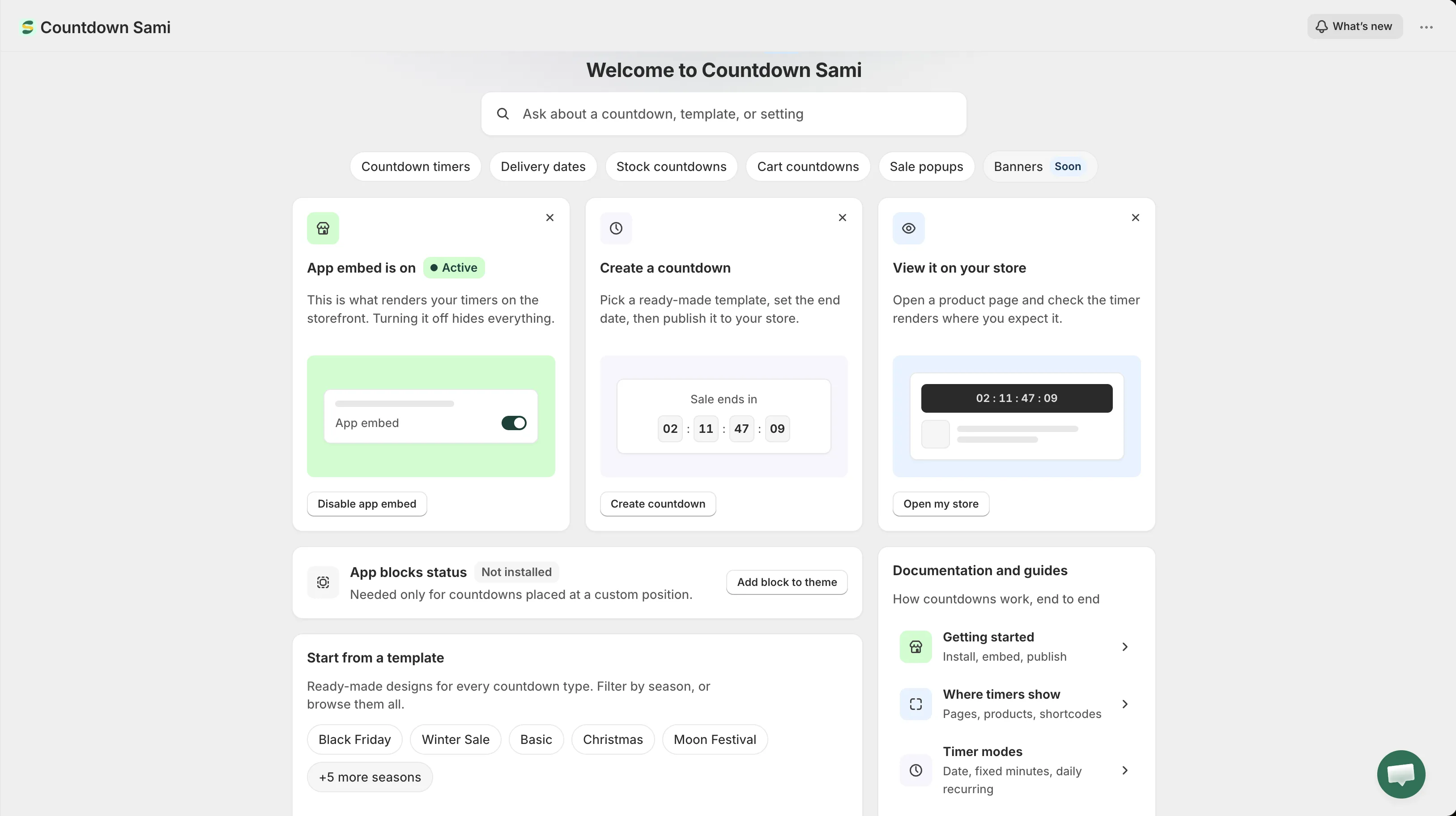
The app dashboard.
What’s new
Section titled “What’s new”A What’s new button sits in the top bar, beside your store name. It opens the release notes for the current version without leaving the page. The same notes are published at What’s new.
Search
Section titled “Search”The search field under the greeting is the fastest way around the app. Type what you want to do rather than where you think it lives — “not showing”, “black friday”, “delivery”, “shortcode” all land somewhere sensible.
It searches two things at once:
- Tasks — grouped as Create, Templates, Timer behaviour, and Fix and manage. Picking one either opens the right screen or opens the matching documentation page.
- Your own records — your countdowns and sale popups by name. These only appear once you start typing, and picking one opens that record’s editor directly.
Use ↑ ↓ to move through results, Enter to open the highlighted one, and Esc to close the panel.
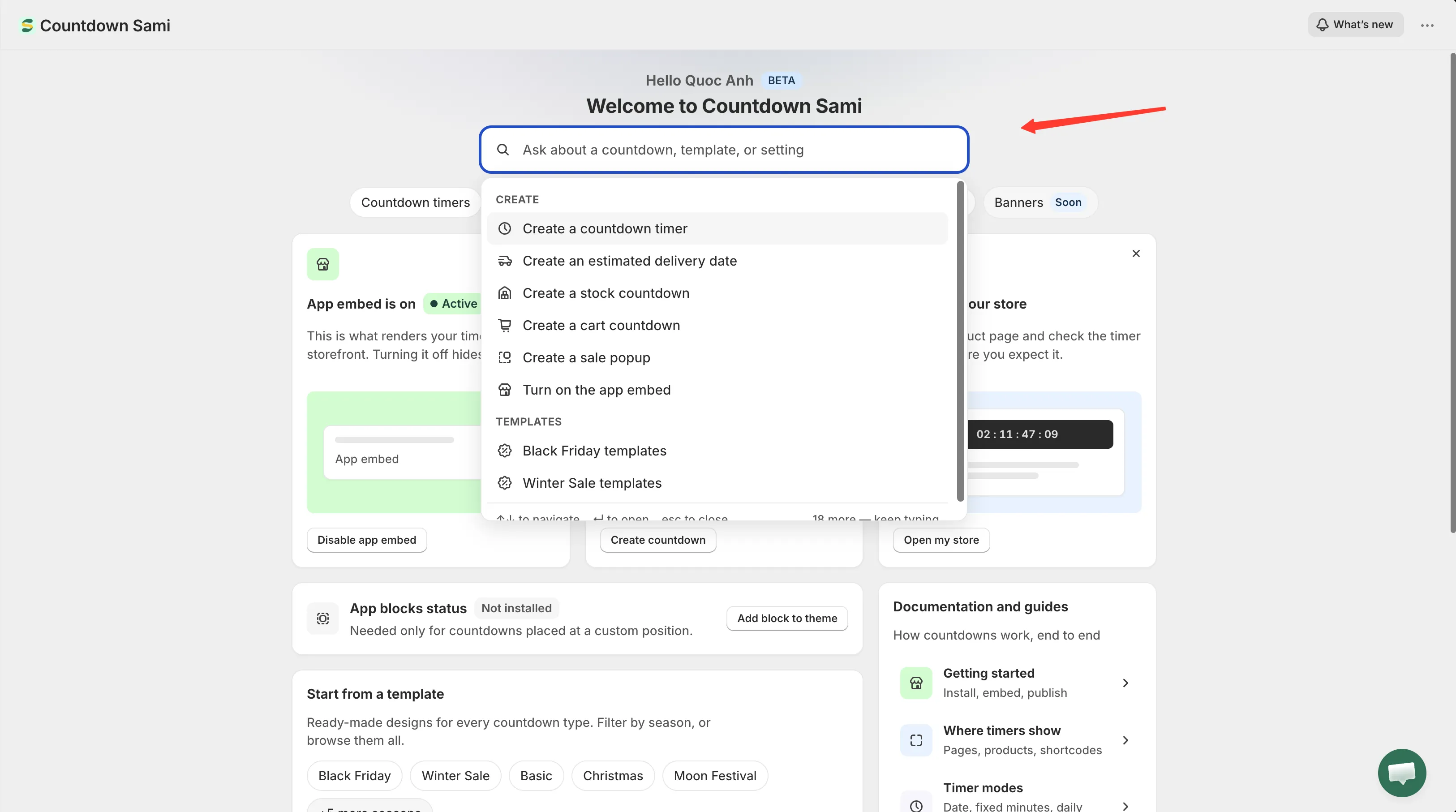
Search covers both app tasks and the records you’ve already created.
Record counts
Section titled “Record counts”The row of chips under the search field shows how many of each type you’ve created: Countdown timers, Delivery dates, Stock countdowns, Cart countdowns, and Sale popups.
Clicking a chip takes you somewhere useful rather than always the same place. A type you already use opens the Countdowns list filtered to it; a type you haven’t used yet opens the template picker on that tab, since an empty filtered list would be a dead end.
The Banners chip is marked Soon — that feature isn’t available yet.
Setup cards
Section titled “Setup cards”Three cards cover everything needed before a countdown is visible:
| Card | What it does |
|---|---|
| App embed | Reports Active or Inactive and opens the theme editor to switch it. See Turn on the app embed. |
| Create a countdown | Opens the template picker. See Choose a template. |
| View it on your store | Opens your live storefront in a new tab so you can check the result. |
These cards stay on the dashboard rather than disappearing once you’ve done them — the app embed card in particular is worth keeping, because it’s the one switch that hides every countdown at once.
You can dismiss any card with the ✕ in its corner, and the remaining cards widen to fill the row. Dismissing the app embed card doesn’t lose its status: the theme integration panel below picks it up instead.
Theme integration
Section titled “Theme integration”Below the setup cards, a panel reports what the app has active on your current theme:
- App embed status — Active or Inactive. This is the switch that renders countdowns and sale popups.
- App blocks status — Installed or Not installed. Only needed for countdowns placed at a custom position with a shortcode.
If the app can’t read the status — it happens occasionally — the panel says so rather than sitting on a spinner. Reload the page to try again.
Full detail is on the Theme integration page.
Start from a template
Section titled “Start from a template”A shortcut into the template picker, with chips for the first few occasions — Black Friday, Winter Sale, Basic, Christmas, Moon Festival — and Browse all templates for everything else. Picking a season chip opens the picker already filtered to it.
Documentation and guides
Section titled “Documentation and guides”The documentation panel links out to the five guides that answer most questions:
| Row | Goes to |
|---|---|
| Getting started — install, embed, publish | Getting started |
| Where timers show — pages, products, shortcodes | Display overview |
| Timer modes — date, fixed minutes, daily recurring | Countdown timer overview |
| Design and translate — colors, fonts, label text | Design a countdown |
| Timer not showing? — the five things to check | Countdown not showing |
Footer: documentation, support, and app language
Section titled “Footer: documentation, support, and app language”The footer carries a link to these docs, a Chat with support link that opens the Contact us form, and the app language picker.
The language picker changes the language of the app’s own admin interface — nothing on your storefront. Your choice is saved to your store, so it’s still there next time you open the app. See App language.
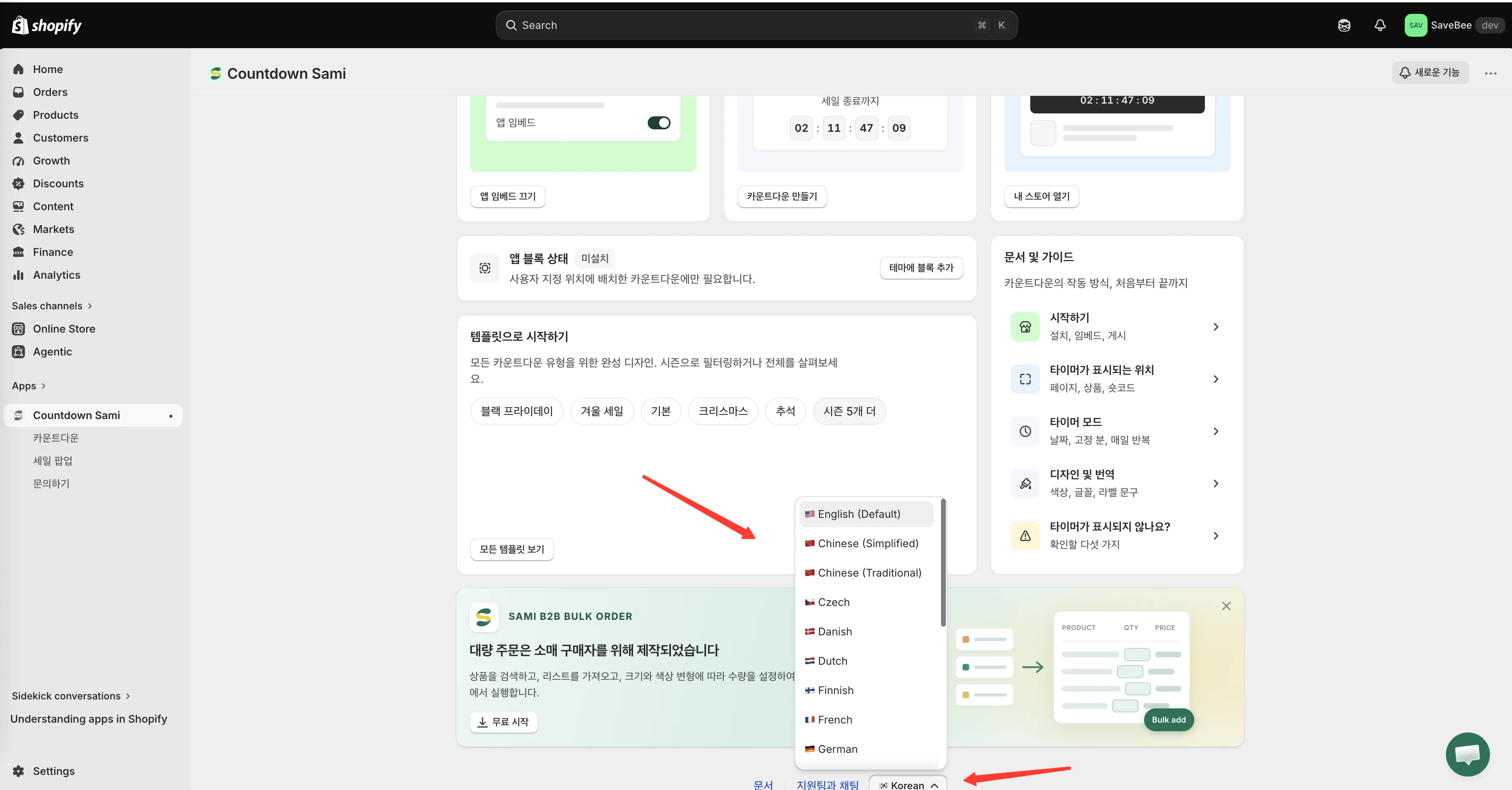
The footer language picker changes the admin interface language only.
Navigation
Section titled “Navigation”The app’s main menu — in the Shopify admin sidebar under the app name — has four entries: Dashboard, Countdowns, Sale Popups, and Contact us.